When your hands are full (driving, cooking, or walking with AirPods in), pulling out your iPhone to see who is calling is the last thing you want to do. Announce Calls fixes that: Siri says who is calling, and you answer or decline with your voice. On current versions of iOS, Apple puts the setting at Settings > Siri > Announce Calls, where you pick when announcements happen, from every call to never.
What Announce Calls does
With Announce Calls turned on, Siri identifies an incoming phone call or FaceTime call and then asks whether you want to answer it. Apple says the feature works on supported headphones and when you are using CarPlay, and that you can respond without saying “Siri” or “Hey Siri” first. Apple also notes that supported third-party calling apps can use it, so it is not limited to the built-in Phone app.
Apple’s guide says only that Siri identifies the caller, so the exact words you hear can differ between a saved contact and an unknown number.
Before you turn it on
- Siri needs to be on. Siri is the voice that makes the announcement, so a phone with Siri switched off has nothing to announce with. You can check under Settings > Siri > Requests, where you choose whether Siri listens for “Siri” or “Hey Siri.” If you switched Siri off earlier, these steps for turning Siri off and back on show where each switch lives.
- Headphones or CarPlay. Apple describes the feature for supported headphones and CarPlay.
Turn on Announce Calls
These steps follow Apple’s iPhone User Guide for recent iOS versions. On some iPhones the Siri menu is named Apple Intelligence & Siri instead of Siri; the steps are the same.
- Open the Settings app.

Older iOS version shown; current screens look different. - Scroll down and tap Siri (or Apple Intelligence & Siri).
- Tap Announce Calls.

Older iOS version shown; current screens look different. - Tap the option you want. The choice is saved as soon as you tap it, so you can leave Settings.

Older iOS version shown; current screens look different.
Apple’s guide says to choose an option without listing them. The four choices in the table below are the ones commonly shown; if your list looks different, pick the closest match.
Which option to choose
| Option | When Siri speaks up | Good fit for |
|---|---|---|
| Always | Every incoming call, even without headphones or CarPlay | Someone who often leaves the phone across the room |
| Headphones & Car | Only when headphones are connected or the iPhone is connected to the car | Commuters who also use earbuds |
| Headphones Only | Only through connected headphones | People who want privacy in shared spaces |
| Never | Not at all | Turning the feature off |
A sensible starting point for most people is Headphones & Car. Always is the choice to think twice about, because anyone nearby will hear the caller’s name read out loud.
Answer or decline by voice
After Siri announces the caller, it asks whether you want to answer. According to Apple, you say “yes” to pick up or “no” to decline. You do not need to touch the phone or say “Hey Siri” first.
With compatible AirPods you have a silent option too. Apple’s head gestures let you nod to accept a call or shake your head to decline it. Apple says head gestures need both Announce Calls and Announce Notifications turned on, and you can adjust them in the AirPods settings (tap your AirPods name in Settings, then look for Head Gestures, which sits under Controls & Gestures on some versions).
On older iOS versions
When Announce Calls first appeared, it was part of the Phone settings rather than Siri. On those older versions the path was Settings > Phone > Announce Calls, and later versions moved it to Siri & Search. If you do not see Announce Calls under Siri, check those two places.
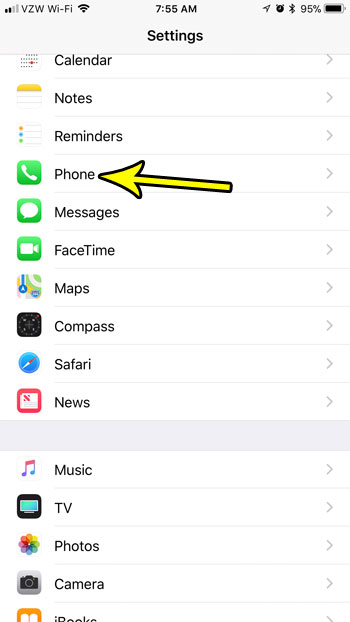
On current versions of iOS, the Phone app’s own settings are at Settings > Apps > Phone, but Apple’s list of those settings does not include Announce Calls, so look under Siri instead.
Announce Calls only covers calls. Messages and other app alerts use a separate switch, Announce Notifications. Apple’s current support article places it at Settings > Notifications > Announce Notifications, while the iOS 26 and iOS 18 editions of the iPhone User Guide show it under Settings > Siri. From there you can choose which apps get read aloud, set Messages to Priority Notifications, Time Sensitive and Direct Messages, or All Notifications, and turn on Reply Without Confirmation if you want Siri to send spoken replies without reading them back first.
If the feature you actually want gone is Siri reading your texts, this walkthrough on how to turn off Announce Messages covers that side.
If Siri does not announce a call
- Check the option. With Headphones Only selected, nothing happens when you are in the car without earbuds. Open Settings > Siri > Announce Calls and confirm the choice.
- Check Siri. Make sure Siri is still turned on under Settings > Siri.
- Check your headphones. Confirm the headphones are connected to this iPhone and that you are wearing them. Apple’s support article on announcements lists the compatible headphones.
- Check Focus. If Do Not Disturb or another Focus is on, turn it off and test with another call. These notes on finding and turning off Do Not Disturb can help.
- Check call screening. If unknown callers are set to Silence (Settings > Apps > Phone), calls from numbers that are not in your contacts are sent straight to voicemail without ringing, so there is nothing to announce. On older iOS versions this switch was called Silence Unknown Callers.
Turn Announce Calls off
- Open Settings and tap Siri (or Apple Intelligence & Siri).
- Tap Announce Calls.
- Choose Never (or whichever option turns announcements off on your iPhone).
Your next call rings normally with no spoken name. To bring the feature back, repeat the steps and pick another option.
Announce Calls questions
Does Announce Calls work with FaceTime?
Yes. Apple says Siri identifies both phone calls and FaceTime calls, and supported third-party apps can use the feature as well.
Can I use it without AirPods?
Yes. Other supported headphones and CarPlay work, and the Always option is not limited to headphones or the car.
Will Siri read my messages too?
Not because of this setting. Message announcements depend on Announce Notifications, which you turn on or off separately.
For the official reference, see Apple’s guide to having Siri announce calls and notifications and its support article on announcements and head gestures with compatible headphones. One unrelated tip while you are in Settings: if you have let a friend use your Personal Hotspot and want to stop that, here is how to change the Personal Hotspot password.

Kermit Matthews runs Live2Tech from just outside Philadelphia. He is an IT specialist with over 20 years of experience, from a university help desk to small-business IT, IT management and his own consulting practice, and has written tech guides full time since 2020. Steps are checked against the current software on a real device or the maker’s official documentation. More about Kermit.