If App Store banners and that red number on the App Store icon have worn out their welcome, open Settings, tap Notifications, tap App Store and turn off Allow Notifications. That one switch silences every alert the App Store app sends. If you only want fewer alerts, the App Store has its own notification choices, and update alerts depend on whether automatic app updates are on. All of it is covered below for current versions of iOS.
At the very bottom of the same Notifications screen you can also change government alert settings on iPhone, such as AMBER and Emergency Alerts.
Turn off all App Store notifications
This method stops banners, sounds, Lock Screen alerts and the badge for the App Store app only. Notifications from apps you downloaded from the App Store are not affected; each of those has its own entry in the same list.
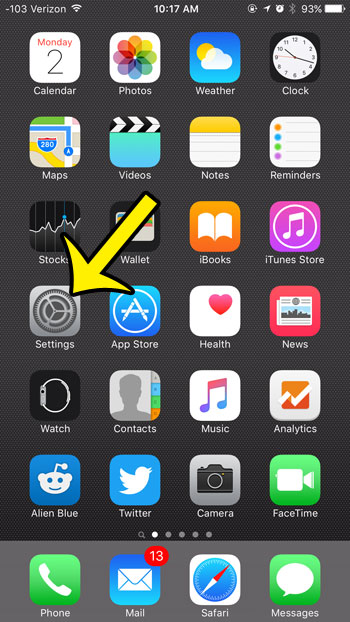
- Open the Settings app.
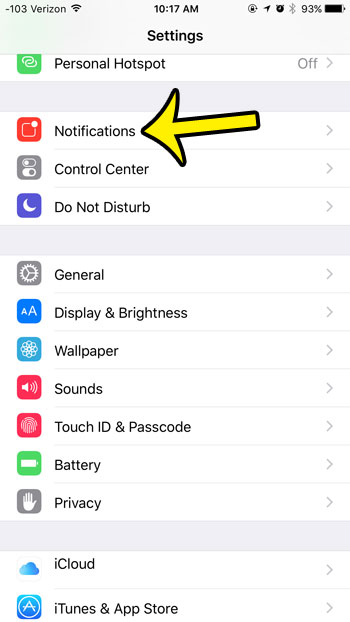
- Tap Notifications. The apps that can send notifications are listed below the Notification Style heading.
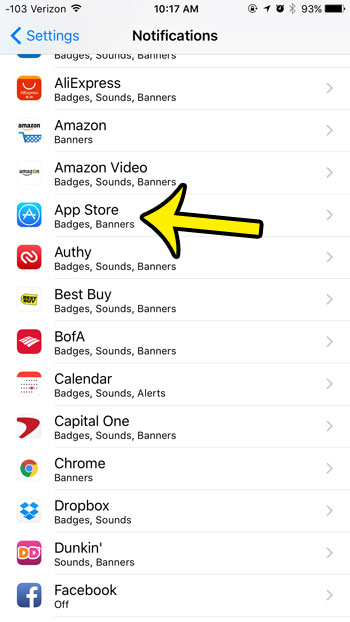
- Scroll to App Store and tap it.
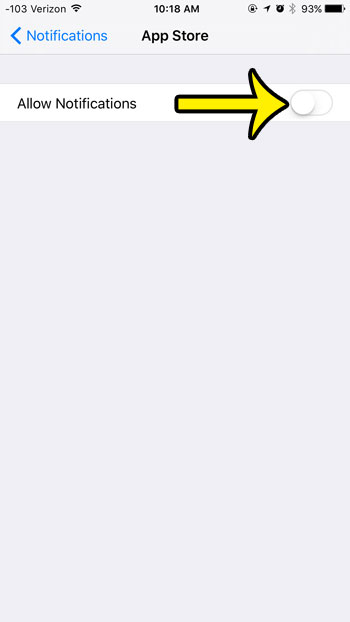
- Tap the Allow Notifications switch at the top of the screen. When it is off, the switch is gray instead of green, and the alert options below it no longer apply.
The change takes effect right away. Apple describes these settings in its iPhone User Guide page on notification settings.
The same switch from the Apps list
Apple also documents a per-app route that starts from the app’s own settings page: open Settings, tap Apps, tap App Store, tap Notifications, then turn Allow Notifications on or off (see Apple’s article on turning app notifications on or off). Both routes change the same setting, so use whichever you find first. On older iOS versions there is no Apps entry, and apps are listed directly in Settings.
Keep the alerts but make them quieter
Turning everything off means you also lose any update alert you might want. If the problem is how loud or visible the alerts are, leave Allow Notifications on and adjust the options on the same App Store notification page instead:
- Alerts: choose where alerts show up. Clear Lock Screen and Banners and leave Notification Center selected, and App Store alerts collect quietly in Notification Center without lighting up the screen.
- Sounds: if this row appears, tap it and choose a different sound or None (if offered) so alerts stay silent.
- Badges: turn this off to remove the red number on the App Store icon. More on what that number means is in this explanation of iPhone badges.
- Notification Delivery: choose Scheduled Summary to get App Store alerts in a batch at times you choose instead of as they arrive (Immediate Delivery). This choice appears only after you turn on Scheduled Summary under Settings > Notifications > Scheduled Summary.
A good middle ground for most people: keep Notification Center only, no sound, Badges off. Nothing interrupts you, but the alerts are still there if you go looking.
Pick which App Store alerts you get
The App Store app also has notification choices inside the app itself, which let you separate useful alerts from promotional ones. On recent versions, open the App Store app, tap your profile picture or the account button at the top of the screen, and look for Notifications. You may see switches along the lines of New Features & Updates and Recommendations & Offers. If you see a recommendations or offers switch, turning off just that one should leave update news on while cutting promotional alerts. Apple does not document these labels on a support page, so the wording on your iPhone may differ.
Settings may also show a link at the bottom of the App Store notification page that opens the app’s own notification settings. Apple’s guide describes this link for apps that offer their own notification options.
Why update alerts appear (and how to stop them)
Many App Store notifications are about app updates. According to Apple’s article on updating apps, apps on iPhone update automatically by default, and if you turn automatic updates off, the App Store sends a notification each time an update is released. So if you switched automatic updates off at some point, the steady stream of update alerts is expected.
To stop them without turning off all App Store notifications, turn automatic updates back on:
- Open Settings and tap Apps.
- Tap App Store.
- Turn on App Updates.
The full walkthrough, including the separate switch for iOS updates, is in how to turn on automatic updates on iPhone. If you prefer to update by hand, open the App Store, tap your account button or photo, and use Update or Update All under App Updates; checking for app updates yourself covers that routine.
Shortcuts for a single annoying alert
From the Lock Screen. When an App Store notification appears on the Lock Screen or in Notification Center, swipe left on it and tap Options. One of the choices is Turn Off, which turns off notifications for that app in one move. Apple describes this in its guide to viewing and responding to notifications; the same Options menu can also mute the App Store for an hour or a day.
For a few hours. If you only need quiet for a meeting or overnight, a Focus such as Do Not Disturb silences App Store alerts along with everything else and leaves your settings untouched. Turning Do Not Disturb on and off explains how it works and how to let important apps through.
When App Store alerts keep showing up
- No Notifications option for the App Store. Apple notes that if Notifications doesn’t appear under Settings > Apps for an app, that app might not be able to send notifications.
- The red badge is still there. Open the App Store notification page again and confirm that Allow Notifications (or at least Badges) is off.
- The messages are emails, not notifications. Marketing emails from Apple are handled separately from these iPhone switches, so changing notification settings does not stop them.
- Alerts still arrive on your iPad. Notification settings are set on each device, so repeat the steps there.
To turn App Store notifications back on later, return to Settings, tap Notifications, tap App Store and turn Allow Notifications on. Then review Alerts, Sounds and Badges, since you may want them set differently than before.
The News app works the same way, so you can also turn off Apple News notifications or keep only the channels you care about.
App Store notification questions
Will turning off App Store notifications stop my apps from updating?
No. Notifications and updates are separate settings. If App Updates is on, apps keep updating in the background whether or not the App Store can notify you.
Does this affect notifications from other apps?
No. Only the App Store app is silenced. To quiet another app, pick it from the same Notifications list.
Can I hide what App Store alerts say on the Lock Screen?
Yes. Notification previews can be limited so the content only shows after Face ID or your passcode; see showing notification previews only when the phone is in use.

Kermit Matthews runs Live2Tech from just outside Philadelphia. He is an IT specialist with over 20 years of experience, from a university help desk to small-business IT, IT management and his own consulting practice, and has written tech guides full time since 2020. Steps are checked against the current software on a real device or the maker’s official documentation. More about Kermit.