An AMBER or emergency alert arrives with a loud, alarm-like sound, often on every phone in the room at once. You can control some of these alerts on your iPhone, but not all of them. The switches are in Settings > Notifications: scroll to the very bottom and look under Government Alerts. Some government alerts can’t be turned off at all, and which switches you see depends on your country or region and your carrier.
Find the Government Alerts switches
- Open the Settings app.

Older iOS version shown; current screens look different. - Tap Notifications.

Older iOS version shown; current screens look different. - Scroll all the way to the bottom, past the list of apps, to the Government Alerts section.

Older iOS version shown; the section now has more options. - Turn each alert type on or off. A switch is on when it’s green. All of these alerts are on by default.
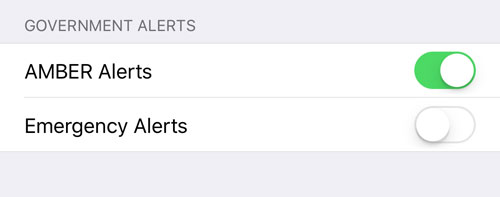
Government Alerts need a SIM or eSIM from a supported carrier. Apple’s page on government, emergency and Enhanced Safety Alerts on iPhone has the full details.
What each alert type means
In the United States, the iPhone User Guide lists these options:
| Alert | What it covers | Can you turn it off? |
|---|---|---|
| National Alerts | Alerts issued at the national level | No switch: you receive them |
| AMBER Alerts | Child abduction emergencies | Yes |
| Public Safety Alerts | Public safety messages from authorities | Yes |
| Emergency Alerts | Severe and Extreme Imminent Threat Alerts, such as dangerous weather | Yes |
| Test Alerts | Test messages from US carriers | Yes (off by default) |
Before turning a switch off, think about where you live and travel. AMBER Alerts ask the public to help in a child abduction case, and Emergency Alerts cover threats such as dangerous storms that may need fast action. The switches are separate, so turning one off leaves the others as they are.
Emergency Alerts: Local Awareness and Always Play Sound
Tap Emergency Alerts itself (not only its switch) to see two more settings:
- Local Awareness: lets the iPhone use your location to make Emergency Alerts more timely, accurate and reliable. Apple gives earthquake alerts in California, Oregon and Washington as an example.
- Always Play Sound: makes Emergency Alerts play a sound even when your iPhone is in Silent mode. Leave it on if you sleep with the phone silenced and still want to hear a serious warning. Here’s how Silent mode on iPhone works.
Enhanced Safety Alerts in the US and Taiwan
On iPhones with iOS 26.2 or later in the United States and Taiwan, Apple adds a separate section. Go to Settings > Notifications, scroll to the bottom, and under Enhanced Alerts tap Enhanced Safety Alerts. You’ll find:
- Earthquake Alerts (on by default)
- Imminent Threat Alerts (on by default)
- Improve Alert Delivery (off by default), which shares your approximate location to help deliver alerts
These alerts come from Apple rather than the government system, look and sound different, and may arrive in addition to a government alert about the same event. They aren’t available in every region or language.
Alerts that stay on, and how other countries differ
Apple says plainly that some government alerts can’t be turned off, and that in some countries or regions you may not be able to turn off Government Alerts at all. AMBER and Public Safety Alerts aren’t offered everywhere, and the names of the switches can differ. In Japan, for example, the list includes Emergency Earthquake Alerts from the Japan Meteorological Agency. Apple also notes that government alerts vary by carrier and iPhone model and may not work under all conditions.
If you wear an Apple Watch, it can receive emergency, government and public safety alerts too.
When the section is missing or alerts don’t arrive
- No Government Alerts section: Apple says the alerts need a SIM or eSIM from a supported carrier, and they aren’t offered in every country or region. Updating iOS in Settings > General > Software Update is also worth a try.
- No Test Alerts switch: Test Alerts are only for US carriers (including Puerto Rico) and need iOS 15.6 or later.
- An Emergency Alert made no sound in Silent mode: check that Always Play Sound is on under Emergency Alerts.
- Alerts didn’t arrive during an event: Apple notes that alerts may not work under all conditions and need a supported carrier. Make sure the switches you rely on are on and the phone has cellular service.
Emergency and AMBER alert questions
Does Do Not Disturb or a Focus block emergency alerts?
Apple doesn’t spell this out on its alerts page, so don’t rely on a Focus to silence them. For everyday notifications, here’s how to find and turn off Do Not Disturb.
Do I need to turn anything on to get alerts?
No. AMBER, Public Safety and Emergency Alerts are on by default, and Earthquake and Imminent Threat Alerts are on by default where Enhanced Safety Alerts exist. Only Test Alerts and Improve Alert Delivery start off. Local Awareness, under Emergency Alerts, is worth checking if you want alerts to be as timely and accurate as possible.
Can I make the light flash for alerts?
That setting is separate from Government Alerts. See how to stop or start the iPhone light flashing for alerts.
For the rest of your notifications, you can turn off App Store notifications and adjust other apps from the same Notifications screen. If your Home Screen is getting cluttered too, you can hide an app in a folder.
Apple’s iPhone User Guide section on changing notification settings covers the Government Alerts switches as well.

Kermit Matthews runs Live2Tech from just outside Philadelphia. He is an IT specialist with over 20 years of experience, from a university help desk to small-business IT, IT management and his own consulting practice, and has written tech guides full time since 2020. Steps are checked against the current software on a real device or the maker’s official documentation. More about Kermit.