A chime for every meeting, birthday and reminder adds up fast, especially on a busy day. To silence it, open Settings > Sounds & Haptics > Calendar Alerts and choose None. Calendar keeps showing its alerts on screen; it just stops playing a tone. These steps work on current versions of iOS on any iPhone, and the sections below also cover vibration, single events, default alert times and Focus.
Turn off the Calendar Alerts tone
This is the setting that decides which sound plays when a calendar event alert arrives. Choosing None removes the sound for every alert from the Calendar app, whichever account the event belongs to.
- Open the Settings app.
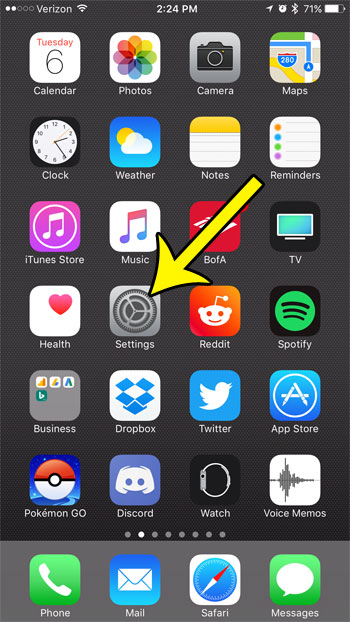
Older iOS version shown; current screens look different. - Tap Sounds & Haptics.

Older iOS version shown; current screens look different. - Scroll to the list of sound categories (Ringtone, Text Tone and so on) and tap Calendar Alerts.
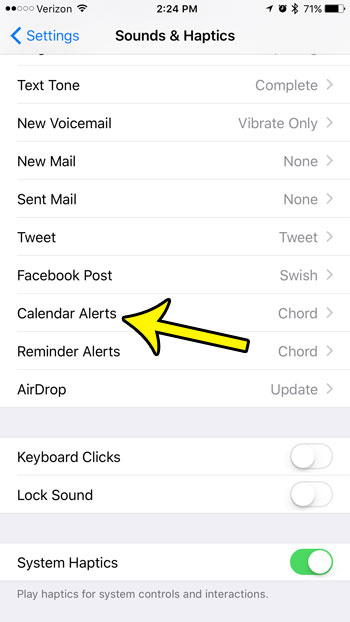
Older iOS version shown; Calendar Alerts is still one of the sound categories. - In the list of tones, tap None. A check mark appears beside it.
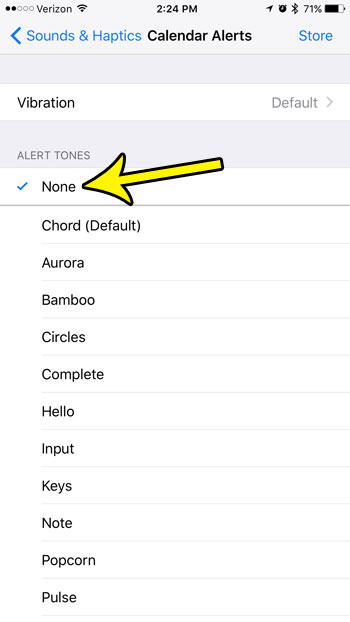
Older iOS version shown; current screens look different. - Tap the back arrow. The setting saves on its own; there is no Save button.
Apple describes this path on its change sounds and vibrations page: tap a sound category such as Calendar Alerts, then tap a sound to select it.
What None changes and what it leaves alone
People are often surprised that the phone still buzzes after they pick None. That is because sound, vibration and the on-screen alert are three separate settings:
| Part of the alert | Controlled by | Affected by choosing None? |
|---|---|---|
| Tone | Sounds & Haptics > Calendar Alerts | Yes, no tone plays |
| Vibration | Haptics inside Calendar Alerts | No |
| Banner, Lock Screen and Notification Center | Settings > Notifications > Calendar | No |
| When the alert fires | The event’s Alert field or Default Alert Times | No |
So if your goal is a quiet heads-up you can glance at, None on its own is usually the right setting. If you want the phone completely still, also change the vibration.
Stop the vibration too
- Go to Settings > Sounds & Haptics > Calendar Alerts.
- Tap Haptics near the top of the screen.
- Choose a different pattern, or pick None if your iPhone lists it on that screen.
Apple’s page says to tap Haptics and then choose a pattern or tap Create New Vibration to record your own. It does not name a None option, so if your screen lacks one, see turning off vibration on iPhone for the phone-wide switches. Vibration for taps and system controls is a separate setting covered in how to turn off System Haptics.
The second place that touches Calendar sounds is the app’s notification screen. Here you decide whether alerts appear at all and where.
- Open Settings > Notifications.
- Below Notification Style, tap Calendar.
- If a Sounds option appears, use it to turn the sound off or choose a sound. Apple’s wording is that you can tap Sounds “if the app supports it,” so it may not show for Calendar on every version. When it is missing, the Sounds & Haptics setting above is the one that counts.
- Leave Allow Notifications on and keep the alert styles you want (Lock Screen, Notification Center, Banners) so you still see what is coming up.
Turning off Allow Notifications stops all Calendar alerts, silent ones included. That is a different goal from the one here, and it is explained in turning off Calendar notifications on iPhone. The Customize Notifications option on the same screen lets you choose which types of Calendar notifications you receive, if only some of them bother you. Details are on Apple’s notification settings page.
Silence one event or change the default reminder time
Sometimes the problem is not the sound but how many alerts you get. A weekly all-hands meeting that alerts you every Monday, for example, can be quieted without touching other events.
Remove the alert from one event
- Open the Calendar app and tap the event.
- Tap Edit.
- Tap Alert and choose None if it is listed, or a time that suits you better, such as “5 minutes before.”
- Save the change. For a repeating event, Calendar may ask whether to change only this event or future events too.
Apple’s create and edit events page documents the Edit and Alert steps.
Change the default alert times for new events
- Open Settings > Apps > Calendar. On older iOS versions, Calendar is listed directly in Settings.
- Tap Default Alert Times.
- Tap Birthdays, Events or All-Day Events and choose an option.
This decides when new events alert you, not whether a sound plays. It sets the alert that new events start with; check the Alert field of an existing event if it still alerts at the old time. The steps are on Apple’s Calendar settings page.
Silent mode and Focus as a quicker switch
If you only need quiet for a few hours, such as during a class or a film, Silent mode may be simpler than changing tones. According to Apple’s Silent mode page:
- On models with an Action button, press and hold the Action button.
- On models with a Ring/Silent switch, flip the switch toward the back of the iPhone.
- You can also use Control Center or Settings > Sounds & Haptics.
With Silent mode on, the iPhone doesn’t ring or play alerts, though it may still vibrate. Clock alarms still play sound, so Silent mode won’t make you miss a wake-up alarm. A step-by-step look at the switch is in turning Silent mode on or off.
A Focus, such as Do Not Disturb or Work, can hold back notifications from apps you don’t allow during set hours. That suits a schedule (quiet after 9 p.m., say) better than a permanent None. If you want to check or turn one off, see finding and turning off Do Not Disturb.
Undo it or pick a quieter tone
To bring the sound back, return to Settings > Sounds & Haptics > Calendar Alerts and tap any tone. Each tone plays when you tap it, so do this somewhere a sudden sound won’t bother anyone. A short, soft tone can be a middle ground if None makes it too easy to miss events.
Other calendar alerts
If you want calendar alerts but they arrive with no sound or don’t arrive at all, that is the opposite problem, handled in fixes for iPhone calendar alerts not working. The travel-time warnings that tell you when to head out are a separate feature with their own switch; see how to stop Time to Leave alerts.
Calendar alert questions
Does this silence calendar apps like Outlook or Google Calendar?
Not necessarily. The Calendar Alerts tone applies to Apple’s Calendar app. Third-party calendar apps send their own notifications, so check that app’s entry in Settings > Notifications and its in-app settings. Microsoft, for instance, explains how to turn off Outlook mobile mail and calendar sounds inside the Outlook app.
Will an Apple Watch still tap or chime?
It can. A paired watch has its own notification and sound settings in the Watch app, so changing the iPhone tone may not quiet the watch.
Does choosing None affect alarms or other alert sounds?
No. Calendar Alerts is its own sound category. Ringtone, Text Tone and the others keep their tones, and Clock alarms are set in the Clock app.
Can I mute just one shared calendar?
There is no per-calendar tone. The practical option is setting Alert to None (or a later time) on that calendar’s events where you are allowed to edit them; Customize Notifications in Settings > Notifications > Calendar may also let you turn off some notification types.
On a different note, if you’d rather capture a sound than silence one, you can record a voice memo on your iPhone with the built-in Voice Memos app. Otherwise, pick None now and check that the banner still shows at your next event.

Kermit Matthews runs Live2Tech from just outside Philadelphia. He is an IT specialist with over 20 years of experience, from a university help desk to small-business IT, IT management and his own consulting practice, and has written tech guides full time since 2020. Steps are checked against the current software on a real device or the maker’s official documentation. More about Kermit.