Your iPhone buzzes on the desk in a meeting, rattles the nightstand at 2 a.m., or shakes in your pocket when you only wanted silence. Can you stop it vibrating? Yes. On current versions of iOS, go to Settings > Sounds & Haptics > Haptics and choose Never Play to stop vibration for calls and alerts. To stop every vibration on the phone, emergency alerts included, turn off Settings > Accessibility > Touch > Vibration.
Which vibration is which
Each kind of buzz has its own switch, so turning off one leaves the others running. Find the buzz that bothers you:
| The buzz you feel | Where to turn it off | What keeps vibrating |
|---|---|---|
| Incoming calls, texts and other alerts | Settings > Sounds & Haptics > Haptics > Never Play | Keyboard and system haptics |
| One alert type, such as New Mail | Settings > Sounds & Haptics > that alert > Haptics | Every other alert |
| Taps when you flip switches or use controls | Settings > Sounds & Haptics > System Haptics | Calls and alerts usually (see System Haptics below) |
| A tap with each key you type | Settings > Sounds & Haptics > Keyboard Feedback > Haptic | Everything else |
| Buzzing from a messaging app or game | The app’s own notification settings | Everything else |
| Emergency alerts and everything above | Settings > Accessibility > Touch > Vibration | Nothing |
Stop vibration for calls and alerts
This suits most people: calls and notifications stop buzzing, and Apple’s emergency-alert warning applies only to the Accessibility switch below.
- Open Settings and tap Sounds & Haptics.
- Tap Haptics.
- Pick one of the four options:
- Always Play: vibrates whether the ringer is on or the phone is silenced.
- Play in Silent Mode: vibrates only when the phone is silenced.
- Don’t Play in Silent Mode: vibrates only when the ringer is on, so silent really means still.
- Never Play: no vibration for incoming calls and alerts in either mode.
- The change applies right away; ask someone to text you to confirm.
To undo it, return to the same menu and choose Always Play. Apple describes these options on its change sounds and vibrations page.
On older iOS versions
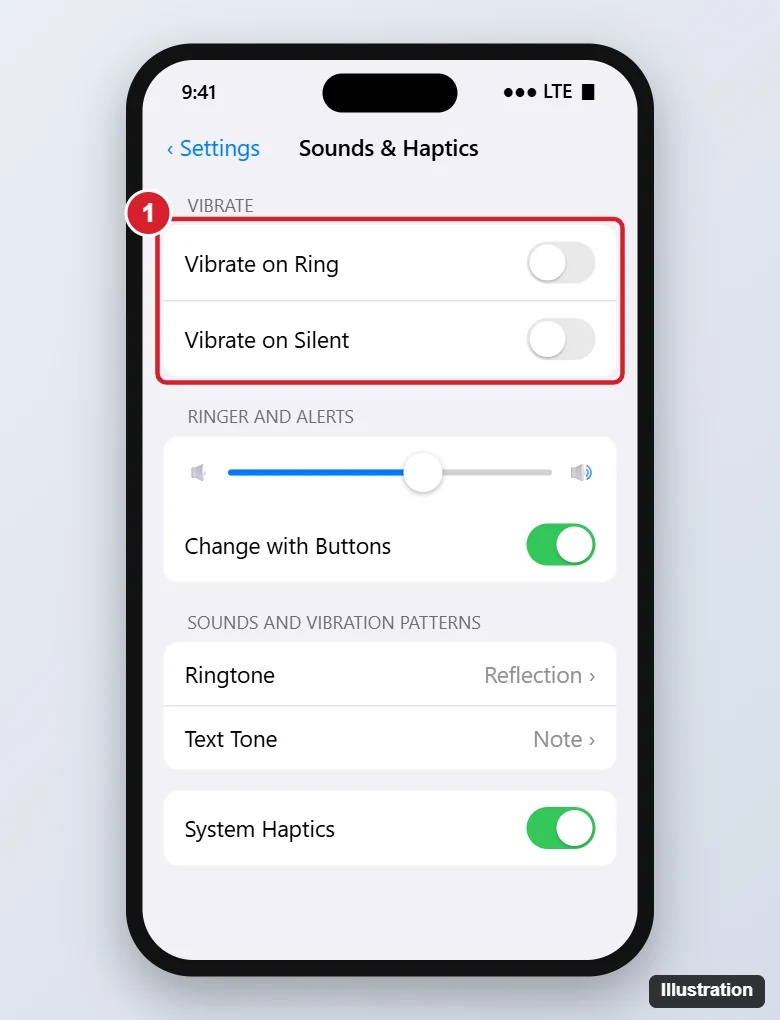
Older versions of iOS don’t have the Haptics menu. Instead, Settings > Sounds & Haptics shows two switches: turn off Vibrate on Ring to stop buzzing when the ringer is on, and Vibrate on Silent to stop it when the phone is silenced. Turn off both for the same result as Never Play.
Turn off every vibration with one switch
The Accessibility switch is the master control on every iPhone model and overrides every other vibration setting.
Before you use it: Apple notes that this setting also turns off vibrations for earthquake, tsunami and other emergency alerts. If you rely on feeling those alerts, use the Haptics menu above instead.
- Open Settings and tap Accessibility.
- Tap Touch.
- Scroll down and turn off Vibration.
With Vibration off, keyboard haptics stop too, because Apple says keyboard haptics need this switch turned on. On very old versions of iOS the same switch sat under Settings > General > Accessibility > Vibration. Apple’s short turn off vibration guide lists both the per-alert and the master routes.
If a silent, still phone means you miss texts, Accessibility has a visual alternative: you can make the iPhone’s camera flash light up when an alert arrives.
Why silent mode still buzzes
Silencing an iPhone mutes the ringer, not the motor. Apple’s page on silencing iPhone says the phone may still vibrate in silent mode. If you want silent to mean no buzz either, set Haptics to Don’t Play in Silent Mode or Never Play.
Ways to turn silent mode on, depending on the model:
- Push the Ring/Silent switch toward the back of the phone on models that have one.
- Press and hold the Action button on models that have it (the button can also be set to other actions, so check what yours does).
- Tap the silent mode button in Control Center, or use Settings > Sounds & Haptics > Silent Mode.
Have the opposite problem, a phone that won’t buzz while silenced? See why an iPhone stops vibrating on silent.
Mute one alert, app or contact
Each alert in Sounds & Haptics, such as Ringtone, Text Tone, New Voicemail, New Mail, Calendar Alerts and Reminder Alerts, has its own vibration pattern.
- Go to Settings > Sounds & Haptics and tap the alert, for example Text Tone.
- Tap Haptics at the top of the screen.
- Choose None in the pattern list to remove the vibration, or pick a gentler pattern. You can also tap Create New Vibration to tap out your own.
Example: someone who needs to feel calls at work but is tired of a busy group chat and newsletters can leave Haptics on Always Play, then set Text Tone and New Mail to None. Calls still buzz; texts and email stay quiet.
For one person, open Contacts, choose the contact, tap Edit, then tap Ringtone or Text Tone. A vibration option usually appears inside that screen, though its name can vary by version. Apps such as WhatsApp and many games control their own vibration, so look in the app’s settings if it keeps buzzing after the system settings are off.
Keyboard and system haptics
Typing taps come from Settings > Sounds & Haptics > Keyboard Feedback, where you can turn off Haptic and keep or drop the click sound. Apple adds that keyboard haptics might affect battery life. For the click sound and other keyboard details, see turning off keyboard sounds and vibration.
The small taps you feel when you flip a switch or touch and hold a control are System Haptics, a switch near the bottom of Sounds & Haptics. On iOS 18, Apple says turning it off also stops vibrations for incoming calls and alerts; Apple’s newer pages drop that sentence. The steps for turning off System Haptics have more detail. If the real annoyance is menus popping up when you hold an icon, that’s Haptic Touch, and you can change how Haptic Touch responds.
Quiet at set times with Focus
For stillness only at night or during work, a Focus beats changing settings daily. Open Control Center, tap Focus, then tap Do Not Disturb, or go to Settings > Focus to set up Sleep or Work with a schedule. Each Focus lets you choose people and apps that may still reach you; everything else is silenced. The full steps are in finding and turning off Do Not Disturb.
Emergency and public safety alerts have their own switches, usually under Settings > Notifications in the Government Alerts section. Options vary by country and carrier.
Still vibrating?
- Check the alert pattern. An alert with its own pattern can still vibrate; set it to None.
- Check the app. Third-party apps often have a vibrate setting of their own.
- Check your wrist. If you wear an Apple Watch, the tap may come from the watch, which has its own haptic settings.
- Restart. A restart can clear a setting that hasn’t taken effect.
- Last resort. Reset All Settings (in Settings > General > Transfer or Reset iPhone > Reset) returns settings to their defaults, so you’ll need to set Wi-Fi and other preferences again.
Buzzing with no notification on the screen has its own causes, covered in why a phone randomly vibrates.
For the taps you feel on switches, keys and long presses rather than alerts, see turning off haptic feedback on your iPhone.
Vibration questions
Will my alarm still vibrate?
Alarms have their own sound setting. Edit the alarm in the Clock app, tap Sound, and look for the vibration option at the top. To do the reverse, see setting an iPhone alarm to vibrate. With the Accessibility Vibration switch off, nothing vibrates, alarms included.
Does turning off vibration save battery?
It may help a little, but Apple publishes no figure; its only battery note concerns keyboard haptics.
Can I make the phone vibrate with no ringtone?
Yes. Turn on silent mode and set Haptics to Always Play or Play in Silent Mode.
Can I keep emergency alert vibration but stop everything else?
Apple warns only that the Accessibility Vibration switch turns off emergency alert vibrations, so leave that switch on. Then choose Never Play and turn off Keyboard Feedback Haptic and System Haptics to quiet the rest.
Start with Never Play for a day. If something still buzzes, the table at the top shows which switch is left.

Kermit Matthews runs Live2Tech from just outside Philadelphia. He is an IT specialist with over 20 years of experience, from a university help desk to small-business IT, IT management and his own consulting practice, and has written tech guides full time since 2020. Steps are checked against the current software on a real device or the maker’s official documentation. More about Kermit.