If your iPhone sits face down on a desk or stays on silent, a new text is easy to miss. Turn on Settings > Accessibility > Audio & Visual > Flash for Alerts, then choose LED Flash, Screen or Both, and decide whether it should also flash in Silent mode or while you’re using the phone. The steps below cover current versions of iOS, older labels, why it sometimes stays dark, and the Android equivalent.
What makes the iPhone flash
Flash for Alerts is an accessibility feature for anyone who can’t hear alert sounds, and it also helps in loud rooms or quiet meetings. Apple describes it as flashing the indicator light (the LED next to the rear camera lens), the screen, or both when you receive notifications. That means the light follows notifications, not just texts. A call, a text, a reminder or an app alert that reaches you as a notification can all trigger it.
The practical rule: if an app’s notifications are turned off, it can’t flash. If they’re on, it will flash for that app too. There is no Apple setting that limits the flash to Messages or to one contact, so the way to narrow it down is to trim notifications for apps you don’t care about.
Turn on Flash for Alerts in current iOS
- Open the Settings app.
- Tap Accessibility.
- Tap Audio & Visual.
- Tap Flash for Alerts and turn it on.
- Choose how it flashes: LED Flash, Screen or Both (see the next section).
- Set the two switches below the choices to match how you use the phone (covered further down).
Older iOS versions show the same idea with slightly different words: a single LED Flash for Alerts switch and a Flash on Silent switch under it, which is what the illustration below shows.
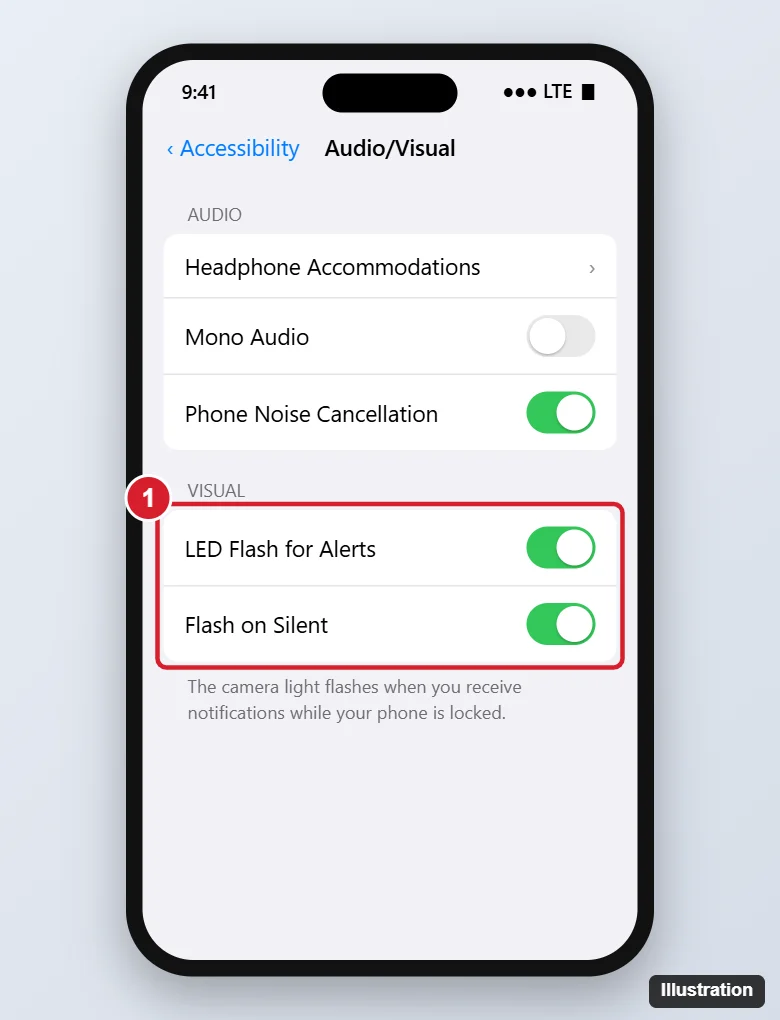
Choose LED flash, screen or both
Apple’s current guide lists three choices once Flash for Alerts is on. Which one works best depends on where the phone usually sits.
| Choice | What flashes | Best when the phone is |
|---|---|---|
| LED Flash | The light on the back, next to the camera | Face down on a table or desk |
| Screen | The display | Face up, in a stand, or in a case that covers the camera |
| Both | The back light and the display | Moved around a lot, so either side might face you |
If you don’t see Screen or Both, your iPhone is on an older version of iOS that offers the LED flash only. Updating iOS is the way to get the extra choices.
Flash in Silent mode and while you’re using the phone
Two switches sit under the flash choices, and they decide when the flash is allowed:
- Flash in Silent Mode: keeps the indicator light flashing when iPhone is in Silent mode. Leave this on if the main reason you want the flash is that the phone is muted. (Older iOS calls it Flash on Silent.)
- Flash While Unlocked: this switch makes the indicator light flash even when iPhone isn’t locked, so the light still goes off while you’re reading or scrolling. With it off, the flash only fires when the phone is locked, which is how older iOS always behaved.
A simple example: a nurse who keeps the phone muted and face down during a shift would pick LED Flash, keep Flash in Silent Mode on, and leave the in-use switch off so the light doesn’t flicker while checking the phone.
Test the flash
- Press the side button to lock the iPhone.
- Place it face down if you chose LED Flash, or face up if you chose Screen.
- Ask someone to text or call you.
- Watch for the flash when the alert arrives. If nothing happens, work through the checks below.
When the iPhone doesn’t flash
- Messages notifications are off. Open Settings > Notifications > Messages and make sure Allow Notifications is on with an alert style such as banners selected. A conversation set to hide alerts won’t flash either.
- A Focus is on. Do Not Disturb and other Focus modes silence notifications, and the flash goes quiet with them. Open Control Center to check, or allow the people who must reach you in that Focus.
- Silent mode with the switch off. Turn on Flash in Silent Mode.
- You’re using the phone. Without the in-use switch, the flash waits until the phone is locked.
- Wrong side facing you. LED Flash can’t be seen with the phone face up. Pick Screen or Both instead.
- Still nothing. Restart the iPhone and test again.
If the issue is that the phone is muted without you meaning it to be, see how to turn Silent mode off on an iPhone. The flash may use a little extra battery when you get many notifications, so trimming noisy apps helps on both counts.
Older iOS versions
On earlier releases, the path is Settings > Accessibility > Audio/Visual > LED Flash for Alerts. Apple’s LED flash article, which uses these labels, says the flash works only when the device is locked and offers an optional Flash on Silent switch. On very old iOS (12 and earlier), Accessibility lived under Settings > General > Accessibility, with LED Flash for Alerts in the Hearing section.
Flash notifications on Android
Many Android phones have a similar feature. Google documents it at Settings > Notifications > Flash notifications (or Settings > Accessibility > Flash notifications), with Camera flash and Screen flash switches. Screen flash uses a color you can change and preview, and camera flash isn’t available on every device. Phone makers can rename or move these settings, so if you don’t see them, search Settings for “flash.” Google’s page also notes that flash notifications follow Do not disturb. See Google’s flash notifications help.
Flash alerts on iPhone
Why does the light flash for emails and apps, not just texts?
The flash is tied to notifications in general. Turn off notifications for any app you don’t want flashing in Settings > Notifications.
Can a single contact trigger the flash?
Apple documents no per-contact flash setting. The closest option is a Focus that allows only certain people, since alerts from everyone else are silenced and won’t flash.
Where does Apple describe these options?
Apple’s iPhone User Guide page on flash notifications covers the current labels, and its LED flash for alerts article covers the older ones.
How do I switch it off later?
Turn Flash for Alerts off on the same Audio & Visual screen. The details are in turning the iPhone flash notification on or off.
Once the flash works, you may want to tidy the keyboard too: here’s how to turn off QuickType on iPhone if the suggestion bar takes up space you’d rather have.

Kermit Matthews runs Live2Tech from just outside Philadelphia. He is an IT specialist with over 20 years of experience, from a university help desk to small-business IT, IT management and his own consulting practice, and has written tech guides full time since 2020. Steps are checked against the current software on a real device or the maker’s official documentation. More about Kermit.