If every new text lights up your screen, buzzes in your pocket and repeats a couple of minutes later, you can switch it all off in one place. Open Settings, tap Notifications, tap Messages, and turn off Allow Notifications. Your texts still arrive in the Messages app; you just stop getting alerts about them. If that is more than you want, the sections below cover quieter options that keep some alerts.
If social apps are the bigger distraction, here is how to stop Reddit alerts on your iPhone.
Turn off all Messages notifications
This stops every alert from the Messages app: sounds, vibrations, banners, Lock Screen entries and the red badge count. It covers iMessage and regular SMS texts alike, since both come through the same app.
- Open the Settings app.
- Tap Notifications, then scroll down and tap Messages.
- Turn off Allow Notifications.
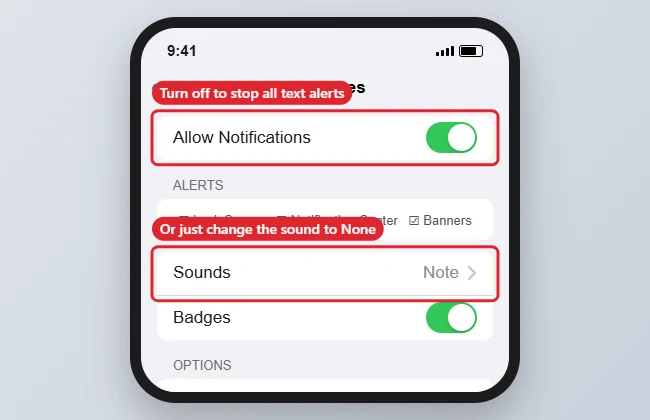
There is a second route to the same switch on current versions of iOS. Apple’s Messages notifications support page describes going to Settings > Apps > Messages > Notifications. Both paths open the same settings, so use whichever you find first. On older iOS versions, there is no Apps list; use the Notifications route.
To turn alerts back on later, return to the same screen and turn Allow Notifications on again.
What still happens with alerts off
- Messages keep arriving, and you can read them any time by opening the app.
- Your iPhone still receives phone calls with their normal ringtone, because calls are a separate app.
- Other devices signed in to the same Apple Account, such as a Mac or iPad, have their own notification settings. Change them there too if they keep chiming.
Quieter options that keep some alerts
Turning everything off makes it easy to miss something important. Often one setting is enough. All of these start from the same Settings > Notifications > Messages screen.
| What you want | Setting to change |
|---|---|
| See texts but hear nothing | Sounds, then choose None |
| Stop the buzz | Sounds, then Haptics (near the top), then None |
| Nothing on the Lock Screen | Under Alerts, deselect Lock Screen |
| No pop-up banners while using the phone | Under Alerts, deselect Banners |
| Hide the message text from people nearby | Show Previews, then When Unlocked or Never |
| No red number on the app icon | Turn off Badges |
| Stop the second alert a few minutes later | Sounds, then Customize Notifications, then Repeat Alerts, then Never |
A few details are worth knowing before you change these:
- Sounds > None mutes both directions. Apple’s Messages notification guide notes that choosing None silences the tone for messages you receive and the swoosh for messages you send. There is no separate switch for only one of them. To pick a different tone instead of silence, see changing iPhone text messaging sounds.
- Repeat alerts sound again at two-minute intervals, according to Apple. If texts still alert twice after you set Never, stopping text alerts from repeating covers the other causes.
- Show Previews keeps the alert but hides the words, which is useful when the phone sits face up on a desk at work.
- The Ring/Silent switch (or Silent mode on iPhones with an Action button) silences sounds for everything, not just texts. Banners still appear.
Mute one conversation or one person
A busy group chat or one chatty contact is often the real problem. Muting just that conversation leaves alerts on for everyone else.
Hide alerts for a conversation
- Open Messages.
- Swipe left on the conversation in the list and tap the bell icon. A crossed-out bell appears next to the chat.
- Alternatively, open the conversation, tap the name or icon at the top, and turn on Hide Alerts.
The messages still arrive and show in the list; you just are not alerted to them. To reverse it, open the same details screen and turn off Hide Alerts. For what the crossed-out bell means and how it interacts with mentions, see what Hide Alerts means for a text message.
In group chats, you can still choose whether you are alerted when someone mentions your name. Apple puts that under Settings > Apps > Messages > Notify Me. If a group is past muting, you may be able to leave it instead: see leaving a group text on iPhone.
Give one contact a silent text tone
You can also give a single contact a silent text tone. Open the contact, tap Edit, tap Text Tone, and choose None. Their texts still show banners and badges; only the sound changes.
Mute Messages for an hour or a day
When a notification appears, swipe left on it, tap Options, then choose Mute for 1 Hour or Mute for Today, as listed on Apple’s notification options support page. This is handy for a meeting or a movie. The same menu also has Turn Off, which stops the app’s notifications until you turn them back on in Settings.
Quiet texts on a schedule with Focus
If you only want silence at certain times, a Focus is a better fit than turning notifications off and on by hand. Do Not Disturb is one of the built-in Focus options; Apple also provides others such as Sleep and Work, and you can create your own.
- Allow people: In a Focus, you can choose people whose texts still come through. A parent, partner or childcare provider can reach you while everyone else waits.
- Schedule it: A Focus can turn on automatically at set times, such as overnight.
- Emergency Bypass: On a contact’s card, Text Tone has an Emergency Bypass option that lets that person’s texts make a sound even when your iPhone is silenced or a Focus is on.
If texts seem silent when you did not expect it, a Focus left on is a common reason. Finding and turning off Do Not Disturb walks through how to spot it.
Texts from unknown senders
Recent versions of iOS can sort texts from numbers not in your contacts into a separate list. Apple’s unknown senders support page describes turning on Screen Unknown Senders from Settings > Apps > Messages under Unknown Senders, or from the Filters button in Messages, then Manage Filtering. Apple says this option is off by default in iOS 26.
In some regions, Apple also lists an Allow Notifications choice under Unknown Senders with categories such as Time Sensitive, Personal, Transactions and Promotions. Turning off Promotions, for example, keeps delivery codes and bank alerts while quieting marketing texts. If one number keeps texting you, blocking that number on your iPhone is the stronger fix.
Apple Watch, Mac and iPad
An Apple Watch normally mirrors your iPhone’s Messages alerts. Apple notes that a notification goes to either the watch or the iPhone, not both. To set the watch separately, open the Watch app on your iPhone, tap My Watch, tap Notifications, tap Messages, and choose Custom.
A Mac or iPad that receives your texts keeps its own Messages notification settings. Silencing your iPhone does not silence them.
If alerts keep coming
- Still hearing a tone: Check that Allow Notifications is actually off under Settings > Notifications > Messages, and that the contact does not have Emergency Bypass turned on.
- Still feeling a vibration: Set Haptics to None on the Sounds screen for Messages.
- Alert came from another app: A text-like alert may come from WhatsApp, Signal or a carrier app. Those apps have their own entries in Settings > Notifications.
- Alert on your wrist only: Check the Apple Watch settings above.
Text notification questions
Will people know I turned off notifications?
Turning off Messages notifications does not tell anyone. If you use a Focus and share your Focus status, people who message you can see that you have notifications silenced. Your messages keep arriving normally either way.
Will muting a group chat stop it for everyone?
No. Hide Alerts only affects your iPhone. Other people in the group keep getting their alerts, and nobody is removed from the chat.
Can I turn off text alerts without turning off iMessage?
Yes. Notifications and iMessage are separate. Turning off iMessage changes how messages are sent, not whether you are alerted. If you are moving to a different phone, though, turning off iMessage on iPhone is the right step.
Other apps can be just as noisy as Messages. If your calendar keeps telling you when to head out, stopping Time to Leave alerts in Calendar takes care of that one.

Kermit Matthews runs Live2Tech from just outside Philadelphia. He is an IT specialist with over 20 years of experience, from a university help desk to small-business IT, IT management and his own consulting practice, and has written tech guides full time since 2020. Steps are checked against the current software on a real device or the maker’s official documentation. More about Kermit.