If Spotify keeps lighting up your iPhone with concert alerts, new releases and offers, you can trim them to the few you want or shut them off completely. To choose categories in current versions of the Spotify app, tap your profile picture, then Settings and privacy > Notifications (or use the notification settings on your Spotify account page), and switch off what you don’t want. To silence every Spotify alert at once, go to iPhone Settings > Notifications > Spotify and turn off Allow Notifications.
Reddit works the same way, and you can turn off Reddit notifications on iPhone or choose which kinds it sends.
Two switches control Spotify alerts
Spotify notifications pass through two gates, and it helps to know which one you are changing.
- Your iPhone decides whether Spotify may notify you at all, and how alerts look: banners, sounds, badges and lock screen previews.
- Spotify decides which kinds of messages it sends, such as artist updates, podcast episodes or offers, and whether each one arrives as a push notification, an email or both.
Spotify’s help page on notification settings notes that push notifications need permission in your phone settings as well as in Spotify. So if you turn a category on in Spotify but iPhone permission is off, nothing arrives. If you want only one kind of alert, keep iPhone permission on and do the trimming inside Spotify.
Use this table to jump to the right control:
| What you want to stop | Where to change it |
|---|---|
| Every Spotify alert on the phone | iPhone Settings, Allow Notifications off |
| Some types of push alerts, like offers or concerts | Spotify Settings and privacy, Notifications |
| Marketing emails | Email options in the same Spotify list, or the unsubscribe link in an email |
| New episode alerts for one podcast | That show’s page in Spotify |
| Sponsored recommendations | Learn more on the recommendation itself |
| Sounds or lock screen alerts only | iPhone Settings, Spotify alert style |
Choose which alerts Spotify sends
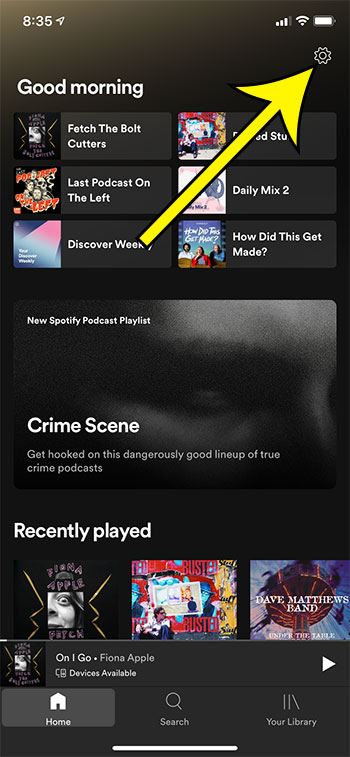
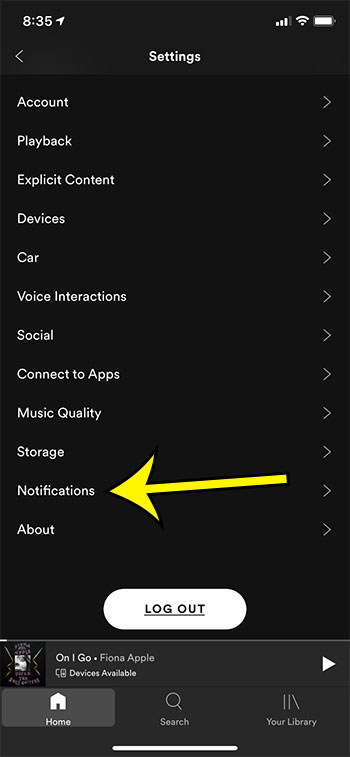
The current Spotify app keeps notification choices under your profile. The screenshots below show an older layout, where Settings sat behind a gear icon on the Home tab, so your screens will look different, but the Notifications list works the same way.
- Open the Spotify app.
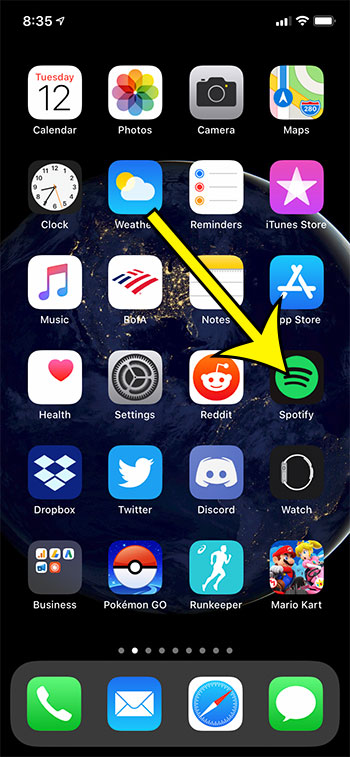
- Tap your profile picture at the top left, then tap Settings and privacy. In older versions of the app, this was the gear icon at the top right of the Home tab.
- Tap Notifications.
- Go through the categories and switch off the push options you don’t want. Spotify describes these messages as things like news, offers, concert recommendations and artist updates. Leave on anything you still find useful, such as new music from artists you follow.
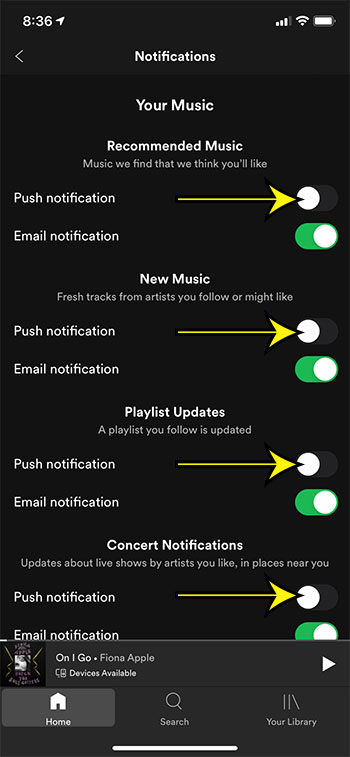
- While you’re there, check the email options for the same categories. Push and email are separate choices, so turning off a push alert doesn’t stop the matching email.
Changes apply to your Spotify account, not just this phone. Spotify’s own help directs you to the account page to manage email and push choices, so if the menu in your app looks different, sign in to your Spotify account in a browser and use the notification settings there instead.
A similar setup applies to other apps with their own alert lists; see how to turn off ESPN Fantasy app notifications on iPhone for a comparable example.
Turn off all Spotify notifications in iPhone Settings
This is the quickest fix if you never want Spotify alerts. Apple’s pages show two paths, depending on how your Settings app is arranged in current iOS. Use whichever one you see.
- Open the Settings app.
- Tap Notifications, then scroll to the app list and tap Spotify. If your Settings app groups apps together, tap Apps > Spotify > Notifications instead, the path Apple gives in its article on turning app notifications on or off.
- Turn off Allow Notifications.
Spotify can no longer show banners, sounds or badges. Your Spotify categories stay as they were, so if you turn iPhone permission back on later, the same alerts return. When you first installed Spotify, the “Would Like to Send You Notifications” prompt set this switch. Tapping Don’t Allow there has the same effect as turning it off here.
Make Spotify alerts quieter instead
If you still want alerts but find them disruptive, stay on the Spotify notification screen in iPhone Settings and adjust how they appear. Apple’s guide to changing notification settings on iPhone describes these options:
- Lock Screen, Notification Center and Banners. Uncheck Lock Screen and Banners, and alerts only collect in Notification Center for when you look.
- Sounds and Badges. Turn off the sound or the red count on the app icon without stopping alerts.
- Lock Screen Appearance. Choose whether alert text (previews) shows on the lock screen and how alerts are grouped. For more on keeping previews private, see how to hide notification previews on the lock screen.
- Scheduled Summary. Instead of Immediate Delivery, Spotify alerts can be bundled into a summary at times you choose.
- Time Sensitive Notifications and Customize Notifications appear only if the app supports them.
- Spotify Notification Settings. If the screen shows this link at the bottom, it jumps straight into Spotify’s own notification options.
Focus modes are the other tool. A Focus such as Work or Sleep can silence Spotify, depending on which apps that Focus allows. Check the Focus in Settings > Focus and add Spotify to its allowed apps if you want its alerts. That also explains alerts that seem to vanish at certain times of day.
Podcast alerts, sponsored picks and pop-ups in the app
New episode alerts for one show
Podcast alerts are set per show. Open the podcast’s show page. If you follow it, tap Following and switch Get notified of new episodes on or off. If you don’t follow it yet, tap Follow first. Unfollowing the show also stops its alerts.
Sponsored recommendations
Spotify says you can tap Learn more on a sponsored recommendation and then choose to stop seeing them for that artist or stop them altogether.
Messages that pop up inside the app
Some messages appear inside Spotify as cards or pop-ups while you browse, rather than as phone notifications. These are not push alerts, so iPhone Settings doesn’t touch them, and Spotify’s help pages don’t document a single switch that turns them all off. Turning off the marketing categories in Notifications and using the sponsored recommendation control are the documented ways to cut them down. Most pop-ups can be closed with the X or by swiping them away.
Emails and messages you can’t turn off
To stop Spotify emails, switch off the email options in the Notifications list, or tap the unsubscribe link at the bottom of any Spotify marketing email. Spotify notes that account activity emails, such as a new login to your account or a new member joining your Family or Duo plan, can’t be turned off. That is a security feature, so an unexpected one of those is worth reading rather than ignoring.
Still getting alerts, or not getting any?
- Alerts you switched off keep arriving. Check whether they are emails rather than pushes, since those are separate settings. Also check the account page in a browser, in case you changed settings on a different Spotify account.
- No Spotify alerts at all. Make sure Allow Notifications is on in iPhone Settings, that a Focus isn’t active, and that the category is on inside Spotify.
- Settings seem stuck. Close and reopen the app, or sign out of Spotify on iPhone and back in. Reinstalling resets the iPhone permission prompt, but it also deletes downloaded music and podcasts, so try it last.
A Scheduled Summary works for other chatty apps too, for example when you quiet BuzzFeed alerts on an iPhone.
Spotify notification questions
Do Spotify notification settings carry over to my other devices?
The categories in Spotify belong to your account, so they apply wherever you sign in. The iPhone switches for banners, sounds and previews apply only to that iPhone.
Is there a separate setting for Android?
The phone-level permission is in Android’s own settings, but the Spotify categories and the account page work the same way on any device.
Why does the Spotify app look different from older guides?
Spotify moved Settings from a gear icon on the Home or Your Library tab to the profile menu. The option names inside Notifications have also changed over time, so look for the category descriptions rather than exact labels.
Apple’s TV app is another place where third-party apps show up on iPhone; see how to let other apps add content to the iPhone TV app if you want to manage that too. For Spotify, start with the Notifications list in the app, then adjust the iPhone alert style until only the alerts you care about come through.

Kermit Matthews runs Live2Tech from just outside Philadelphia. He is an IT specialist with over 20 years of experience, from a university help desk to small-business IT, IT management and his own consulting practice, and has written tech guides full time since 2020. Steps are checked against the current software on a real device or the maker’s official documentation. More about Kermit.