Signing out of Spotify on your iPhone is useful when you want to switch accounts, hand your phone to someone else, or troubleshoot playback problems. The Log out button is tucked at the bottom of Spotify’s settings. This guide shows where to find it in the current app, how to sign out of Spotify on every device at once, and what happens to your downloads when you log out.
Quick Answer
Open the Spotify app, tap your profile picture in the top-left corner, and tap Settings and privacy. Scroll to the bottom and tap Log out, then confirm.
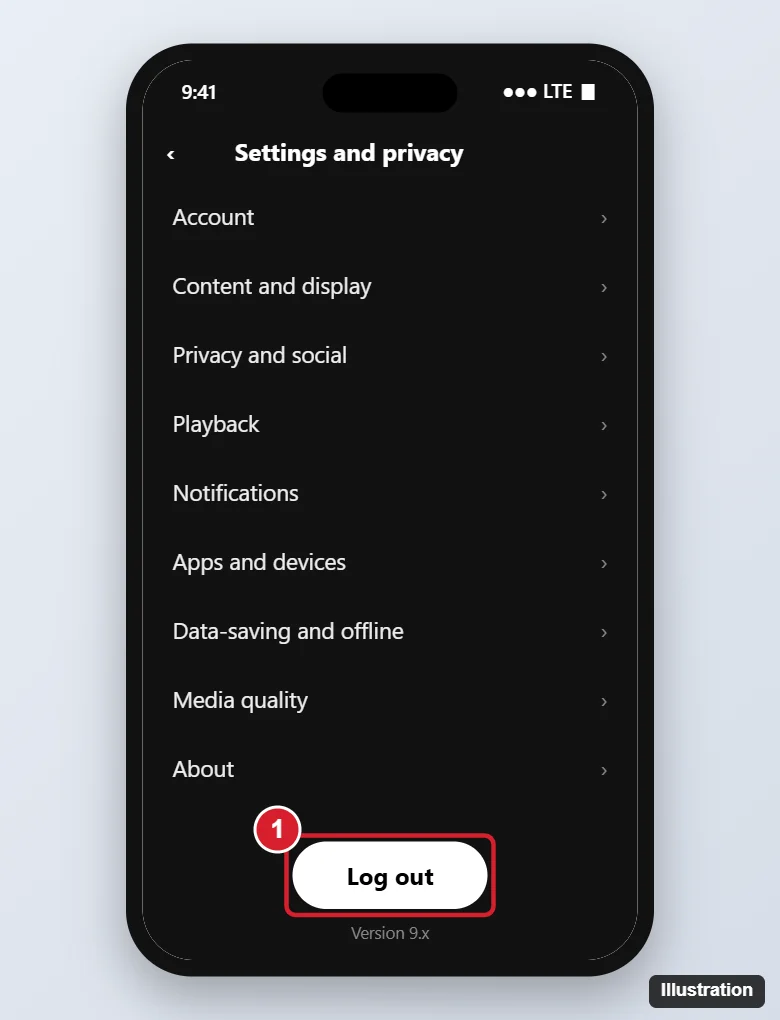
Log Out of Spotify on iPhone
- Open the Spotify app.
- On the Home tab, tap your profile picture (or initial) in the top-left corner.
- Tap Settings and privacy. (On older app versions, tap the gear icon on the Home screen instead.)
- Scroll all the way down and tap Log out.
- Tap Log out again if asked to confirm.
You’ll return to the welcome screen, where you can sign in with another account.
Sign Out of Spotify Everywhere
If you’ve signed in on a friend’s phone, a hotel TV, or a device you no longer have, sign out of all devices at once:
- Open Safari and go to spotify.com, then sign in and open your Account page.
- Find Security and privacy (or scroll the Account overview) and tap Sign out everywhere.
- Confirm. Spotify signs you out of all mobile, desktop, web, and connected devices, which may take up to an hour on some devices. Partner devices such as smart speakers may need to be disconnected separately.
If you think someone else has your password, change it right after using Sign out everywhere.
What Happens When You Log Out
- Downloaded songs and podcasts are removed from the phone. You’ll need to download them again after signing back in (Premium only).
- Your playlists, liked songs, and library are saved to your account, so nothing is lost.
- App settings like audio quality may reset to defaults.
Switch Between Spotify Accounts
Spotify for iPhone doesn’t support multiple signed-in accounts at once. To switch, log out and sign in with the other account. Families can use Premium Family so each person has their own account on their own device.
Cleaning up your library before you sign out? Here’s how to delete a Spotify playlist on iPhone.
Music too quiet or too loud? Learn how to change the Spotify volume level on iPhone.
Troubleshooting
- Can’t find Log out: update the Spotify app from the App Store; older versions put it under the gear icon.
- Spotify keeps signing you back in: Spotify may offer to sign in with a saved login or Apple sign-in. Choose a different option on the welcome screen.
- Want to remove Spotify completely: press and hold the app icon, tap Remove App > Delete App. This also signs you out and removes downloads.
- Still logged in on a car or speaker: use Sign out everywhere or remove the device in the Spotify app under Settings and privacy > Apps and devices.
Frequently Asked Questions
Does logging out cancel my Premium subscription?
No. Your subscription continues. Cancel it from your account page on spotify.com (or in iPhone Settings if you subscribed through Apple).
Will I lose my playlists?
No. Playlists and your library are stored in your Spotify account.
Does Sign out everywhere log me out of the iPhone too?
Yes. Every device, including the one you use, is signed out.
Summary
- Tap your profile picture > Settings and privacy.
- Scroll down and tap Log out.
- Use Sign out everywhere on spotify.com to log out of all devices.
- Re-download offline music after signing back in.

Kermit Matthews is a freelance writer based in Philadelphia, Pennsylvania with more than a decade of experience writing technology guides. He has a Bachelor’s and Master’s degree in Computer Science and has spent much of his professional career in IT management.
He specializes in writing content about iPhones, Android devices, Microsoft Office, and many other popular applications and devices.