To change the volume level setting in Spotify on iPhone, tap your profile picture, then Settings and privacy > Playback. Make sure Enable audio normalization is on, then choose Loud, Normal, or Quiet under Volume level. Loud makes quieter tracks louder for noisy places; Quiet lowers everything for calm rooms.
Spotify’s help page lists this setting as a Premium feature, so free accounts may not see every option. Your iPhone’s volume buttons still control the overall loudness either way.
Quick Answer
Profile picture > Settings and privacy > Playback > turn on Enable audio normalization > pick Loud, Normal, or Quiet.
How to Change the Spotify Volume Level on iPhone
- Open the Spotify app.
- Tap your profile picture in the top-left corner.
- Tap Settings and privacy.
- Tap Playback.
- Turn on Enable audio normalization if it’s off.
- Under Volume level, tap Loud, Normal, or Quiet.
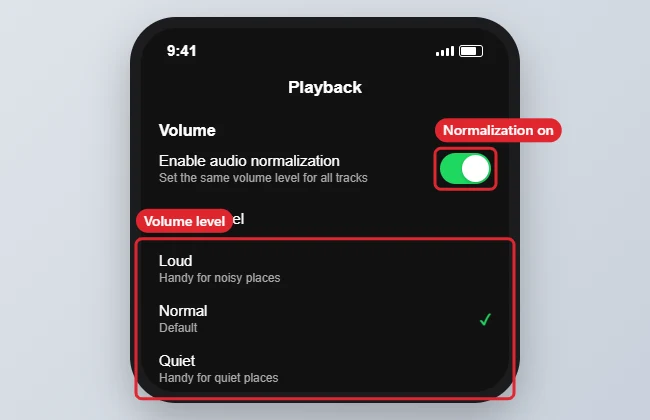
What Each Volume Level Does
| Setting | What it does | Good for |
|---|---|---|
| Loud | Raises the overall level; songs sound less dynamic | Commutes, gyms, noisy streets |
| Normal | The default balance | Most listening |
| Quiet | Lowers the overall level while keeping songs consistent | Quiet rooms, falling asleep |
| Normalization off | Plays each track at its original mastered volume | Albums you want to hear exactly as mixed |
Other Ways to Make Spotify Louder or Quieter
- Equalizer: In Settings and privacy > Playback (or Audio quality, depending on your app version), open Equalizer and choose a preset such as Loudness or Bass Booster.
- iPhone volume buttons: Adjust the media volume with the side buttons while music plays. If they only change the ringer, see how the side buttons control ringer volume.
- Headphone safety limit: On iPhone, go to Settings > Sounds & Haptics > Headphone Safety. If Reduce Loud Audio is on, it caps headphone volume.
- Audio quality: Higher streaming quality doesn’t make music louder, but it can sound fuller on good headphones.
Control Volume on Spotify Connect Speakers
When Spotify plays on another device through Spotify Connect, the volume slider in the app’s Now Playing screen controls that device. Spotify’s help notes that you can’t change audio settings such as volume level while playing on another device. Behavior of the iPhone’s physical volume buttons with Connect speakers has changed in recent iOS and app versions; if the buttons don’t work, use the in-app slider, and look for a Volume controls option under Playback settings.
Troubleshooting
- There’s no Volume level option: Turn on Enable audio normalization first. If it’s still missing, the option may require Premium, or your app needs an update from the App Store.
- Spotify is quieter than other apps: Set Volume level to Loud, or turn normalization off.
- Volume jumps between songs: Turn normalization on and use Normal.
- Sound is low only with headphones: Check Reduce Loud Audio and clean the headphone speakers.
Switching accounts to check a Premium feature? Here’s how to sign out of Spotify on iPhone.
Frequently Asked Questions
Is there a way to make Spotify louder on iPhone?
Yes. Set Volume level to Loud, try the Loudness equalizer preset, and make sure Reduce Loud Audio isn’t limiting headphone volume.
Does the volume level setting sync to my other devices?
No. It’s saved per device, so set it separately on your iPad, computer, or other phones.
Does normalization lower sound quality?
It adjusts loudness, not bitrate. Loud can make songs sound a little less dynamic, which is the trade-off for a higher level.
Summary
- Tap your profile picture and open Settings and privacy.
- Tap Playback.
- Turn on audio normalization.
- Choose Loud, Normal, or Quiet.

Kermit Matthews is a freelance writer based in Philadelphia, Pennsylvania with more than a decade of experience writing technology guides. He has a Bachelor’s and Master’s degree in Computer Science and has spent much of his professional career in IT management.
He specializes in writing content about iPhones, Android devices, Microsoft Office, and many other popular applications and devices.