If music on your iPhone never gets as loud as you expect through headphones, a volume limit is probably switched on. Older versions of iOS had a Volume Limit slider in the Music settings; on current iPhones the same job is done by Reduce Loud Audio in Headphone Safety. This guide shows how to turn the limit off on current and older iOS versions, how to unlock it if Screen Time is blocking changes, and what else can make your iPhone sound quiet.
Quick Answer
On iOS 14 and later, go to Settings > Sounds & Haptics > Headphone Safety and turn off Reduce Loud Audio. On iOS 13 and earlier, go to Settings > Music > Volume Limit and drag the slider all the way to the right.
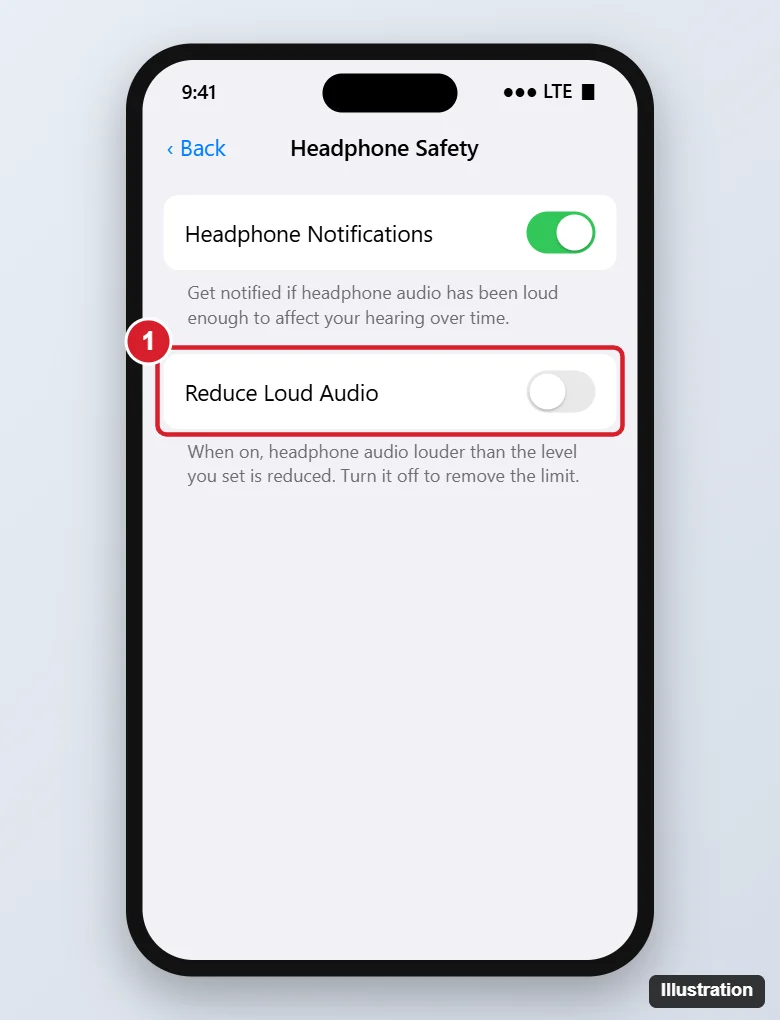
Turn Off the Volume Limit on Current iOS Versions
- Open Settings.
- Tap Sounds & Haptics.
- Tap Headphone Safety.
- Turn off Reduce Loud Audio.
If you’d rather keep some protection, leave it on and drag the decibel slider that appears beneath it to a higher level, such as 100 dB. The setting applies to all audio through headphones, not only the Music app. In some iOS versions the switch is labeled Reduce Loud Sounds or Reduce Loud Headphone Audio, and on some iPhones it is under Settings > Accessibility > Audio & Visual.
Recent iOS versions also add a separate Reduce Loud Sounds switch under Built-In Speaker on the Sounds & Haptics screen. It compresses loud sounds through the iPhone’s own speaker, so turn that off too if the speaker seems to be holding back.
Turn Off Volume Limit on Older iOS Versions (iPhone Music Settings)
- Open Settings.
- Scroll down and tap Music.
- Under Playback, tap Volume Limit.
- Drag the slider all the way to the right.
With the slider at maximum there is effectively no limit. This option only affected the Music app and was replaced by Headphone Safety settings.
If the Setting Is Grayed Out
A grayed-out switch or slider usually means Screen Time is locking it, which parents often set up on a child’s iPhone.
- Go to Settings > Screen Time > Content & Privacy Restrictions.
- Scroll to Reduce Loud Audio (or Reduce Loud Sounds) under Allow Changes.
- Change it from Don’t Allow to Allow. You’ll need the Screen Time passcode.
- Go back to Headphone Safety and turn the setting off.
If the iPhone is managed through Family Sharing, the organizer can change this from their own device in Settings > Screen Time. If the phone is managed by a school or employer, the setting may be controlled by a profile you can’t change.
Headphone Notifications
The Headphone Notifications switch on the same screen warns you when your 7-day listening exposure passes a safe limit, and then lowers the volume. In some countries this notification can’t be turned off for regulatory reasons. Turning up the volume again after the alert is allowed.
Other Reasons Music Sounds Quiet
- Sound Check: Settings > Music > Sound Check evens out song volumes, which can make loud tracks quieter. Turn it off to hear each song at its mastered level.
- EQ: The Late Night EQ (Settings > Music > EQ) compresses loud passages. Set EQ to Off.
- Bluetooth headphones: Some headphones have their own volume or a separate limit in their app. Also check Settings > Accessibility > Audio & Visual > Balance is centered.
- Dirty speaker or headphone port: Lint in the Lightning or USB-C port or dust in the speaker grille can muffle sound. Clean gently with a soft, dry brush.
- Volume buttons: Make sure Change with Buttons behaves as you expect in Sounds & Haptics, and turn the media volume up while music is playing.
Should You Turn the Limit Off?
Listening at high volume for long periods can permanently damage hearing. The World Health Organization advises keeping personal audio below about 80 dB for adults over a week of regular listening. If you remove the limit, try to keep the volume at a comfortable level and take breaks. Noise-canceling headphones help, because you won’t need to turn the volume up to drown out background noise.
Frequently Asked Questions
Where did the Volume Limit setting in the Music app go?
It was replaced by Reduce Loud Audio in Settings > Sounds & Haptics > Headphone Safety, which works for all apps.
Does Reduce Loud Audio affect the iPhone speaker?
No. It only applies to headphones and connected audio devices. Recent iOS versions have a separate Reduce Loud Sounds switch for the built-in speaker.
Why does my Bluetooth speaker sound quiet?
iOS can treat some Bluetooth speakers as headphones, so Reduce Loud Audio can limit them. Turn it off, or in Settings > Bluetooth tap the i next to the speaker and set Device Type to Speaker.
Can I set a maximum volume for my child?
Yes. Turn on Reduce Loud Audio, set the decibel level, then lock it in Screen Time > Content & Privacy Restrictions > Reduce Loud Audio > Don’t Allow.
Summary
- Open Settings > Sounds & Haptics > Headphone Safety.
- Turn off Reduce Loud Audio.
- On older iOS, use Settings > Music > Volume Limit instead.
- Unlock the setting in Screen Time if it’s grayed out.

Kermit Matthews is a freelance writer based in Philadelphia, Pennsylvania with more than a decade of experience writing technology guides. He has a Bachelor’s and Master’s degree in Computer Science and has spent much of his professional career in IT management.
He specializes in writing content about iPhones, Android devices, Microsoft Office, and many other popular applications and devices.