To turn off keyboard clicks on an iPad, open Settings > Sounds > Keyboard Feedback and turn off Sound. On older versions of iPadOS, the setting is a switch called Keyboard Clicks at the bottom of Settings > Sounds. The clicking stops right away, and your other sounds, like notifications and media, aren’t affected.
Turn off keyboard clicks in Settings
- Open the Settings app.
- Tap Sounds in the left column.
- Tap Keyboard Feedback.
- Turn off Sound.
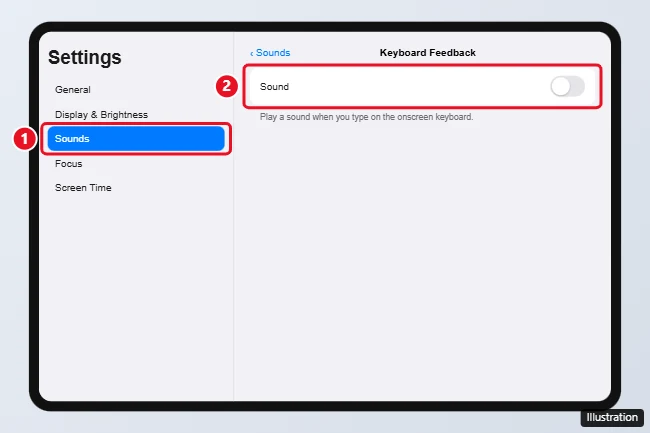
If you don’t see Keyboard Feedback, scroll to the bottom of Sounds and turn off Keyboard Clicks instead. That’s the name used in iPadOS 15 and earlier.
Other ways to silence the keyboard
- Silent mode: On iPadOS versions that include it, open Control Center (swipe down from the top-right corner) and tap the bell to turn on Silent Mode. This mutes keyboard clicks and alerts but still plays media.
- Side switch: Some older iPads have a side switch that can be set to mute in Settings > General > Use Side Switch To > Mute.
- Lower the volume: Keyboard clicks follow the ringer and alerts volume, so turning down Ringtone and Alerts in Settings > Sounds makes them quieter.
- Focus / Do Not Disturb: This silences notifications, but it doesn’t stop keyboard clicks.
Keyboard clicks still playing?
- Third-party keyboards like Gboard or SwiftKey have their own sound settings. Open the keyboard’s app and turn off Sound on keypress or a similar option.
- External keyboards make their own physical clicking sound, which the iPad setting can’t change.
- Restart your iPad if the setting doesn’t seem to take effect.
Turn keyboard clicks back on
Go to Settings > Sounds > Keyboard Feedback and turn Sound on again.
On a phone, see how to turn off keyboard clicks on an iPhone SE.
Frequently asked questions
Does turning off keyboard clicks save battery?
Only a tiny amount. The main benefit is a quieter typing experience, especially in class, meetings, or at night.
How do I turn off keyboard clicks on iPhone?
The same way: Settings > Sounds & Haptics > Keyboard Feedback, then turn off Sound. iPhones also have a Haptic option for typing vibrations.
Why does my iPad make a click sound when I lock it?
That’s the lock sound. Turn off Lock Sound in Settings > Sounds.
Can I turn off keyboard sounds for just one app?
No. The Keyboard Feedback setting applies to the built-in keyboard in every app.

Kermit Matthews is a freelance writer based in Philadelphia, Pennsylvania with more than a decade of experience writing technology guides. He has a Bachelor’s and Master’s degree in Computer Science and has spent much of his professional career in IT management.
He specializes in writing content about iPhones, Android devices, Microsoft Office, and many other popular applications and devices.