To change the Google Maps navigation volume on an iPhone, open the Google Maps app, tap your profile picture > Settings > Navigation, and set Guidance volume to Louder, Normal or Softer. During navigation, you can also press the iPhone’s volume buttons while a direction is being spoken, and tap the speaker icon on the map to switch between unmuted, alerts only, and muted.
Quick Answer
Google Maps > profile picture > Settings > Navigation > Guidance volume > Louder.
Change Guidance Volume
- Open Google Maps and tap your profile picture.
- Tap Settings > Navigation.
- Under sound settings, tap Guidance volume and choose Louder, Normal or Softer.
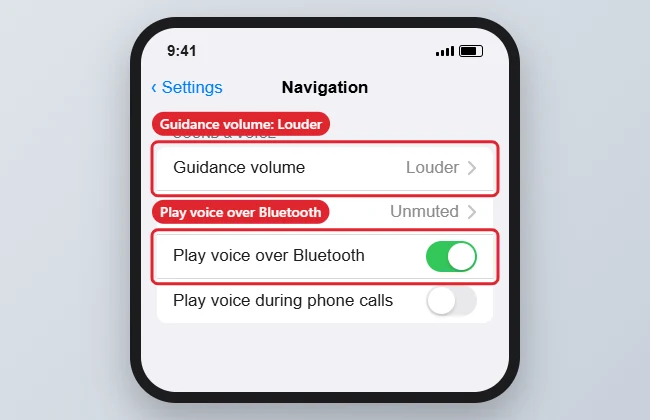
Adjust Volume While Driving
- Press the volume up or down buttons while a direction is being spoken; this sets the voice volume separately from music on many setups.
- Tap the speaker icon on the navigation screen to choose Unmuted, Alerts only, or Muted.
Bluetooth and CarPlay
| Setup | What to check |
|---|---|
| Bluetooth car stereo | Turn on Play voice over Bluetooth in Navigation settings, and raise the car’s phone or navigation volume |
| CarPlay | Use the car’s volume knob while directions play; CarPlay may keep a separate navigation volume |
| Headphones | Directions play through headphones when connected |
Troubleshooting
- No voice at all: Check the speaker icon isn’t set to Muted, the Ring/Silent switch or Action button, and that Google Maps isn’t in a Focus that silences it.
- Too quiet even on Louder: Raise the iPhone’s media volume while a direction is playing, and check Settings > Sounds & Haptics > Headphone Safety isn’t limiting loud audio.
- Music doesn’t lower during directions: That depends on the music app and car; some keep music at full volume.
- Customizing the map arrow too? See changing the car icon in Google Maps.
Frequently Asked Questions
Does this affect Apple Maps?
No. Apple Maps has its own setting in Settings > Apps > Maps > Spoken Directions.
Can I mute only traffic alerts?
Choose Alerts only to hear just traffic and important alerts, not every turn.
Summary
- Profile picture > Settings > Navigation.
- Set Guidance volume.
- Use volume buttons during spoken directions.
- Turn on Play voice over Bluetooth for car stereos.

Kermit Matthews is a freelance writer based in Philadelphia, Pennsylvania with more than a decade of experience writing technology guides. He has a Bachelor’s and Master’s degree in Computer Science and has spent much of his professional career in IT management.
He specializes in writing content about iPhones, Android devices, Microsoft Office, and many other popular applications and devices.