To see who you’re sharing your location with on an iPhone 11, open the Find My app and tap the People tab. Everyone listed there can see your location, or you share locations with each other. For a complete review of every person and app with access, go to Settings > Privacy & Security > Safety Check > Manage Sharing & Access.
These steps work on any iPhone with a recent version of iOS. Below you’ll learn how to stop sharing with one person, pause sharing with everyone, and check other places your location might be shared.
How to see who can see your location in Find My
- Open the Find My app.
- Tap People at the bottom.
- Review the list. Each person’s name shows whether they can see your location, whether you can see theirs, or both.
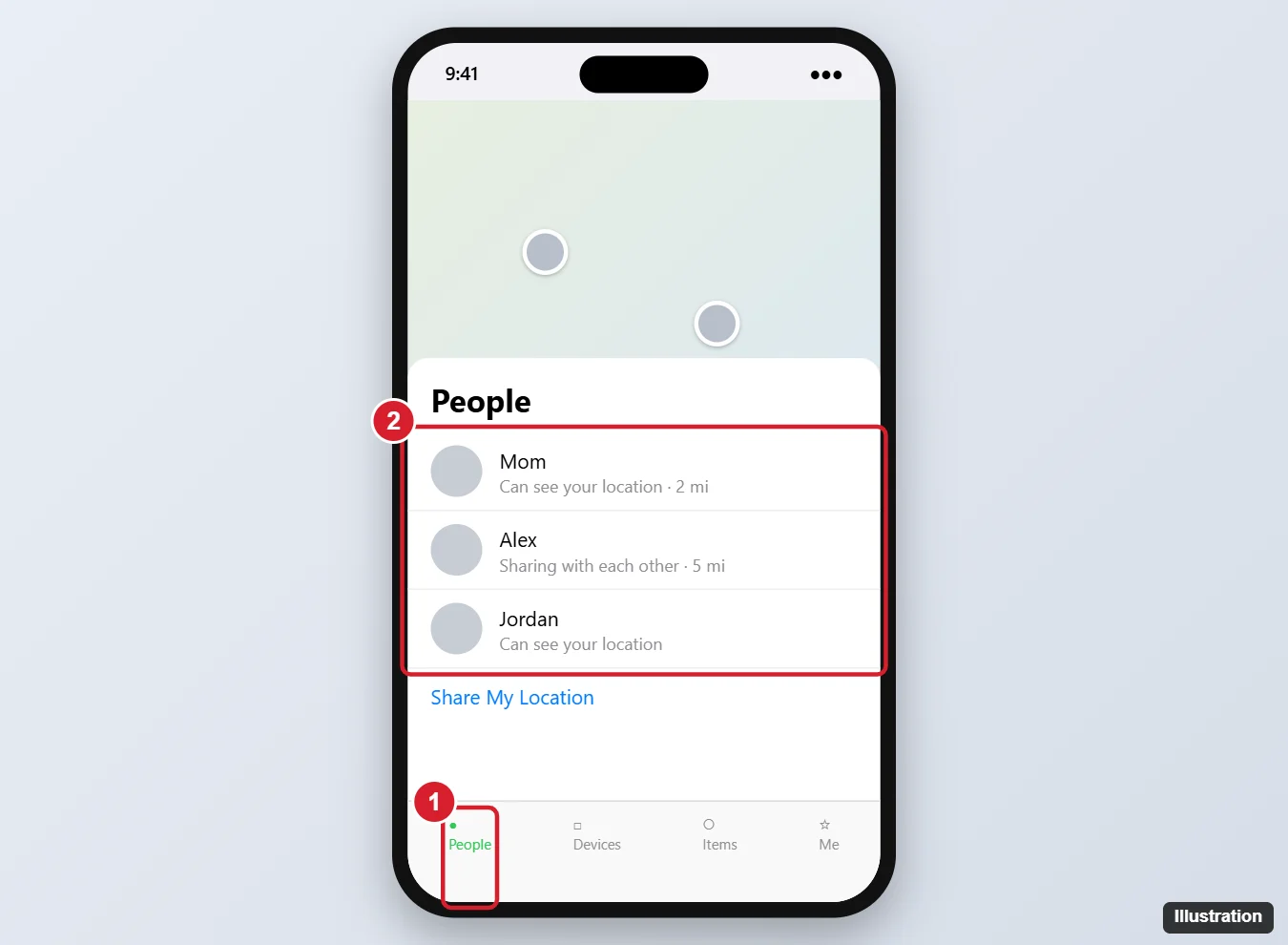
Tap a person’s name to see details and options, including Stop Sharing My Location.
How to use Safety Check to review all sharing
Safety Check shows people and apps with access to your location and other information in one place. It needs iOS 16 or later, which the iPhone 11 supports.
- Open Settings > Privacy & Security > Safety Check.
- Tap Manage Sharing & Access and follow the prompts.
- Review the People list and the Apps list, and stop sharing anything you don’t want.
Emergency Reset on the same screen immediately stops sharing with everyone and resets app permissions. Use it if you’re worried about your safety.
How to stop sharing your location with someone
- In Find My, tap People and tap the person’s name.
- Scroll down and tap Stop Sharing My Location, then confirm.
The person isn’t notified, but they’ll notice your location is no longer available. If you share with family through Family Sharing, you can also manage this in Settings > your name > Family > Location Sharing.
How to stop sharing with everyone
- Go to Settings > your name > Find My.
- Turn off Share My Location.
This hides your location from everyone in Find My and Messages, but keeps the Find My iPhone feature on so you can still locate a lost phone.
Other places your location may be shared
- Messages: Open a conversation, tap the person’s name at the top, and check whether Share My Location or Stop Sharing My Location appears.
- Maps: If you shared your ETA, tap the sharing banner at the bottom of the route to stop it.
- Third-party apps: Apps like Google Maps, Life360, and Snapchat have their own location sharing. Check each app’s settings, and review app permissions in Settings > Privacy & Security > Location Services.
- Photos: Photos can include location data. When sharing, tap Options at the top of the share sheet and turn off Location.
Frequently asked questions
Does someone know when I check who can see my location?
No. Viewing the People list doesn’t notify anyone.
Can someone see my location without my knowledge?
Only people who appear in Find My or Safety Check, or apps you’ve given permission. If you’re worried someone set up sharing without your consent, use Safety Check and change your Apple Account password.
Why does a person show “Location not available”?
Their phone may be off, offline, or they’ve stopped sharing. It doesn’t always mean they removed you.

Matthew Burleigh is the head writer at solveyourtech.com, where he covers topics like the iPhone, Microsoft Office, and Google apps. He has a Bachelor’s and Master’s degree in Computer Science and has over 15 years of IT experience.
He has been writing online since 2008 and has published thousands of articles that have been read millions of times.