The Spotify desktop app can show what your friends are listening to, and share what you’re playing with them, in the Friend Activity panel (called Friend feed in some recent versions). If you want privacy, or just a less cluttered window, you can stop sharing your activity, hide the panel, or listen in a Private Session. This guide covers each option in the Spotify desktop app for Windows and Mac, plus the mobile app.
Quick Answer
In the Spotify desktop app, click your profile picture > Settings. Under Social, turn off Share my listening activity on Spotify to hide what you play. To hide the friends panel, turn off See what your friends are playing (under Display in some versions), or close the panel with its X.
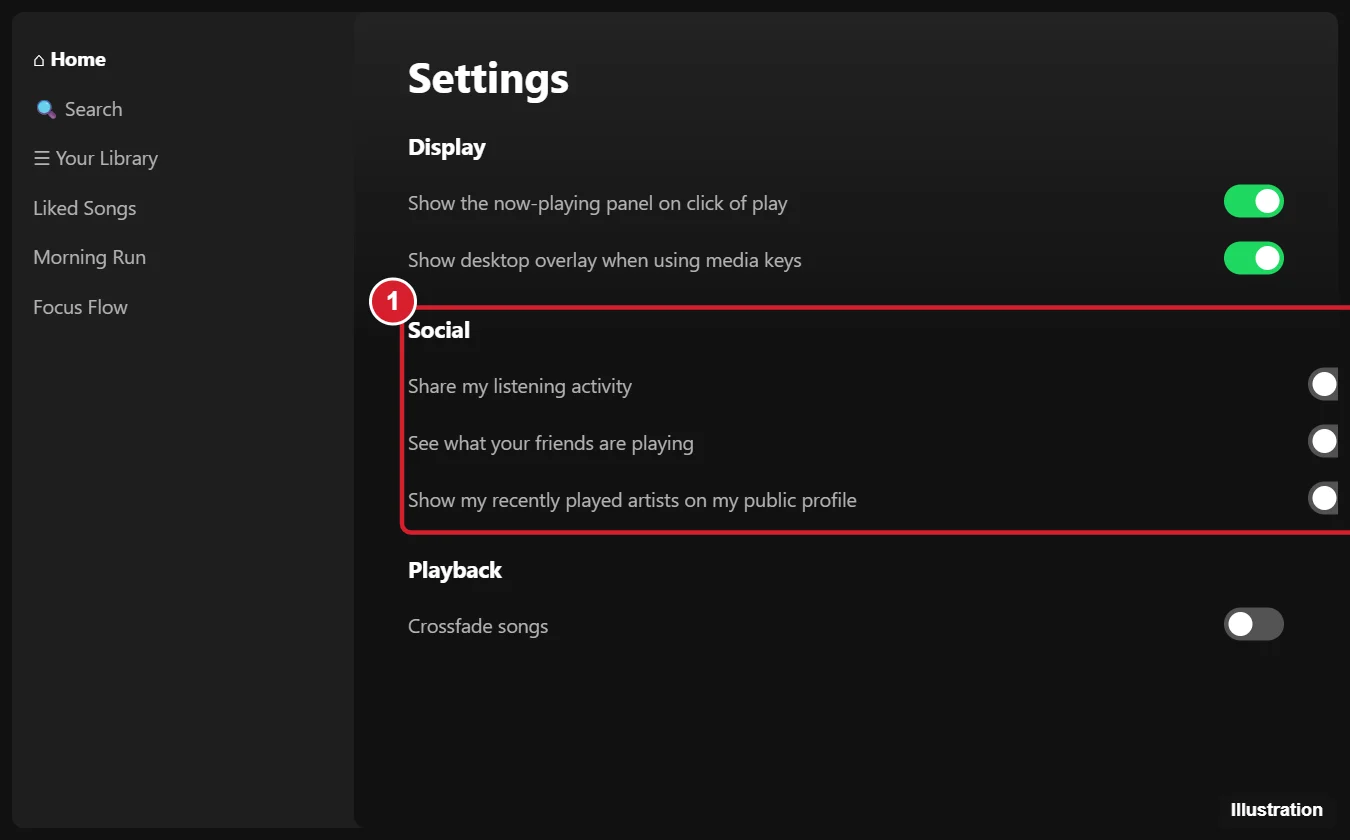
Stop Sharing Your Listening Activity
- Open the Spotify desktop app.
- Click your profile picture in the top-right corner and choose Settings.
- Scroll to Social.
- Turn off Share my listening activity on Spotify.
- Optional: turn off Show my recently played artists on my public profile.
Your followers will no longer see what you’re playing in their friends panel.
Hide the Friend Activity Panel
- Close it: click the X at the top of the friends panel on the right.
- Turn it off in Settings: in Settings, turn off See what your friends are playing.
- Bring it back: turn the setting back on, or click the friends icon in the top bar (next to the bell) if your version has one.
Use a Private Session (Temporary)
- Click your profile picture.
- Choose Private session. A blue lock icon appears on your profile picture.
Private sessions hide your activity from friends and don’t influence your recommendations. They end automatically after about six hours of inactivity or when you restart Spotify.
On iPhone and Android
- Tap your profile picture > Settings and privacy.
- Tap Privacy and social.
- Turn off Listening activity and Recently played artists, or turn on Private session.
The mobile app’s setting and the desktop setting are linked to your account, but it’s worth checking both.
Other Privacy Options
- Make playlists private: right-click a playlist > Remove from profile or Make private.
- Remove followers: go to your profile, click Followers, and remove or block people.
- Disconnect Facebook: in Settings, disconnect Facebook if Spotify is using it to find friends.
Friend Activity Missing?
If you want to see the panel but it’s gone, make the window wider (the panel hides in small windows), turn on the setting in Settings, update Spotify, and make sure your friends haven’t turned off sharing. Some web player versions don’t show Friend Activity.
Frequently Asked Questions
Can friends see my activity if I use Spotify on my phone?
Only if Listening activity is turned on in your account settings.
Does hiding activity hide my playlists?
No. Public playlists stay visible on your profile unless you make them private.
Do friends get notified when I turn sharing off?
No.
Summary
- Profile picture > Settings > Social.
- Turn off Share my listening activity.
- Turn off See what your friends are playing, or close the panel.
- Use Private session for temporary privacy.

Kermit Matthews is a freelance writer based in Philadelphia, Pennsylvania with more than a decade of experience writing technology guides. He has a Bachelor’s and Master’s degree in Computer Science and has spent much of his professional career in IT management.
He specializes in writing content about iPhones, Android devices, Microsoft Office, and many other popular applications and devices.