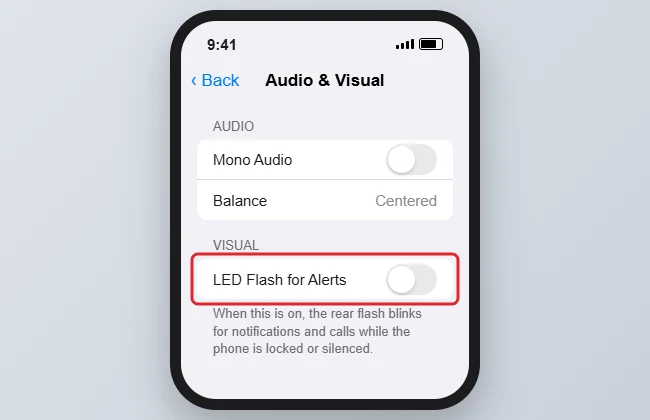
To stop your iPhone’s light from flashing for alerts, go to Settings > Accessibility > Audio & Visual and turn off LED Flash for Alerts. The rear camera flash then stops blinking when calls, texts, and notifications arrive.
This accessibility feature is off by default, so if the flash started blinking, someone turned it on. You can also keep it on but limit it to when the phone is on silent.
Quick Answer
Settings > Accessibility > Audio & Visual > LED Flash for Alerts, then turn it off.
Turn Off LED Flash for Alerts
- Open Settings.
- Tap Accessibility.
- Under Hearing, tap Audio & Visual.
- Tap LED Flash for Alerts and turn it off. On older iOS versions, it’s a switch right on the Audio & Visual page.
Keep the Flash, but Only on Silent
If you like the flash in some situations, open the LED Flash for Alerts page and adjust these options instead of turning it off:
| Option | What it does |
|---|---|
| Flash on Silent | Flashes only when the Ring/Silent switch or Action button has the phone on silent |
| Flash while Unlocked | Also flashes when you’re using the phone (off means locked only) |
Other Lights You Might Be Seeing
- Screen lights up for notifications: That’s the lock screen waking. Turn off Raise to Wake in Settings > Display & Brightness, or place the phone face down.
- Green or orange dot at the top: The camera or microphone is in use. It isn’t the flash.
- Flashlight stays on: Swipe down to open Control Center and tap the flashlight button.
Missing alerts from a dating app? See how to turn on Tinder notifications.
If texts keep chiming more than once, see how to stop text message alerts from repeating.
Troubleshooting
- It’s off, but the flash still blinks: Restart the iPhone. If it continues, check whether an app uses the flash for its own alerts in that app’s settings.
- Can’t find the setting: Type LED in the search bar at the top of Settings.
Frequently Asked Questions
Does the flash drain the battery?
A little, especially if you get many notifications. Turning it off saves a small amount.
Can I make it flash for calls only?
No. It applies to all alerts. You can reduce alerts by turning off notifications for apps you don’t need in Settings > Notifications.
Summary
- Open Settings > Accessibility > Audio & Visual.
- Turn off LED Flash for Alerts.
- Or keep it for silent mode only.

Kermit Matthews is a freelance writer based in Philadelphia, Pennsylvania with more than a decade of experience writing technology guides. He has a Bachelor’s and Master’s degree in Computer Science and has spent much of his professional career in IT management.
He specializes in writing content about iPhones, Android devices, Microsoft Office, and many other popular applications and devices.