Screen Time passcode is the name Apple now uses for the code that older iPhones called the Restrictions passcode. It’s a four-digit code that must be entered before anyone can change Screen Time settings, and you manage it in Settings > Screen Time > Passcode & Management on current iOS.
If an iPhone just asked you for a “Restrictions” code, this is the code it means.
Restrictions passcode or iPhone passcode?
The two codes are easy to mix up because both are numbers you type on the same phone. Apple states plainly that a Screen Time passcode isn’t the same as the passcode you use to unlock your device.
| Screen Time (Restrictions) passcode | iPhone passcode | |
|---|---|---|
| What it guards | Changes to Screen Time settings, for you or for a child | Getting into the phone itself |
| Who usually sets it | A parent or guardian, or an adult who wants limits on their own phone | The person who uses the phone |
| Length in Apple’s steps | Four digits | Set separately in the device passcode settings |
| If it’s forgotten | Reset with the Apple Account used for Screen Time Passcode Recovery | A different process |
A practical example: a parent sets limits on a teenager’s iPhone and the teenager knows the phone’s own passcode. Because the Screen Time passcode is separate, knowing the code that opens the phone doesn’t let the teenager change the limits. To change the phone’s own passcode instead, see changing the passcode on an iPhone.
What the passcode keeps locked
Older iOS versions had a separate Restrictions menu in Settings. Current versions put those controls inside Screen Time, and the passcode protects all of them. Once a Screen Time passcode is on, it must be entered before any Screen Time setting can change.
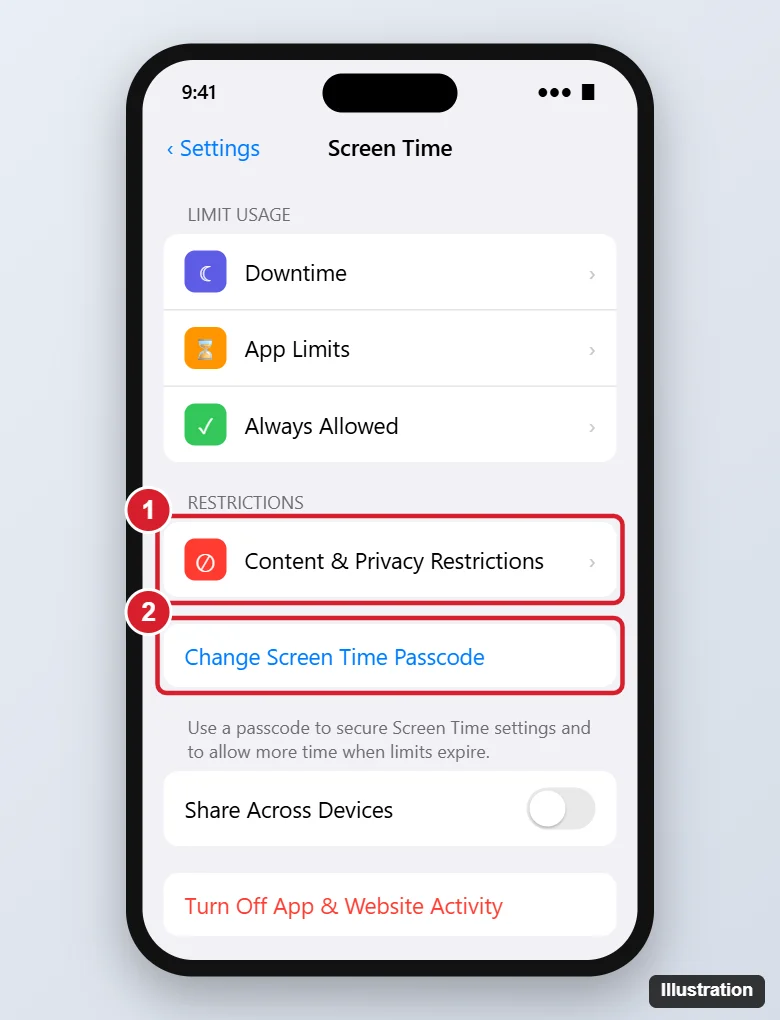
The illustration shows an older Screen Time screen. On iOS 27, the passcode options sit under Passcode & Management.
Apple’s iOS 27 parental controls use these names for the settings the code protects:
- Screen Time Schedule and Time Allowances: when the device can be used and for how long.
- Allowed Contacts: who can get in touch. Setting this up is shown in setting contact restrictions on an iPhone.
- Apps & Websites: which apps and sites are available.
- Content & Privacy Restrictions: the closest match to the old Restrictions menu, used for things like hiding Safari on an iPhone or turning off Game Center invites.
iOS 26 and earlier use the older names Downtime, App Limits and Always Allowed for similar controls.
Set the passcode on your own iPhone
Adults use this to keep their own limits from being switched off in a weak moment. Apple’s steps for creating a Screen Time passcode on iOS 27:
- Open the Settings app, scroll down and tap Screen Time.
- Scroll down and tap Passcode & Management.
- Tap Lock Screen Time Settings.
- Enter a four-digit passcode, then enter it again to confirm.
- When offered Screen Time Passcode Recovery, enter the email address or phone number and password for your Apple Account.
Don’t skip step 5. Apple recommends adding Screen Time Passcode Recovery so you can use your Apple Account to reset the code if you forget it.
On iOS 26 and earlier, there’s no Passcode & Management screen: go to Settings > Screen Time, scroll down and tap Lock Screen Time Settings. A version of these steps written for iOS 17 is in setting a passcode for Screen Time in iOS 17.
Set or change it on a child’s iPhone from yours
When you manage a child’s Apple Account with Family Sharing, the code is set from the family organizer’s or a parent or guardian’s own iPhone or iPad, not on the child’s device.
- Open the Settings app on your own iPhone.
- Tap Family, then tap your child’s name.
- Tap Passcode & Management. If you don’t see it, you may need to set up usage and parental controls first.
- To create the code, tap Lock Screen Time Settings and enter a four-digit passcode twice.
- To change an existing code, tap Change Screen Time Passcode, tap it again, enter the old Screen Time passcode, then enter the new one twice.
Apple notes that when a Screen Time passcode is enabled for a child’s device, you’ll get a notification any time the child uses it on their device. Passcode & Management can also show when the code was last used.
On iOS 26 and earlier, the child’s settings are under Settings > Screen Time: select the family member, tap Manage Screen Time, then tap Lock Screen Time Settings.
Change it or switch it off on your iPhone
Apple’s page on changing your Screen Time passcode gives these steps for your own device on iOS 27:
- Open Settings and tap Screen Time.
- Tap Passcode & Management.
- Tap Change Screen Time Passcode, then tap Change Screen Time Passcode again. You’ll need Face ID or the passcode you use to unlock the iPhone.
- If asked, enter the Apple Account email address and password you used to set up the Screen Time passcode.
- Enter the new Screen Time passcode, then enter it again.
To remove the code instead, choose Turn Off Screen Time Passcode on the same screen and enter the current passcode. Turning off the passcode removes only the code. To stop the limits entirely, Screen Time itself has to be turned off, which is covered in turning off restrictions on an iPhone.
If Share Across Devices is on, a reset passcode updates automatically on your other devices.
Forgot the Screen Time passcode?
Apple’s route depends on Screen Time Passcode Recovery. If you added it when you created the code, Apple says you can use that Apple Account to reset the passcode. The change steps above include a prompt for the Apple Account email address and password used to set it up.
- Use the same account. Apple says you must use the Apple Account you entered when you first set up Screen Time Passcode Recovery. It might be different from the account you’re signed in to on the iPhone.
- Check family accounts. In a Family Sharing group, the account used could be a family member’s Apple Account or your child’s.
- For a child’s device, the family organizer or a parent or guardian resets the code on their own device, not the child’s.
Apple is direct about the limit: without the Apple Account used for Screen Time Passcode Recovery, you won’t be able to remove or reset the Screen Time passcode, and Apple may not be able to provide that information.
Restrictions passcode questions
Why don’t I see Passcode & Management?
On iOS 26 and earlier the screen doesn’t exist; use Lock Screen Time Settings or Change Screen Time Passcode on the main Screen Time screen. For a child on iOS 27, Apple says you may need to set up usage and parental controls first.
Can the passcode be longer than four digits?
Apple’s setup steps ask for a four-digit passcode, so plan on four numbers that you’ll be able to recall.
Related guides
- Turn off Screen Time notifications on iPhone if the weekly reports are more than you need.
- Clear Screen Time history and what Apple keeps.
Set up Screen Time Passcode Recovery today if you skipped it; it’s the one step that keeps a forgotten code from becoming a dead end.

Kermit Matthews runs Live2Tech from just outside Philadelphia. He is an IT specialist with over 20 years of experience, from a university help desk to small-business IT, IT management and his own consulting practice, and has written tech guides full time since 2020. Steps are checked against the current software on a real device or the maker’s official documentation. More about Kermit.