Limit who can reach the phone with Communication Limits, the Screen Time control that decides who a child can call, message and FaceTime with. Apple says these limits apply to the contacts saved in iCloud, so Contacts has to be turned on in iCloud before anything else works. On current versions of iOS, a parent sets this from their own iPhone under Settings > Family > your child’s name > Allowed Contacts.
Which setting do you need?
“Contact restrictions” can mean three different jobs on an iPhone, and each lives in a different place. Pick the row that matches your situation, then jump to that section.
| What you want | Where to set it |
|---|---|
| Control who your child can call, text and FaceTime | Your iPhone: Settings > Family > child’s name > Allowed Contacts |
| Limit who can reach you during set hours on your own phone | Settings > Screen Time > Communication Limits |
| Stop one number or person from reaching you | Block the contact (see “Other Apple controls worth adding”) |
| Stop apps from reading your contact list | Privacy settings for each app, a separate setting |
The last row is about apps, not people. If that is the goal, see how to control which apps can read your contacts instead.
What to set up first
Three things decide whether Allowed Contacts works at all. Checking them first saves a lot of guessing later.
- Family Sharing with a child account. To manage a child’s iPhone from your own, the child needs to be in your Family Sharing group with their own Apple Account. Apple’s parental controls overview lists this as the starting point.
- Contacts on in iCloud on the child’s device. Apple’s child safety guide states that Contacts must be turned on in iCloud on the child’s device for Allowed Contacts to work, and that the limits apply to the contacts the child has saved in iCloud. On an iPhone, the switch is under Settings > the account name > iCloud > See All next to Saved to iCloud > Contacts. If contacts are not syncing, syncing iPhone contacts to iCloud walks through the fixes.
- Matching software versions. Apple’s page notes that the newest Screen Time features need version 27 or later of iOS, iPadOS and macOS, and that in a Family Sharing group every device must be on version 27 or later. If one device in the family is older, you may see the older layout described further down.
Apple’s overview also suggests making sure you are saved in your child’s contacts. Requests to talk to someone new come to you, and your own entry keeps you reachable under every limit.
Set allowed contacts on a child’s iPhone
These steps follow Apple’s guide to choosing who your child can communicate with. You do them on your own iPhone or iPad, not on the child’s phone.
- Open the Settings app, tap Family, then tap your child’s name.
- Tap Allowed Contacts.
- Tap During Screen Time and choose who the child can reach during their regular Screen Time hours.
- Tap When Device Paused or Unavailable and choose who can still get through when the child’s devices are paused, for example at bedtime.
- Turn on Manage (your child’s name) Contacts if you want to view and edit the child’s contact list from your phone. Your child has to approve this request first; Apple says it appears in their Screen Time settings or in their notifications.
- Turn off Allow Contact Editing. With editing off, the child cannot quietly add a new number to get around the limit. Instead, they send you a request to communicate with the new contact.
For a younger child, a common starting point is During Screen Time set to Contacts Only, Manage Contacts on and Allow Contact Editing off. Loosen During Screen Time as the child gets older.
On a Mac, the same controls are in System Settings > Family > your child’s name, according to the same Apple page.
Limit contacts on your own iPhone
Adults can use Communication Limits too, for example to keep work calls out of the evening while family can still get through. Apple’s iPhone User Guide page on communication limits describes this path:
- Open Settings and tap Screen Time. Turn on Screen Time if you have not used it before.
- Tap Communication Limits, then tap During Screen Time and pick an option.
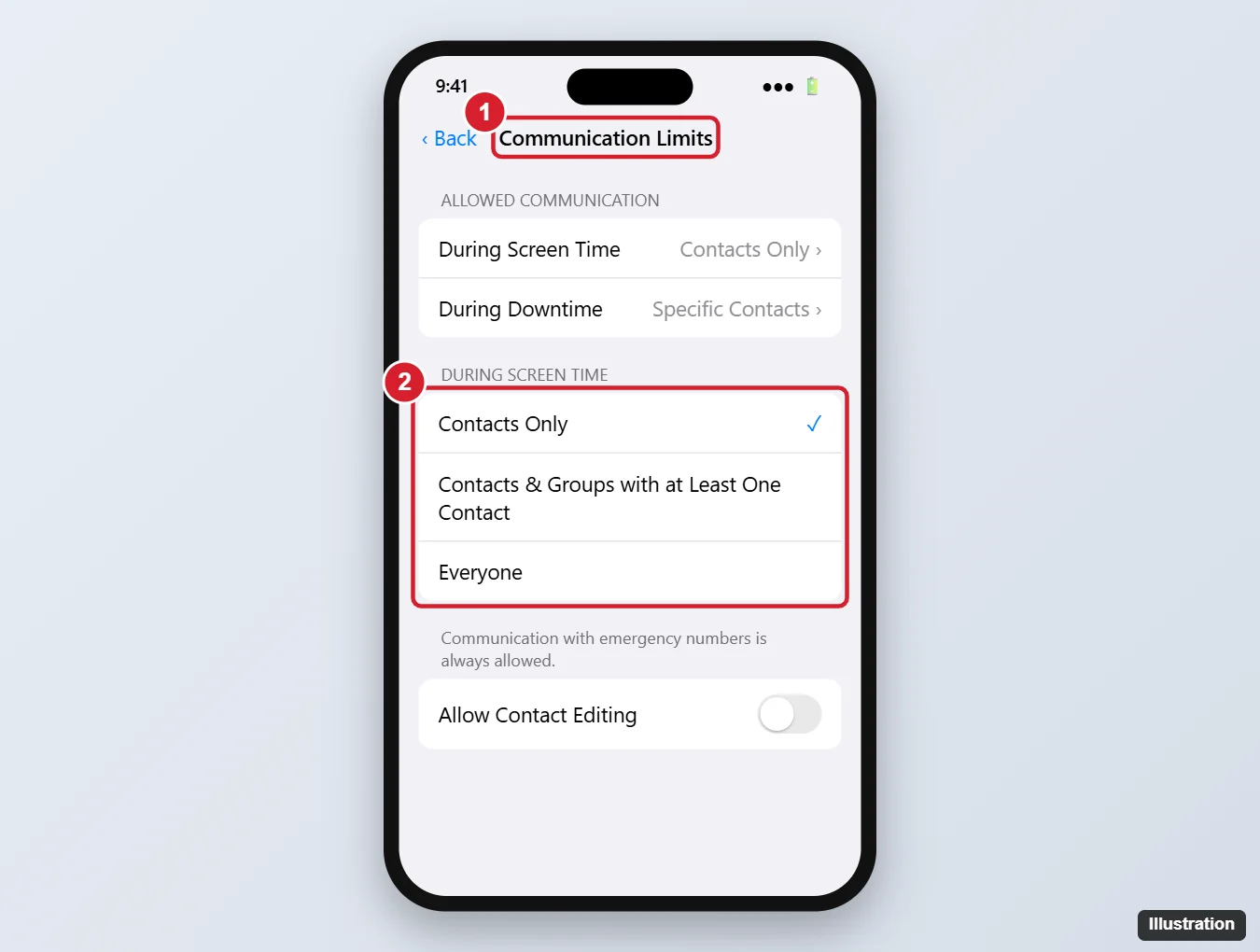
- Tap When Device Paused or Unavailable and choose Always Allowed or Everyone.
The During Screen Time choices Apple lists are:
- Contacts Only: calls, FaceTime and messages only with people saved in Contacts.
- Contacts & Groups with at Least One Contact: the same, plus group conversations that include at least one saved contact.
- Everyone: no limit, including unknown numbers.
If your phone shows Communication Limits under Screen Time
On iOS 26 and earlier, a parent’s controls sit inside Screen Time rather than under Family. Apple’s iOS 26 version of the user guide gives this route:
- Open Settings > Screen Time and tap your child’s name.
- Tap Communication Limits > During Screen Time and choose Contacts Only, Contacts & Groups with at Least One Contact, or Everyone.
- Tap During Downtime, change it to Specific Contacts, then use Choose From My Contacts or Add New Contact to pick who can always get through during Downtime.
If your iPhone and your child’s iPhone are on different versions, update both before you start. Mixed versions are one likely reason the screens in a guide do not match what you see.
Lock the settings with a passcode
Without a Screen Time passcode, anyone holding the phone can change the limits. For a child in Family Sharing, set it on your own device: Settings > Family > your child’s name > Passcode & Management > Lock Screen Time Settings, then enter a four-digit passcode twice. On your own iPhone, Apple’s Screen Time passcode page uses Settings > Screen Time > Passcode & Management > Lock Screen Time Settings, and offers Screen Time Passcode Recovery with your Apple Account. Apple notes a Screen Time passcode isn’t the same as the device passcode, so pick one the child does not know.
For the full walkthrough, see setting a Screen Time passcode. If you are not sure whether an old “Restrictions” code is the same thing, this explainer on the restrictions passcode clears that up.
Other Apple controls worth adding
- Communication Safety. Apple’s parental controls page puts Communication Safety under Settings > Family > your child’s name > Communication Safety; turned on, it warns the child about photos or videos with detected nudity, gore or violence sent through text messages or FaceTime video calls. It works alongside contact limits rather than replacing them.
- Blocking one person. If the problem is a single caller, blocking is simpler than a contact limit. Apple’s blocked contacts page uses Settings > Privacy & Security > Blocked Contacts > Add Blocked Contact. There is also a separate walkthrough on blocking a contact on iPhone.
- App installs. Contact limits do nothing about which apps a child downloads. Ask to Buy, which sends purchase and download requests to a parent, handles that side.
What these limits do not cover
Apple describes Communication Limits in terms of the Phone, FaceTime and Messages apps and the contacts saved in iCloud. Its pages do not say the limits reach chat inside other apps, so assume a messaging app, social network or game with its own chat is outside these controls. Use that app’s own settings, or keep the app off the phone with Ask to Buy.
The limits also only work as well as the contact list behind them. A contact list with dozens of numbers the child added before you turned off editing is a wide door. Turn on Manage Contacts and review the list once after setup.
Finally, Apple notes that some parental control settings may be on by default and cannot be turned off, depending on the child’s age and region. If a switch will not move, that is a likely reason.
When a setting is missing or will not apply
- No Allowed Contacts under Family: the phone is likely on iOS 26 or earlier, where Apple’s guide uses Screen Time > your child’s name > Communication Limits. Use the route above, or update every device in the family group.
- Allowed Contacts is there but changes do nothing: check that Contacts is on in iCloud on the child’s device, and that every device in the family group is on the same major version.
- Manage Contacts stays pending: the child has not approved the request yet. Have them check their notifications or Screen Time settings.
- The child still messages someone new: confirm During Screen Time is not set to Everyone and that Allow Contact Editing is off.
- You want everything gone: see turning off restrictions on an iPhone.
Communication Limits questions
What happens when my child tries to reach someone who is not allowed?
Apple’s iPhone guide says a call or message from a restricted contact will not go through, and when the child tries to reach that person, the name or number appears in red in the recent calls list. On iOS 26, a limit that applies only during Downtime shows a Time Limit message instead.
Do the contacts have to be stored in iCloud?
Yes. Apple states that Allowed Contacts applies to the contacts saved in iCloud, and that Contacts must be turned on in iCloud on the child’s device.
Does my child need their own Apple Account?
To manage the child’s phone from yours, yes. The child joins your Family Sharing group with their own Apple Account, which is what lets the Family section of your Settings show their name.
Does this work on an iPad too?
Yes. Apple’s child safety guide gives the same Settings > Family path for iPhone or iPad, and a matching path in System Settings on a Mac.
Once Allowed Contacts is set and locked with a passcode, ask your child to call or text you from their phone. If the message arrives, the setup is working, and you can adjust the paused-time list as routines change. Screen Time also keeps usage reports, and whether Screen Time history can be deleted covers what you can clear there.

Kermit Matthews runs Live2Tech from just outside Philadelphia. He is an IT specialist with over 20 years of experience, from a university help desk to small-business IT, IT management and his own consulting practice, and has written tech guides full time since 2020. Steps are checked against the current software on a real device or the maker’s official documentation. More about Kermit.