If typing six digits every time feels like too much, your iPhone can still use a shorter code. Open Settings > Face ID & Passcode (or Touch ID & Passcode), enter your passcode, tap Change Passcode, enter it again, then tap Passcode Options and choose the four-digit numeric code. Type the new code twice and you are done. This works on current versions of iOS; the security cost and the ways back are covered below.
Switch your passcode to four digits
The menu name depends on the model. Apple says iPhone X and later models with Face ID use Face ID & Passcode, earlier iPhone models with a Home button use Touch ID & Passcode, and devices without Touch ID use Passcode. Keep your current passcode handy, because you enter it twice.
- Open the Settings app.
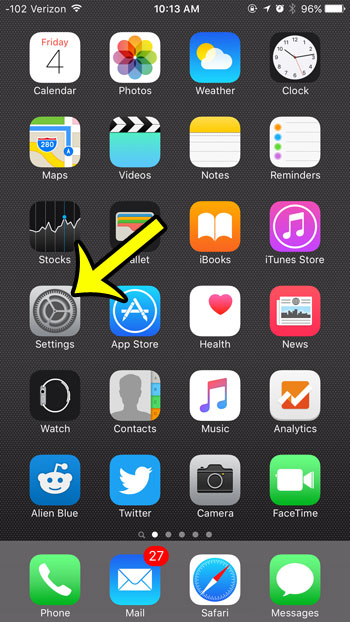
Older iOS version shown; current screens look different. - Scroll down and tap Face ID & Passcode or Touch ID & Passcode.
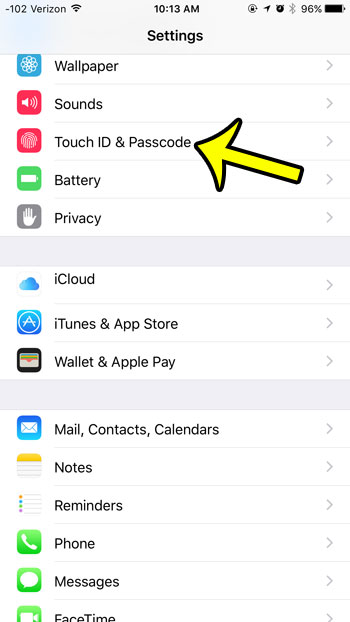
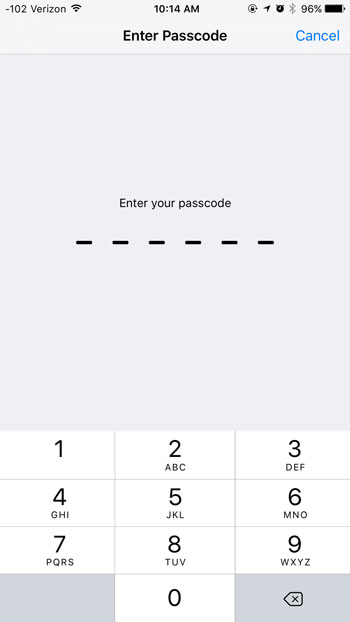
Older iOS version shown; current screens look different. - Enter your current passcode to open the screen.
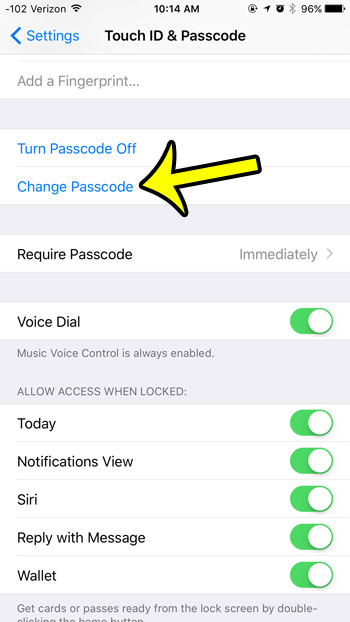
Older iOS version shown; current screens look different. - Scroll down and tap Change Passcode.
Older iOS version shown; current screens look different. - Enter your current (old) passcode once more.
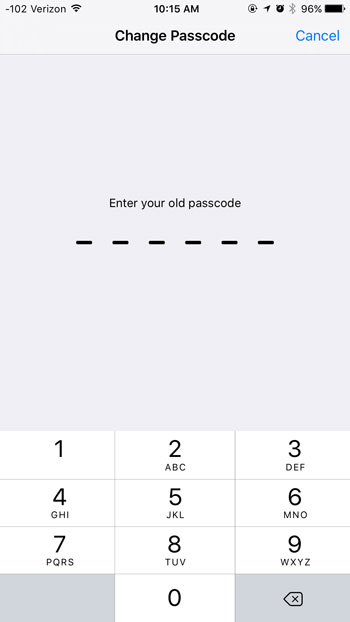
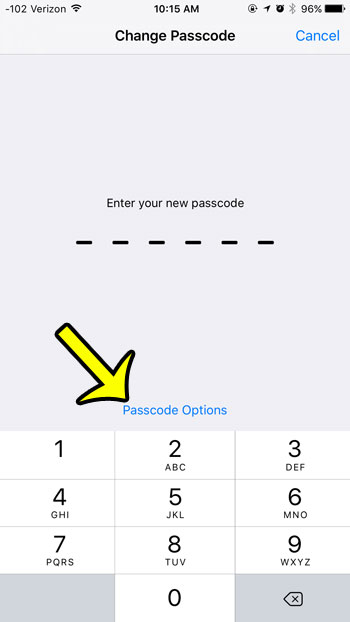
Older iOS version shown; current screens look different. - On the screen that asks for a new passcode, do not type anything yet. Tap Passcode Options.
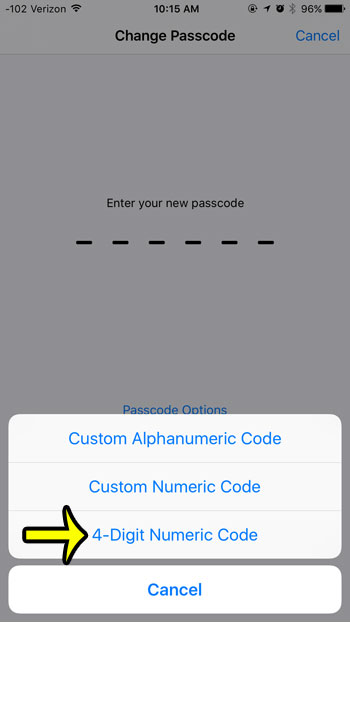
Older iOS version shown; current screens look different. - Choose the four-digit numeric code option from the list. The other choices are a custom numeric code and a custom alphanumeric code.
Older iOS version shown; current screens look different. - Type the four digits you want to use. The screen should now ask for four digits instead of six.
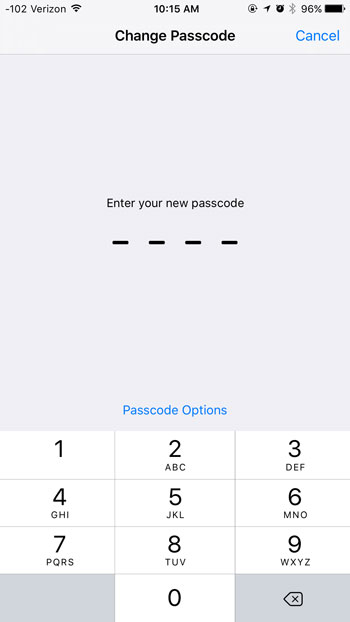
Older iOS version shown; current screens look different. - Type the same four digits again to verify them.
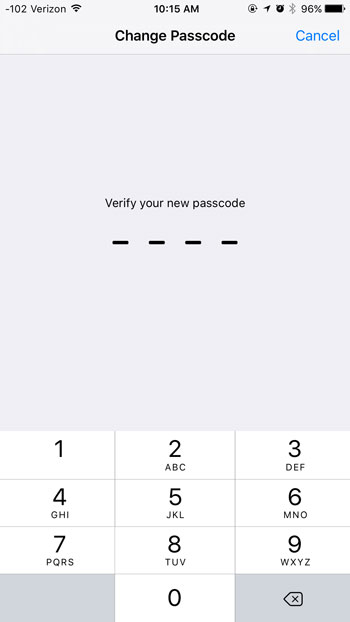
Older iOS version shown; current screens look different.
The new code takes effect right away. The next time the iPhone asks for the passcode, enter the four digits. If you use Face ID or Touch ID, you will see the keypad only when the iPhone asks for the passcode, for example after a restart.
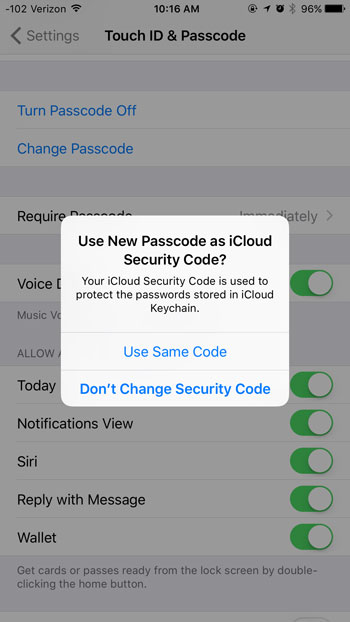
When iOS 9 first made six digits the default, it also asked whether to use the new passcode as an iCloud Security Code at the end of this process. That prompt belongs to older versions and is not part of Apple’s current passcode instructions, so you may not see anything after the verify screen.
Apple’s support page on using a passcode with your iPhone describes the same Change Passcode and Passcode Options route.
Pick four digits when you first set a passcode
If the iPhone has no passcode yet, the same choice appears when you tap Turn Passcode On on the Face ID & Passcode (or Touch ID & Passcode) screen. Apple’s wording is that you enter a six-digit passcode or tap Passcode Options to switch to a four-digit numeric code, a custom numeric code, or a custom alphanumeric code. The full first-time process, including Face ID or Touch ID enrollment, is covered in how to add a passcode to an iPhone.
What a shorter code costs in security
A four-digit code has 10,000 possible combinations. A six-digit code has 1,000,000, a hundred times more. Apple’s iPhone User Guide says the most secure options are Custom Alphanumeric Code and Custom Numeric Code, so four digits is the least protective choice Apple offers.
That trade-off can still be reasonable, for example for someone who finds six taps hard because of a motor or vision difficulty, or who rarely needs the keypad because Face ID handles most of the work. A few habits keep the risk lower:
- Avoid codes that are easy to guess, such as 1234, 0000, a repeated pair, or a birth year.
- Keep Face ID or Touch ID on, so you type the code less often in public where someone could watch.
- Know what happens after repeated wrong entries. Some people turn on the setting that erases the iPhone after 10 failed attempts; read about the Erase Data setting before deciding.
If you want something harder to guess without a long number, letters are another route: see how to use letters in your iPhone passcode.
Changing the code away from home
With Stolen Device Protection turned on, changing the passcode counts as a protected action. Apple’s Stolen Device Protection page explains that away from familiar locations you must authenticate with Face ID or Touch ID, wait for a security delay of an hour, then authenticate again before the change goes through. At familiar locations, such as home or work, those extra steps are not required. If you are traveling, it is simpler to make the switch when you get back. More detail on the home and away behavior is in how to change the passcode on iPhone.
When the four-digit choice is missing or refused
- Work or school iPhone. Organizations can push a passcode policy through device management. Apple’s passcode payload settings include a minimum length, a requirement for letters, and whether simple values such as repeated or sequential characters are allowed. A policy like that can block a four-digit code, and only the administrator can change it.
- You typed before tapping Passcode Options. The option sits on the new-passcode screen. If you already started typing six digits, go back and tap Passcode Options before entering anything.
- The iPhone asks you to wait before changing the code. Away from familiar locations, Stolen Device Protection adds the one-hour security delay described above.
The old passcode still works for a short time
Apple says that after a change, your previous passcode can be used once to access the iPhone and reset the passcode within 72 hours. That helps if you forget the new four digits right away. If you changed the code because someone else knew the old one, go to Face ID & Passcode (or Touch ID & Passcode) and tap Expire Previous Passcode Now, which Apple lists for iOS 17 and later.
Go back to six digits
Repeat the steps above, and at Passcode Options choose the six-digit numeric code instead, or a custom code if you want something longer. The new length applies as soon as you verify it.
4-digit passcode questions
Do Face ID and Touch ID keep working after the switch?
Yes. They work alongside whatever passcode you set. The iPhone still asks for the passcode itself at certain times, such as after a restart, before a software update and when you open passcode settings. If you prefer not to use a fingerprint at all, here is how to turn off Touch ID.
Can I skip the passcode completely instead?
You can, but that removes protection for your data. Read how to turn off the passcode to see what else changes before choosing that over a four-digit code.
Does the new code change my Apple Account password?
No. The device passcode and your Apple Account password are separate, so other devices and sign-ins are not affected.
Once the passcode is sorted, other Lock Screen shortcuts are worth knowing too, such as where the flashlight is on your iPhone.

Kermit Matthews runs Live2Tech from just outside Philadelphia. He is an IT specialist with over 20 years of experience, from a university help desk to small-business IT, IT management and his own consulting practice, and has written tech guides full time since 2020. Steps are checked against the current software on a real device or the maker’s official documentation. More about Kermit.