Once a passcode is set, your iPhone asks for it as soon as the screen locks (Face ID or Touch ID can stand in for it most of the time), and the controls live in Settings > Face ID & Passcode (Touch ID & Passcode on iPhones with a Home button). There you set the passcode, its timing and extras such as Erase Data. Auto-Lock decides how quickly the screen locks, and Stolen Device Protection adds a layer for when the passcode is compromised.
Going the other way, you can also switch off Touch ID so the passcode is the only way in.
When your iPhone asks for the passcode
With a passcode turned on, the iPhone needs it every time you get past the Lock Screen. Face ID or Touch ID simply stand in for typing it most of the time. Apple’s iPhone User Guide lists the situations where the phone ignores your face or fingerprint and insists on the passcode anyway:
With a passcode in place, if you see a Voice Dial switch you can also stop voice calls from the locked screen by turning it off.
- You just turned the iPhone on or restarted it.
- You haven’t opened the iPhone for more than 48 hours.
- You haven’t used the passcode to open the iPhone in the last six and a half days, and you haven’t used Face ID or Touch ID in the last 4 hours.
- The iPhone received a remote lock command, for example from Find My.
- Face ID or Touch ID failed five times in a row.
- You began to use Emergency SOS, or tried to view your Medical ID.
That list explains why an iPhone sometimes asks for the passcode on a morning when Face ID worked fine the night before. It is a security feature, not a fault.
Turn the passcode on
If your phone has no passcode yet, nothing is required at the Lock Screen. To add one:
An iPad follows almost the same passcode rules, and you can make an iPad ask for its passcode instead of Touch ID.
- Open Settings and tap Face ID & Passcode or Touch ID & Passcode. On older devices without Touch ID, the item is simply Passcode.
- Tap Turn Passcode On.
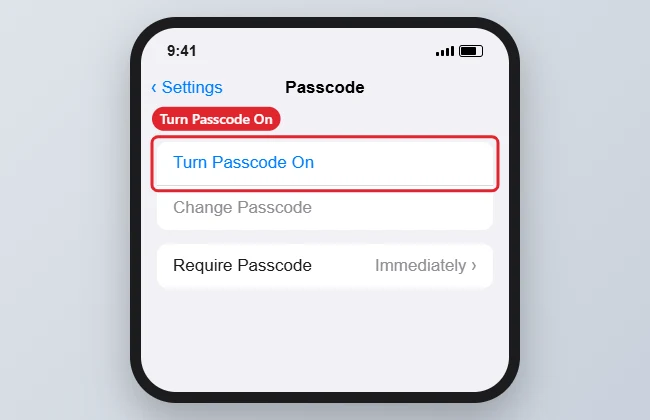
Tap Turn Passcode On to set a passcode. - Enter a six-digit passcode, or tap Passcode Options to pick a different type, then enter it again to confirm.
That is the short version; the full walkthrough on how to add a passcode to an iPhone covers setting up Face ID or Touch ID at the same time. Setting a passcode also turns on data protection, which Apple says encrypts your iPhone data with 256-bit AES encryption (some apps may opt out).
Pick a stronger passcode type
A six-digit number is the default. Under Passcode Options you can choose a different type:
| Option | What it is | Good for |
|---|---|---|
| Custom alphanumeric code | Letters, numbers and symbols, at a length you choose | The strongest choice, especially for a phone that holds work or banking data |
| Custom numeric code | Numbers only, at a length you choose | More guesses needed while keeping the number pad |
| Six-digit code | The default | A reasonable balance for most people |
| Four-digit numeric code | Only four numbers | Convenience; the easiest to guess |
Apple lists custom alphanumeric and custom numeric codes as the most secure options. If you want letters, the steps to use letters in your iPhone passcode go through it, and you can change the passcode on your iPhone from the same screen whenever you like.
Set how soon the passcode is required
The Require Passcode setting on the Face ID & Passcode screen controls how long after locking the phone asks for the code. Apple’s default is as soon as you lock the screen.
On most current iPhones you can’t change it. Apple says the immediate requirement can’t be changed if you use Touch ID, Face ID or Apple Pay, so with any of those set up, Require Passcode is fixed or the option doesn’t appear. On a phone with none of them, you can pick a delay, but each minute of delay is a minute in which anyone who picks up the phone gets in without the code. Leaving it on immediate is the safer choice.
If the phone is managed by a school or employer, a profile installed by that organization may also lock this setting.
Make the iPhone lock sooner
A passcode only protects a locked phone. Two habits close the gap.
Shorten Auto-Lock
Auto-Lock turns the screen off and locks the iPhone after a period of no activity. Go to Settings > Display & Brightness > Auto-Lock and choose a short time, such as 30 seconds or 1 minute. Avoid Never unless you are presenting or following a recipe. If the option is dimmed, Low Power Mode is a common cause; see how to fix iPhone Auto-Lock greyed out.
Lock it yourself, or force the passcode
Pressing the side button (or the top button on older models) locks the phone at once. Many people use one more shortcut so the next person must enter the passcode: on an iPhone with Face ID, press and hold the side button and either volume button just until the sliders appear, then tap Cancel. Apple’s passcode guide lists an attempt to use Emergency SOS among the cases that require the passcode, but it does not describe this shortcut. Let go as soon as the sliders appear, because holding the buttons longer can start Emergency SOS, which may contact emergency services. Check Settings > Emergency SOS first, and on iPhones with a Home button do not rely on this shortcut.
Add protection beyond the passcode
A few more options on the Face ID & Passcode screen are worth a look:
- Erase Data: at the bottom of the screen. When on, the iPhone erases all of its data after ten failed passcode attempts. Turn it on only if you keep a current backup, and be aware that a child entering random codes can trigger it. If it’s already on and you’d rather not take the risk, see how to turn off the setting that erases data after 10 failed attempts.
- Allow Access When Locked: switches for features that work from the Lock Screen without the passcode, such as Notification Center, Control Center or replying with messages. Turning off the ones you don’t need limits what a stranger can do with your phone.
- Stolen Device Protection: with this feature on, when the iPhone is away from familiar places, sensitive actions such as changing your Apple Account password require Face ID or Touch ID, and some also add a Security Delay of about an hour. It protects you if a thief has watched you type the passcode. Apple says it needs two-factor authentication, a passcode, Face ID or Touch ID, Find My and Significant Locations, and you can set the delay to apply Always. The walkthrough to turn on Stolen Device Protection covers each step.
- Expire Previous Passcode Now: after you change your passcode, the old one can still be used for 72 hours to get into the iPhone and reset the passcode, in case you forget the new one. If you changed it because someone learned the old code, tap this option to end that window early.
Apple’s support page on using a passcode with your iPhone describes each of these settings.
If you forget the passcode
Too many wrong guesses lock you out for longer and longer periods, and eventually the iPhone says it is unavailable. There is no way to recover a forgotten passcode while keeping the data on the phone: the fix is to erase the iPhone and set it up again, then restore from a backup.
On recent versions of iOS, the Lock Screen offers a Forgot Passcode? option after several failed attempts. It leads to a Security Lockout screen where you tap Start iPhone Reset, enter your Apple Account password and erase the iPhone. It works only if the phone has a cellular or Wi-Fi connection, is signed in to your Apple Account and has Find My turned on (on iOS 15.2 and iOS 16 the option is labeled Erase iPhone). Without that option, a computer and recovery mode are the route. Follow Apple’s official instructions in If you forgot your iPhone passcode rather than any paid tool that promises to bypass the code.
Passcode lock questions
Can I make my iPhone ask for the passcode every single time instead of using Face ID?
Yes. In Face ID & Passcode (or Touch ID & Passcode), turn off iPhone Unlock, the switch that lets Face ID or Touch ID open the phone. The phone then asks for the passcode at every Lock Screen, while Face ID can stay on for Apple Pay and passwords.
Does turning off the passcode remove these protections?
Yes. Without a passcode, Face ID, Touch ID, data protection and Apple Pay stop working, and anyone can open the phone. If you still want to do it, see how to turn off the passcode on an iPhone for what changes.
Is a passcode the same as a carrier lock?
No. The passcode protects what’s on the phone; a carrier lock ties the phone to one network. Removing that carrier restriction is a separate process, explained in the steps to unlock an AT&T iPhone.
For extra privacy inside the phone, you can also lock an app on iPhone so it needs Face ID even when the phone is open. A good first step today: open Face ID & Passcode, confirm a passcode is on, and set Auto-Lock to a minute or less.

Kermit Matthews runs Live2Tech from just outside Philadelphia. He is an IT specialist with over 20 years of experience, from a university help desk to small-business IT, IT management and his own consulting practice, and has written tech guides full time since 2020. Steps are checked against the current software on a real device or the maker’s official documentation. More about Kermit.