A call you didn’t make shows up in your recent calls, or your iPhone says “Voice Dial” from your pocket while the screen is still locked. On iPhones that offer it, the fix is the Voice Dial switch: go to Settings > Face ID & Passcode (or Touch ID & Passcode), enter your passcode, and turn it off under Allow Access When Locked. Below you will also see how Siri settings affect locked-screen calling, and why the accessibility feature Voice Control is something else.
What Voice Dial does on a locked iPhone
Voice Dial lets you place a call by speaking a name or number. Where your iPhone shows the switch, it controls whether voice dialing works while the iPhone is locked. With it on, someone holding the locked phone could start a call by voice; with it off, you have to unlock the phone first.
That matters in two situations:
- Pocket or bag calls. A held button or a loose headset connection can start voice calling and dial a contact without you noticing.
- Privacy. Someone who picks up your locked iPhone could call your contacts.
Turning the switch off affects only the locked screen; it doesn’t turn off Siri.
Turn off Voice Dial
Voice Dial only matters on a passcode-protected iPhone, and carrier guides note the switch isn’t shown without a passcode. If you haven’t set one yet, see how to require a passcode on iPhone.
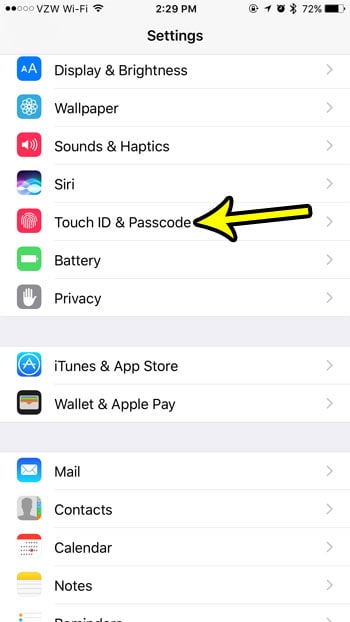
- Open the Settings app.

Older iOS version shown; current screens look different. - Tap Face ID & Passcode, or Touch ID & Passcode on iPhones with Touch ID.
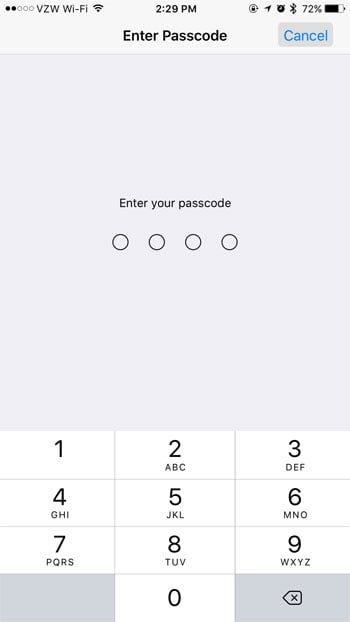
Older iOS version shown; current screens look different. - Enter your passcode.
Older iOS version shown; current screens look different. - Scroll down to the Allow Access When Locked section. If you see Voice Dial, tap its switch to turn it off (the switch turns gray).
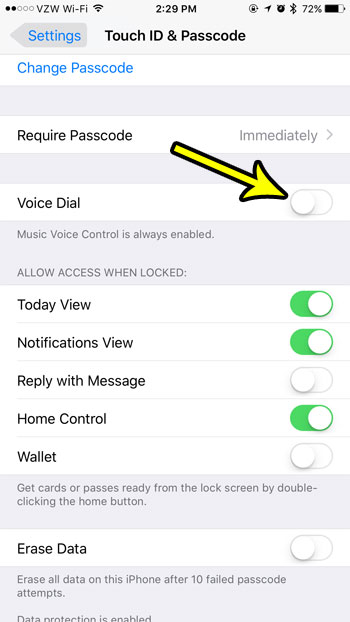
Older iOS version shown; current screens look different.
Apple’s page on lock screen features confirms the menu names and the Allow Access When Locked section. It doesn’t list each switch by name, so what appears in that section can vary with your iOS version and settings.
| Your iPhone | Menu to open |
|---|---|
| iPhone with Face ID | Settings > Face ID & Passcode |
| iPhone with Touch ID | Settings > Touch ID & Passcode |
If you see Siri instead of Voice Dial
On many current iPhones, Siri handles voice calling, and the Voice Dial switch is often reported to appear only when Siri is turned off. If your list shows a Siri switch rather than Voice Dial, that is the one to turn off: it is meant to stop Siri, including calls placed by Siri, from working until you unlock the iPhone.
You can also stop the button from starting Siri at all. Go to Settings > Siri and turn off Press Side Button for Siri, as described in Apple’s Siri settings guide. On an iPhone with a Home button, look for the matching Home button option on the same screen. To switch Siri off completely, see how to turn off Siri on iPhone.
Voice Dial, Siri and Voice Control compared
The names overlap, so it helps to know which feature you are dealing with.
| Feature | What it does | Where to change it |
|---|---|---|
| Voice Dial switch | Allows or blocks voice calling while the iPhone is locked (where the switch is shown) | Face ID & Passcode or Touch ID & Passcode |
| Siri | Apple’s assistant; places calls, sends messages and more | Settings > Siri |
| Classic Voice Control | Older voice command feature that responds when you press and hold the Side or Home button; choosing it also turns off Siri | Settings > Accessibility > Side Button or Home Button |
| Voice Control (accessibility) | Controls the whole iPhone by voice commands | Settings > Accessibility > Voice Control |
Voice Control in Accessibility is not a calling feature. According to Apple’s Voice Control article, it needs iOS 13 or later and has to be set up before it does anything, so it doesn’t respond unless you have set it up and turned it on.
If a long press keeps launching voice calling, change what the button does. Apple’s article on turning off Classic Voice Control gives the path: on an iPhone without a Home button, Settings > Accessibility > Side Button; on an iPhone with a Home button, Settings > Accessibility > Home Button. Under Press and Hold to Speak, choose Siri, Classic Voice Control (which also turns off Siri) or Off. More detail on the Home button version is in stopping Siri or Voice Control from launching when you hold the Home button.
Wired headsets can trigger it too. Apple notes that a headset that isn’t fully inserted, a frayed cable or moisture can activate Siri or Classic Voice Control. Push the plug all the way in, or try another headset.
Turn Voice Dial back on
Repeat the same steps: Settings > Face ID & Passcode (or Touch ID & Passcode), enter the passcode, and, if you see a Voice Dial switch, turn it on again.
Voice Dial questions
Why is there no Voice Dial switch on my iPhone?
It doesn’t appear on every setup. Check that a passcode is set; if Siri is turned on, look for a Siri switch in Allow Access When Locked instead. Apple’s current guide doesn’t list the switch by name, so it may not appear on every iOS version.
Does turning off Voice Dial turn off Siri?
No. If you see a Voice Dial switch, it only changes what works while the phone is locked. Siri settings are separate.
Can someone still make an emergency call from my locked iPhone?
Yes. Apple’s emergency call guide explains that on the Passcode screen you tap Emergency and dial the emergency number, so turning off Voice Dial doesn’t block it.
For an unrelated but common iPhone problem, see ways to free up iPhone storage if your phone is running low on space.

Kermit Matthews runs Live2Tech from just outside Philadelphia. He is an IT specialist with over 20 years of experience, from a university help desk to small-business IT, IT management and his own consulting practice, and has written tech guides full time since 2020. Steps are checked against the current software on a real device or the maker’s official documentation. More about Kermit.