If you no longer want a fingerprint to open your iPhone or approve purchases, go to Settings > Touch ID & Passcode, enter your passcode, and turn off the switches below Use Touch ID For. Your passcode then does the job instead. This applies to iPhones with a Touch ID sensor on current versions of iOS; below you will also find how to remove saved fingerprints, which models have Touch ID, and what still asks for the passcode.
Turn off Touch ID on your iPhone
You need your passcode for these steps. Touch ID cannot be set up without one, so turning Touch ID off always leaves the passcode in place.
- Open the Settings app.
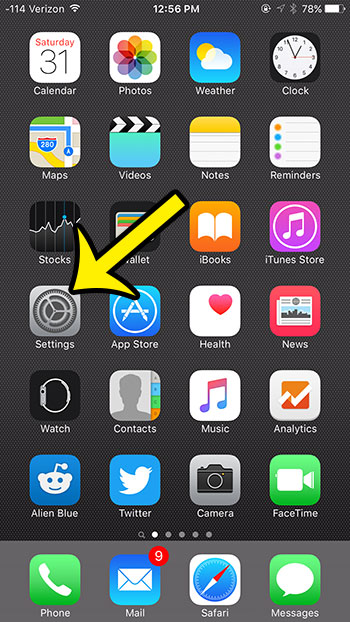
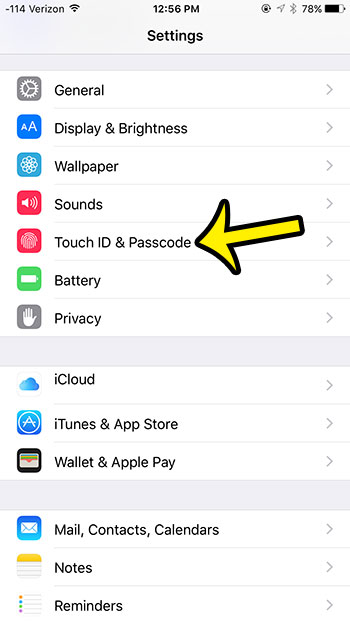
Older iOS version shown; current screens look different. - Tap Touch ID & Passcode.
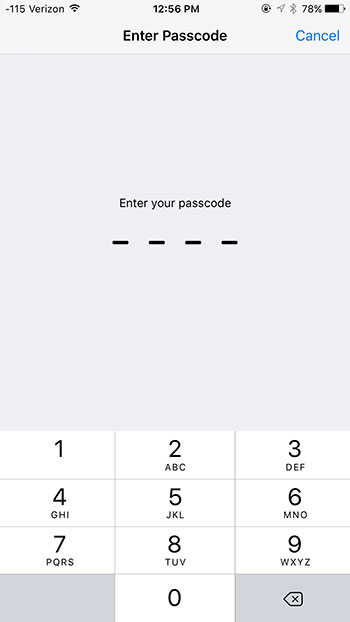
Older iOS version shown; current screens look different. - Enter your passcode.
Older iOS version shown; current screens look different. - Under Use Touch ID For, turn off the switch for opening the phone (shown as iPhone Unlock in the screenshot below). Turn off the other switches too if you want Touch ID out of the picture entirely.
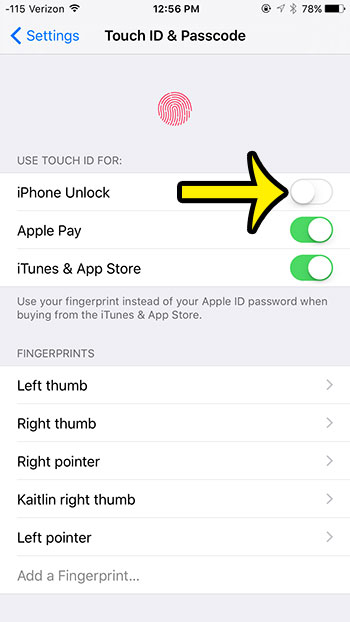
Older iOS version shown; current screens look different.
Lock the phone and press the Home button (on iPhone Duo, the side button) to check: you should now see the passcode keypad, and resting a finger on the sensor should do nothing. To turn Touch ID back on, return to the same screen and switch the option on again. Apple’s Touch ID setup guide describes the same screen.
Keep Touch ID for some things, not others
Each switch below Use Touch ID For controls one job, so you do not have to choose all or nothing. Apple names the options as Passcode (opening the phone), iTunes & App Store, and Apple Pay; your screen may also list Password AutoFill, and labels can differ slightly between iOS versions.
| Switch | What it lets your fingerprint do | Turn it off if |
|---|---|---|
| Opening the phone (Passcode / iPhone Unlock) | Open the iPhone from the Lock Screen | The sensor opens the phone when you do not mean it to, or others have enrolled fingers |
| iTunes & App Store | Approve app, media and in-app purchases | You do not want a fingerprint to approve purchases |
| Apple Pay | Confirm card payments | You do not want a fingerprint to confirm payments |
| Password AutoFill (if listed) | Fill in saved passwords | You want a passcode before passwords are filled |
If what bothers you is the Home button press rather than the fingerprint, there is a softer fix. Apple’s Touch ID support article describes Rest Finger to Open under Settings > Accessibility > Home Button, which lets a resting finger open the phone without pressing.
Remove saved fingerprints instead
Turning off the switches and deleting fingerprints are separate actions in Apple’s instructions. If someone else’s finger is enrolled, or you want the stored prints gone, open Touch ID & Passcode, tap a fingerprint, and tap Delete Fingerprint. You can also tap a print to rename it, such as “Thumb”, and the screen holds up to five. The full walkthrough is in deleting a fingerprint from an iPhone.
When the iPhone asks for the passcode anyway
Even with Touch ID on, Apple’s security documentation lists times when the passcode is required: after the iPhone restarts, when it has not been opened for 48 hours, and after five failed fingerprint matches. That means a restart is a simple way to make the next opening need the passcode, without changing any setting.
A documented shortcut, with a caution: Apple’s security documentation says the passcode is required after you open the power-off and Emergency SOS screen by holding the side button and either volume button for about two seconds and then tap Cancel. Let go as soon as the sliders appear: if Call with Hold and Release is on in Settings > Emergency SOS, continuing to hold starts a countdown to call emergency services. Pressing the side button five times is not a Touch ID shortcut; with Call with 5 Presses on, it starts the same emergency countdown. Apple describes both switches in its Emergency SOS guide.
Does your iPhone have Touch ID?
On most models Touch ID is built into the Home button. Apple’s model list shows it on iPhone SE (3rd and 2nd generation), iPhone 8 and 8 Plus, iPhone 7 and 7 Plus, iPhone 6s and 6s Plus, iPhone 6 and 6 Plus, iPhone SE (1st generation) and iPhone 5s. Apple’s list also shows an iPhone Duo with Touch ID built into the side button instead. iPhones without a Home button otherwise use Face ID, and the screen is called Face ID & Passcode instead. On an iPad, the steps are a little different; see stopping an iPad from opening with Touch ID.
Touch ID questions
Is my iPhone less secure with Touch ID off?
Not by itself, as long as the passcode is strong. With Touch ID off you will type the passcode more often, which makes a short or easy one more tempting. If you are switching off Touch ID, it is a good moment to change your iPhone passcode to something longer.
Does Stolen Device Protection need Touch ID?
Yes. Apple lists Face ID or Touch ID as a requirement for turning on Stolen Device Protection, along with a passcode and Significant Locations. If you rely on that feature, keep Touch ID set up. More in turning on Stolen Device Protection.
Does turning off Touch ID turn off my passcode?
No. The passcode stays on and becomes the way into the phone. Removing the passcode is a separate, riskier change, covered in turning off the passcode on iPhone. For the passcode itself, including when it is asked for, see how to require a passcode on iPhone.
Once Touch ID is set the way you want, lock the phone once to confirm the change. Unrelated to Touch ID, but on the same theme of tidying settings: if battery life or data use is the next thing to fix, you can turn off Background App Refresh on iPhone.

Kermit Matthews runs Live2Tech from just outside Philadelphia. He is an IT specialist with over 20 years of experience, from a university help desk to small-business IT, IT management and his own consulting practice, and has written tech guides full time since 2020. Steps are checked against the current software on a real device or the maker’s official documentation. More about Kermit.