To make your iPad stop opening with a fingerprint, go to Settings > Touch ID & Passcode, enter your passcode, and under Use Touch ID For turn off the option that lets Touch ID unlock the iPad. Touch ID keeps working for anything else you leave on, such as iTunes & App Store purchases and Apple Pay, and the iPad asks for its passcode at the Lock Screen instead.
Find your iPad’s Touch ID sensor
It helps to know where the sensor is, because that is the button you’ll stop using to get past the Lock Screen. Apple’s iPad User Guide page on Touch ID lists these models as having Touch ID in the top button:
- iPad (10th generation and later)
- iPad mini (6th generation) and iPad mini (A17 Pro and later)
- iPad Air (4th generation and later)
Other iPads with Touch ID have it in the round Home button below the screen. If your Settings app shows Face ID & Passcode rather than Touch ID & Passcode, your iPad uses Face ID, and these steps don’t apply.
Make your iPad ask for the passcode instead
The screenshots in this section come from an older iPad software version, so your screens will look different, but the path is the same.
- Open the Settings app.
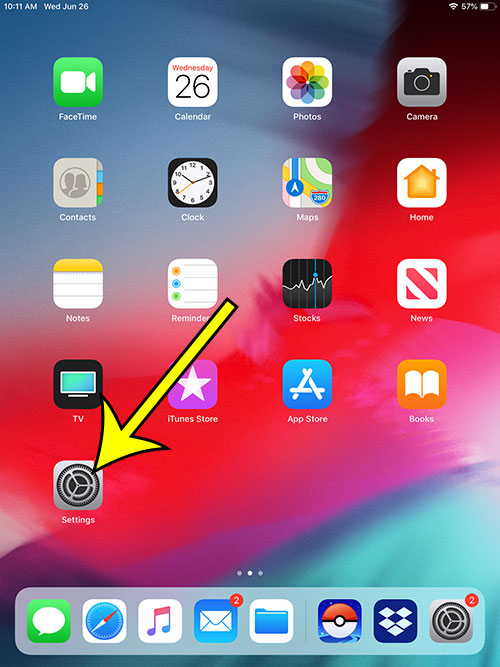
- Tap Touch ID & Passcode in the column on the left side of the screen.
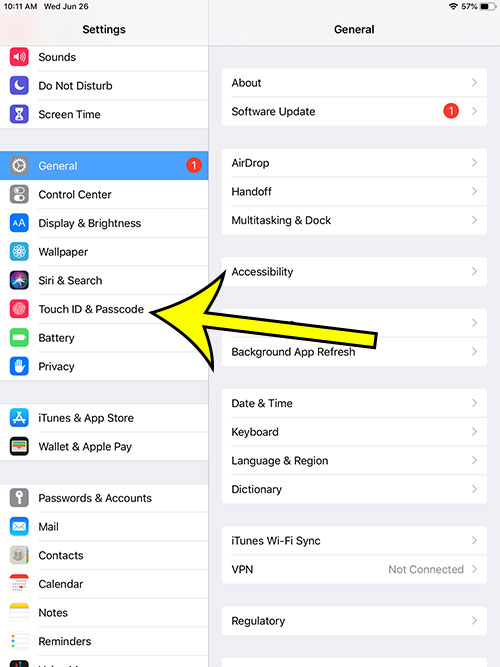
- Enter your iPad passcode. Apple always asks for it before this screen opens.

- Under Use Touch ID For, turn off the switch that covers opening the iPad. Apple’s Touch ID support article calls this option Passcode, and Apple’s passcode article calls the iPhone version iPhone Unlock, so on an iPad the switch may be labeled Passcode or iPad Unlock. The screenshot below is from an older version. Leave the other switches as they are.
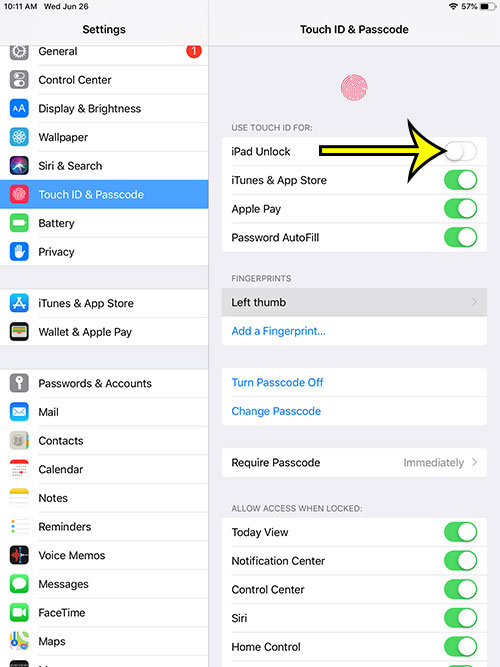
To check that it worked, lock the iPad with the top button, wake it, and rest your finger on the sensor. It should no longer open; type the passcode instead.
If you have no passcode at all, Touch ID can’t be used, because Apple requires a passcode before you can set up Touch ID. See how to add a passcode on an iPhone; the iPad screen is the same Touch ID & Passcode menu.
What Touch ID still does afterward
Turning off this one switch doesn’t delete your fingerprints and doesn’t turn Touch ID off everywhere. Each item under Use Touch ID For has its own switch:
| Switch | If you leave it on |
|---|---|
| iTunes & App Store | A fingerprint still approves downloads and purchases. |
| Apple Pay | A fingerprint still confirms payments, where Apple Pay is set up. |
| Password filling | Apple’s iPad guide says Touch ID can automatically fill in passwords; the exact label depends on your version. |
This setup suits a family iPad: a parent can keep a quick fingerprint for approving App Store downloads while the device itself only opens with the passcode. The iPhone has a similar screen with the same choices, covered in how to turn off Touch ID on iPhone.
When the iPad needs the passcode regardless
Even with Touch ID fully on, Apple’s article on when a passcode is required says the device asks for the passcode when:
- it has just been turned on or restarted
- your fingerprint isn’t recognized five times in a row
- it hasn’t been opened in more than 48 hours
- it has received a remote lock command
- you add or delete fingerprints, or open Touch ID & Passcode in Settings
- you use Emergency SOS or view Medical ID
So turning the switch off simply makes the passcode the everyday route, not a new kind of protection. The iPhone rules are much the same; see when an iPhone asks for the passcode.
Require a press with Rest Finger to Open off
If the real problem is the iPad opening the moment your hand brushes the sensor, you may not need to give up Touch ID. Apple’s Touch ID article describes Rest Finger to Open, which lets a resting finger open the iPad without pressing the button. To check it, open Settings > Accessibility, tap Home Button (Apple’s article adds the top button for top-button models) and see whether Rest Finger to Open is on. On a Home-button iPad, turning it off means you press the Home button to open the iPad.
Turn it back on, or remove a fingerprint
- Undo: go back to Settings > Touch ID & Passcode, enter the passcode, and turn the switch under Use Touch ID For back on.
- Remove one person’s print: on the same screen, tap a fingerprint, then tap Delete Fingerprint. Apple notes you can enroll up to five fingerprints and tap one to rename it, which makes it easier to tell whose is whose. The iPhone steps for deleting a fingerprint match this screen.
iPad Touch ID questions
Does turning the switch off delete my fingerprints?
No. Your saved fingerprints stay, and any other switch you left on keeps using them.
Can someone else’s fingerprint still open the iPad?
Not once the switch is off; every enrolled print stops working at the Lock Screen. If you want that person’s print gone from purchases too, delete it as described above.
Why don’t I see Touch ID & Passcode in Settings?
Your iPad either uses Face ID or has no Touch ID sensor. If Face ID & Passcode appears in the Settings sidebar instead, your iPad uses Face ID.
Another iPad setting people often look for: turning off the iPad’s rotation lock so the screen turns to landscape.

Kermit Matthews runs Live2Tech from just outside Philadelphia. He is an IT specialist with over 20 years of experience, from a university help desk to small-business IT, IT management and his own consulting practice, and has written tech guides full time since 2020. Steps are checked against the current software on a real device or the maker’s official documentation. More about Kermit.