Restrictions on a current iPhone live in Screen Time, under Content & Privacy Restrictions. Whose iPhone you are changing decides where you tap: for your own iPhone, open Settings, tap Screen Time, then switch Content & Privacy Restrictions off; for a child in Family Sharing, make the change from your own iPhone, starting in Settings > Family. Either way, expect to type the Screen Time passcode, which is not the code you use to open the phone.
Whose iPhone are you changing?
Pick the row that matches your situation, then jump to that section. Apple redesigned its parental controls in iOS 27, so the child rows use the current labels.
| Your situation | Where the change happens | What you need |
|---|---|---|
| Your own iPhone, and you set the limits yourself | Settings > Screen Time on that iPhone | Your Screen Time passcode, if one is set |
| You want fewer limits, not none | The single setting in Screen Time (schedule, time allowance, blocked app or website) | The same passcode |
| Your child’s iPhone in Family Sharing | Settings > Family > your child’s name, on your own device | Organizer or parent/guardian role and the child’s Screen Time passcode |
| Nobody remembers the Screen Time passcode | Passcode & Management in Screen Time | The Apple Account used when the passcode was created |
| A work or school iPhone | The organization that manages it | Its IT administrator |
Switch off Content & Privacy Restrictions on your own iPhone
This is the main off switch. It stops the content, app and privacy limits on this iPhone, while Screen Time itself (usage reports, schedules, time allowances) keeps running until you turn that off separately.
- Open the Settings app and tap Screen Time.
- Tap Content & Privacy Restrictions.
- Enter the Screen Time passcode if the iPhone asks for it.
- Turn off the Content & Privacy Restrictions switch at the top of the screen.
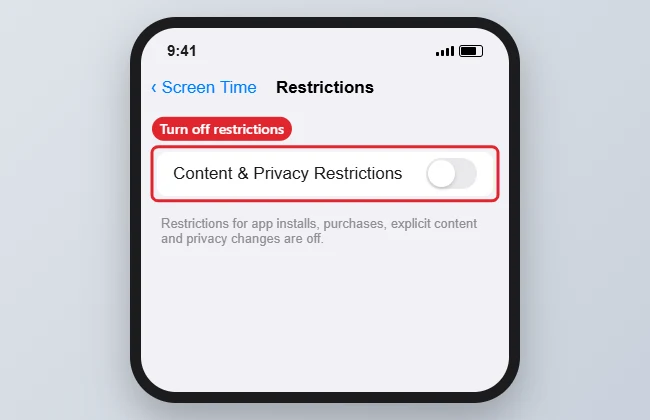
Apple’s iOS 27 page for this switch on your own iPhone could not be confirmed, so if you do not see it where the steps say, search Settings for “Content & Privacy”.
The Screen Time passcode is a four-digit code, and Apple notes it isn’t the same as the passcode you use to unlock your iPhone.
Loosen one limit and keep the rest
Turning everything off is not always the goal. A teen who needs a school website, or an adult who just wants evenings back, usually needs one setting changed. Apple’s guide for setting up Screen Time for yourself and its parental controls page list these switches for iOS 27:
- Screen Time Schedule: tap Screen Time Schedule, then turn off Schedule. The times when only allowed apps work stop applying.
- Time Allowances: tap Time Allowances, tap Manage Categories, select a category, then select Delete (your category name) Category. The daily limit for that group of apps goes away.
- A blocked app or website: Apple says you can unblock an app or website at any time; for a child, that is under Apps & Websites in the child’s settings. For Safari specifically, see how to unblock a website on iPhone, and to put a single site back on the list later, block a website on iPhone again.
- App Store installs: on a child’s settings, Apps & Websites > App Store lets you set Installing Apps or App Clips to Allowed or Blocked.
If the reason you went looking for this setting is that Safari disappeared, the cause may be a hidden app rather than a restriction; hiding Safari on iPhone explains both routes. Some people only want a single app behind Face ID instead of a family-wide rule, which locking an app on iPhone covers. And if the goal is to keep calls and messages limited while lifting everything else, leave contact restrictions in place.
If Game Center is the one thing you want to keep limited, blocking Game Center invites and friend requests covers that setting on its own.
Stop Screen Time completely
When you no longer want Screen Time at all on your own iPhone, Apple’s iOS 27 steps are:
- Open Settings and tap Screen Time.
- Tap Manage Screen Time.
- Tap Turn Off App & Website Activity.
On iOS 26 and earlier the steps differ; Apple’s guide has a version menu for older releases. You can turn tracking back on later with Turn On App & Website Activity. Apple’s page does not say what happens to stored usage history, so if that matters, review your reports before switching it off. If your goal is to clear past reports rather than stop tracking, deleting Screen Time history covers what can and cannot be removed. If only the weekly report alerts bother you, turning off Screen Time notifications is a smaller change.
Remove limits from your child’s iPhone
For a child in Family Sharing, Apple says the family organizer or parent/guardian manages the child’s Screen Time passcode from their own device, not the child’s. In iOS 27 the route is:
- On your own iPhone, open Settings and tap Family.
- Tap your child’s name.
- Tap Apps & Websites, then Restrictions (or the specific setting, such as App Store).
- Enter the Screen Time passcode if asked, then change the setting to Allow, Allowed or off as needed.
Ask to Buy is under Apps & Websites > Restrictions > Ask to Buy, where you can turn off Require Purchase Approval if your region and your child’s age allow it. Apple’s parental controls page is direct about the limits on this: “Depending on your state, country, or region, and your child’s age, some parental controls are on by default and can’t be removed.” It also says Ask to Buy is on by default and cannot be turned off for children under 18 in some places, Ask to Buy and Ask to Browse are on by default for children under 13, and Limit Adult Websites is on by default for children under 18. A setting that will not switch off for a younger child may be working as designed.
If some devices in your family cannot update to version 27, Apple says you can keep using the previous version of Screen Time and parental controls. Its page on managing a child’s Screen Time covers both versions.
If you forgot the Screen Time passcode
There is no supported way around the Screen Time passcode other than Apple’s own reset. Third-party “recovery” tools are not part of Apple’s process, so they are not covered here. Apple’s iOS 27 steps for your own iPhone:
- Open Settings and tap Screen Time.
- Tap Passcode & Management.
- Tap Change Screen Time Passcode, then tap Change Screen Time Passcode again.
- Use Face ID or enter the device passcode when asked.
- If asked, enter the Apple Account email address and password that you used to set up the Screen Time passcode.
- Enter a new Screen Time passcode, then enter it again to confirm.
For a child’s passcode, the organizer or parent/guardian goes to Settings > Family > the child’s name > Passcode & Management > Change Screen Time Passcode on their own device. If the reset fails, Apple’s Screen Time passcode page points to the account: it has to be the Apple Account used when the passcode was set up, which might not be the one signed in on the iPhone now. Apple also recommends that you do not skip adding Screen Time Passcode Recovery, because without it you may not be able to reset the code. That page also has the steps for iOS 26 and earlier.
For what the code protects and how it differs from the device passcode, see what a restrictions passcode is on iPhone. If you later want limits back, setting a Screen Time passcode walks through adding one again.
A setting still will not change
- Work or school iPhone: open Settings > General > VPN & Device Management. If you see a management entry from an organization, that organization may control some settings on the iPhone. Ask its IT administrator; do not try to remove management from a device you do not own.
- Account changes blocked: some restriction settings stop changes to accounts, such as when you try to remove an email account. Turn off Content & Privacy Restrictions (or allow account changes in it), then try again.
- Change shows on one device only: in iOS 27, Share Across Devices is under Settings > Screen Time > Manage Screen Time. Apple says it needs version 27 or later on each device, so an older iPad or Mac will not pick up the change.
A good habit after removing restrictions: open the Screen Time screen once more and confirm the switch you changed shows off, then test the app or website that was blocked. If it still will not open, check the cases above.
iPhone restriction answers
Can my child switch off restrictions on their own iPhone?
Not if the Screen Time passcode was set the way Apple describes, from the parent’s or organizer’s device. The child would need that passcode, and the reset path asks for the Apple Account used to create it.
Why does Ask to Buy stay on after I turn it off?
In some regions Apple keeps Ask to Buy on for children under 18, and other controls are on by default for younger ages. These are legal or age defaults, not a fault on the phone.
Do I need my Apple Account password to reset the Screen Time passcode?
Possibly. Apple’s steps ask for Face ID or the device passcode first, then the Apple Account email address and password if the iPhone requests them. Use the account that set up the Screen Time passcode.

Kermit Matthews runs Live2Tech from just outside Philadelphia. He is an IT specialist with over 20 years of experience, from a university help desk to small-business IT, IT management and his own consulting practice, and has written tech guides full time since 2020. Steps are checked against the current software on a real device or the maker’s official documentation. More about Kermit.