If you are hiding Safari from a child, Screen Time’s parental controls let a parent block an app on the child’s iPhone until the parent unblocks it. If you only want the icon off your own Home Screen, touch and hold Safari, tap Remove App, then Remove from Home Screen: Safari moves to the App Library and still works from there. Neither option deletes Safari.
What “hiding” Safari can and can’t do
Safari is built into iOS, so in most countries you can’t delete it the way you delete an app from the App Store. What you can do depends on whose iPhone it is and which version of iOS it runs:
| Goal | Option | What happens to Safari |
|---|---|---|
| Tidy your own Home Screen | Remove from Home Screen | Icon leaves the Home Screen; Safari stays in the App Library and still opens |
| Stop a child from using an app such as Safari (iOS 27) | Family > child > Apps & Websites > Block App | Not deleted; dimmed on the child’s Home Screen |
| Restrict apps on iOS 26 and earlier | Screen Time > Content & Privacy Restrictions > Allowed Apps & Features | Turned-off apps are hidden from the Home Screen until turned back on |
| Keep Safari but limit the web | Website filtering in Screen Time | Safari works, with adult sites limited or only approved sites allowed |
One feature that doesn’t help here: iOS lets you hide some apps behind Face ID with Hide and Require Face ID, but Apple says apps that come installed on the iPhone can’t be hidden that way. Only apps you download from the App Store can. Locking an app on iPhone explains that feature for the apps it does cover.
Remove Safari from your Home Screen
This is the right choice when Safari is simply in your way, for example if you use another browser and want its icon in Safari’s old spot. It doesn’t restrict anything.
- On the Home Screen, touch and hold the Safari icon.
- Tap Remove App.
- Tap Remove from Home Screen.
Apple says the app moves to the App Library and can still be used from there. Anyone holding the phone can still open it from the App Library, so don’t rely on this to keep someone off the web. If you want the icon back, find Safari in the App Library and drag it onto a Home Screen page. Changing the iPhone Home Screen covers rearranging apps in more detail, and an older trick of tucking apps into a folder is described in hiding an app in a folder.
If you use a different browser, consider making it your default so links open there: go to Settings > Apps > Default Apps > Browser App and choose it.
Block Safari on a child’s iPhone (iOS 27)
In iOS 27, Screen Time introduces new parental controls. A parent or guardian in Family Sharing manages the child’s iPhone from their own iPhone. Apple notes that to use all the latest Screen Time features, every Apple device involved needs iOS 27 (or the matching version for other devices).
First, make sure Screen Time is set up for the child under Settings > Family > your child’s name > Screen Time, and that a Screen Time passcode is set (next section). Then:
- On your iPhone, open Settings and tap Family.
- Tap your child’s name.
- Tap Apps & Websites. If asked, enter your Screen Time passcode.
- Select the app you want to block. Apple’s page describes this for apps in general and doesn’t name Safari, so check that Safari appears in your child’s list.
- Tap Block App, then tap it again to confirm.
Apple says a blocked app isn’t deleted; it is dimmed on the child’s Home Screen. You can unblock it at any time from the same screen.
Restrict Safari on iOS 26 and earlier
Before iOS 27, the same Screen Time menu was used on your own iPhone or on a child’s. Apple’s iOS 26 guide describes this route:
- Open Settings and tap Screen Time.
- Tap Content & Privacy Restrictions, then turn on Content & Privacy Restrictions.
- Tap Allowed Apps & Features.
- Turn off the apps you want to restrict. Look for Safari in this list.
According to Apple, a turned-off app isn’t deleted; it is temporarily hidden from the Home Screen until you turn it back on. Set a Screen Time passcode as well, or anyone can switch it back on.
What about your own iPhone on iOS 27?
Apple’s iOS 27 guide for blocking features on your own iPhone sends you to Screen Time > Content & Privacy Restrictions > Other Features, where you can allow or block settings such as AirDrop and Camera. Safari isn’t named there, and the guide doesn’t describe blocking Safari on your own device. If you just want Safari out of sight on your own iPhone, Remove from Home Screen is the option Apple documents.
Protect the block with a Screen Time passcode
A block is only as strong as the passcode guarding it. Choose a Screen Time passcode that is different from the code used to open the iPhone, so the person using the phone can’t change the settings.
On your own iPhone (iOS 27):
- Open Settings and tap Screen Time.
- Scroll down and tap Passcode & Management.
- Tap Lock Screen Time Settings.
- Enter a four-digit passcode, then enter it again to confirm.
- Set up Screen Time Passcode Recovery with your Apple Account when offered, so you can reset the passcode if you forget it.
For a child’s iPhone (iOS 27): set it from your own iPhone at Settings > Family > your child’s name > Passcode & Management > Lock Screen Time Settings.
To change it later, go back to Passcode & Management and tap Change Screen Time Passcode, then tap Change Screen Time Passcode again. Apple’s forgotten Screen Time passcode page covers recovery, which works with the Apple Account you used when you set the passcode. For more on what this code protects, see what a Restrictions (Screen Time) passcode is.
Keep Safari but limit what it opens
A full block can be more than you need. If the concern is certain kinds of websites rather than browsing itself, filter the web instead:
- Child’s iPhone, iOS 27: Settings > Family > your child’s name > Apps & Websites > Restrictions, then tap Filtering under Websites. Choose Limit Adult Websites or Ask to Browse. Apple says Ask to Browse works in Safari and other supported browser apps in iOS 27.
- iOS 26 and earlier: Settings > Screen Time > Content & Privacy Restrictions > App Store, Media, Web, & Games > Web Content, then select Limit Adult Websites and add sites under Never Allow.
To block a single site rather than whole categories, see blocking a website on an iPhone. Apple’s full list of controls is on its parental controls page for iPhone and iPad.
What can still reach the web when Safari is blocked
Blocking Safari blocks one app. It doesn’t switch off the internet. Other browsers, such as Chrome or Firefox, are separate apps, and a child could install one unless app installs are controlled too. Some apps can also show web pages inside the app itself. Apple doesn’t document how every app behaves when Safari is blocked, so after setting things up, check the apps on the phone yourself.
To close the most obvious gaps:
- Control app installs (child’s iPhone, iOS 27): Settings > Family > your child’s name > Apps & Websites > App Store > Installing Apps, then choose Blocked. On iOS 26 and earlier, the store settings are under Content & Privacy Restrictions > iTunes & App Store Purchases.
- Deal with browsers already installed: block them the same way you blocked Safari, or remove them. Deleting an app on iPhone walks through removing one.
Bring Safari back
- Removed from the Home Screen: open the App Library, find Safari and drag it back to a Home Screen page.
- Blocked on a child’s iPhone (iOS 27): go to Settings > Family > your child’s name > Apps & Websites, select Safari and unblock it.
- Restricted on iOS 26 and earlier: go to Screen Time > Content & Privacy Restrictions > Allowed Apps & Features and turn Safari back on, or turn off Content & Privacy Restrictions altogether. Turning off restrictions on an iPhone covers the full undo.
On an older iPhone (iOS 11 and earlier)
Before Screen Time arrived in iOS 12, these controls lived under Settings > General > Restrictions. The screenshots below come from that older version. Current iPhones don’t have this menu.
- Tap Settings.

Older iOS version shown; current screens look different. - Tap General.
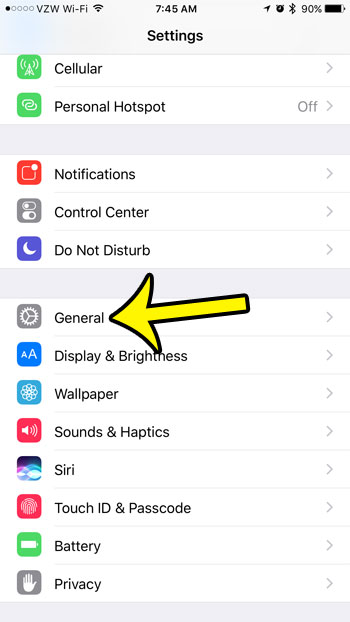
The General menu in an older version of iOS. - Tap Restrictions.

Restrictions was replaced by Screen Time in later versions. - Tap Enable Restrictions.

Older iOS version shown; current screens look different. - Create a Restrictions passcode, different from the code that opens the phone.
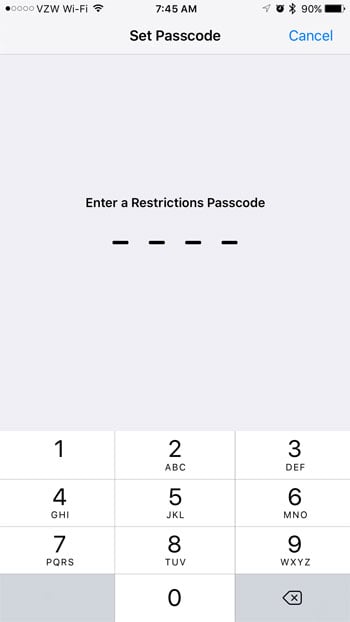
Older iOS version shown; current screens look different. - Enter the passcode again to confirm it.

Older iOS version shown; current screens look different. - Turn off the switch next to Safari.
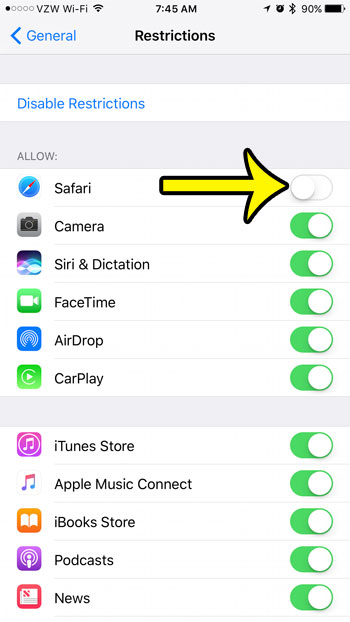
The Safari switch in the old Restrictions menu. - To stop new browsers from being installed, scroll down and turn off Installing Apps.

The Installing Apps switch in an older version of iOS.
If Safari still shows up
- The icon is gone but Safari still opens from search or the App Library: you used Remove from Home Screen, which only moves the icon. Use a Screen Time block where one is available.
- The child’s Safari icon is still there: a blocked app is dimmed rather than removed, according to Apple. Check that the block was confirmed (Block App is tapped twice).
- On iOS 26 and earlier, the switch changes don’t stick: make sure the main Content & Privacy Restrictions switch at the top of that screen is on.
- Newer features are missing: Apple says the latest Screen Time features need iOS 27 on all the family’s devices, so update the parent’s and child’s devices.
Before you hide Safari
Can I delete Safari completely?
Only in some places. Apple’s page on deleting built-in apps in certain countries or regions lists Safari for the European Union and for iPhone in Japan, with conditions described there, such as having another browser installed. Everywhere else, the options above are the way to keep it out of reach.
Does blocking Safari erase bookmarks or history?
Apple says a blocked or turned-off app isn’t deleted. It doesn’t spell out what happens to Safari’s data, so if bookmarks matter, make sure they are synced with iCloud before you change anything.
Will the person using the phone know Safari is blocked?
On a child’s iPhone, the dimmed icon makes it visible. If you would rather not block Safari outright, Ask to Browse (set to Approved Websites Only) limits browsing to sites you approve, which can be a gentler arrangement.
Does this work on iPad?
Apple’s parental controls page covers iPhone and iPad with iPadOS 27, using the same Family settings.
Whichever level you choose, open a few apps on the phone afterward and try a web link, so you know exactly what is and isn’t reachable.

Kermit Matthews runs Live2Tech from just outside Philadelphia. He is an IT specialist with over 20 years of experience, from a university help desk to small-business IT, IT management and his own consulting practice, and has written tech guides full time since 2020. Steps are checked against the current software on a real device or the maker’s official documentation. More about Kermit.