Restrictions on the iPhone now live inside Screen Time as Content and Privacy Restrictions. Turning them off removes limits on app installs, purchases, explicit content and account changes. You will need the Screen Time passcode, which is different from the passcode that unlocks the phone. These steps are for your own iPhone or one you manage through Family Sharing.
Quick Answer
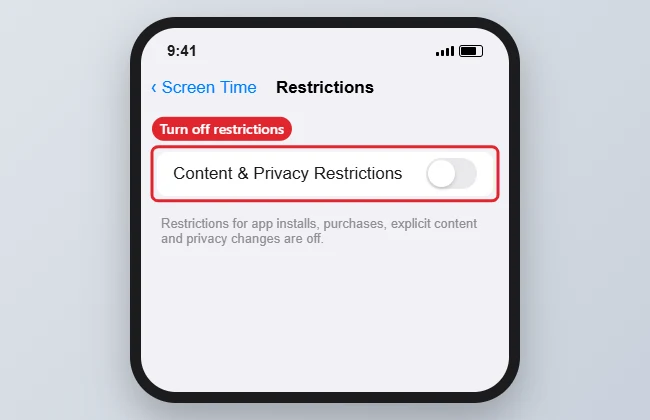
Open Settings, tap Screen Time, then Content and Privacy Restrictions, enter the Screen Time passcode and turn the switch off.
How to Turn Off Restrictions on an iPhone
- Open Settings and tap Screen Time.
- Tap Content and Privacy Restrictions.
- Enter the Screen Time passcode if asked.
- Turn off Content and Privacy Restrictions at the top.
- To remove Screen Time limits entirely, go back and tap Turn Off App and Website Activity (or Turn Off Screen Time on older iOS).
- For a child’s device, open Screen Time on the parent’s iPhone, tap the child’s name and change the settings there.
Where Old Restrictions Moved
| Old Restrictions item | Where it is now |
|---|---|
| Allow apps like Safari or Camera | Content and Privacy Restrictions, Allowed Apps |
| Installing and deleting apps | iTunes and App Store Purchases |
| Explicit content ratings | Content Restrictions |
| Account and passcode changes | Allow Changes section |
| Time limits | App Limits and Downtime |
Troubleshooting
- Forgot the Screen Time passcode: tap Change Screen Time Passcode, then Forgot Passcode, and sign in with the Apple Account used to set it up. On a child’s device, the family organizer can reset it.
- Settings still greyed out: a management profile from work or school can impose its own limits. Check Settings, General, VPN and Device Management. The Allow Changes section also controls whether you can remove an email account.
- Changes do not sync to other devices: make sure Share Across Devices is on in Screen Time.
- For per-app locks instead, see how to lock an app on iPhone.
Frequently Asked Questions
Is Restrictions the same as Screen Time?
Yes. Apple moved Restrictions into Screen Time in iOS 12.
Will turning it off delete my Screen Time data?
Turning off restrictions does not. Turning off App and Website Activity clears usage history.
Can I turn it off without the passcode?
Only by resetting the passcode with the Apple Account used to set it up. There is no supported way around it.
Does this apply to the iPhone SE?
Yes. The steps are the same on every iPhone running a current iOS version.
Summary
- Settings, Screen Time.
- Content and Privacy Restrictions.
- Enter the Screen Time passcode.
- Turn the switch off.
- Reset a forgotten passcode with your Apple Account.

Kermit Matthews is a freelance writer based in Philadelphia, Pennsylvania with more than a decade of experience writing technology guides. He has a Bachelor’s and Master’s degree in Computer Science and has spent much of his professional career in IT management.
He specializes in writing content about iPhones, Android devices, Microsoft Office, and many other popular applications and devices.