Weekly report banners, downtime reminders and time-limit screens are three different Screen Time alerts, and each one is controlled by its own setting. Find the alert you are seeing in the table below: the weekly report is a notification you can silence, while the other two go away when you change or turn off the schedule or limit behind them. If a parent manages Screen Time for you through Family Sharing, your schedules, limits and Screen Time passcode are managed from their device.
Which Screen Time alert are you seeing?
| What appears | What causes it | Where to change it |
|---|---|---|
| A Screen Time Weekly Report notification | Screen Time’s weekly summary | The Screen Time notification setting, if your iPhone lists it |
| A reminder that downtime is about to start, then apps grayed out | A Screen Time Schedule (called Downtime on earlier iOS versions) | Turn off or change the schedule |
| A screen saying you’ve reached your limit for an app or category | Time Allowances (called App Limits on earlier iOS versions) | Delete or change the limit |
| Limits you can’t change without a passcode you don’t know | Screen Time managed by a parent or protected by a Screen Time passcode | Ask the parent, or use Apple’s passcode options |
Apple redesigned the Screen Time screens in recent iOS versions. The steps below use the labels in Apple’s current iPhone User Guide first, then the older names. Apple’s iOS 16 list starts at iPhone 8, so an iPhone 7 stays on iOS 15 and shows the older layout with Downtime and App Limits.
Silence the weekly report notification
Apple’s notification settings page describes one switch per app: go to Settings > Notifications, tap the app and turn off Allow Notifications. Apple’s page doesn’t name Screen Time in that list, so check whether your iPhone shows it:
- Open Settings and tap Notifications.
- Scroll the app list. If Screen Time appears, tap it.
- Turn off Allow Notifications, or keep it on and change only where the alert shows up (Lock Screen, Notification Center or banners) if you still want the report quietly.
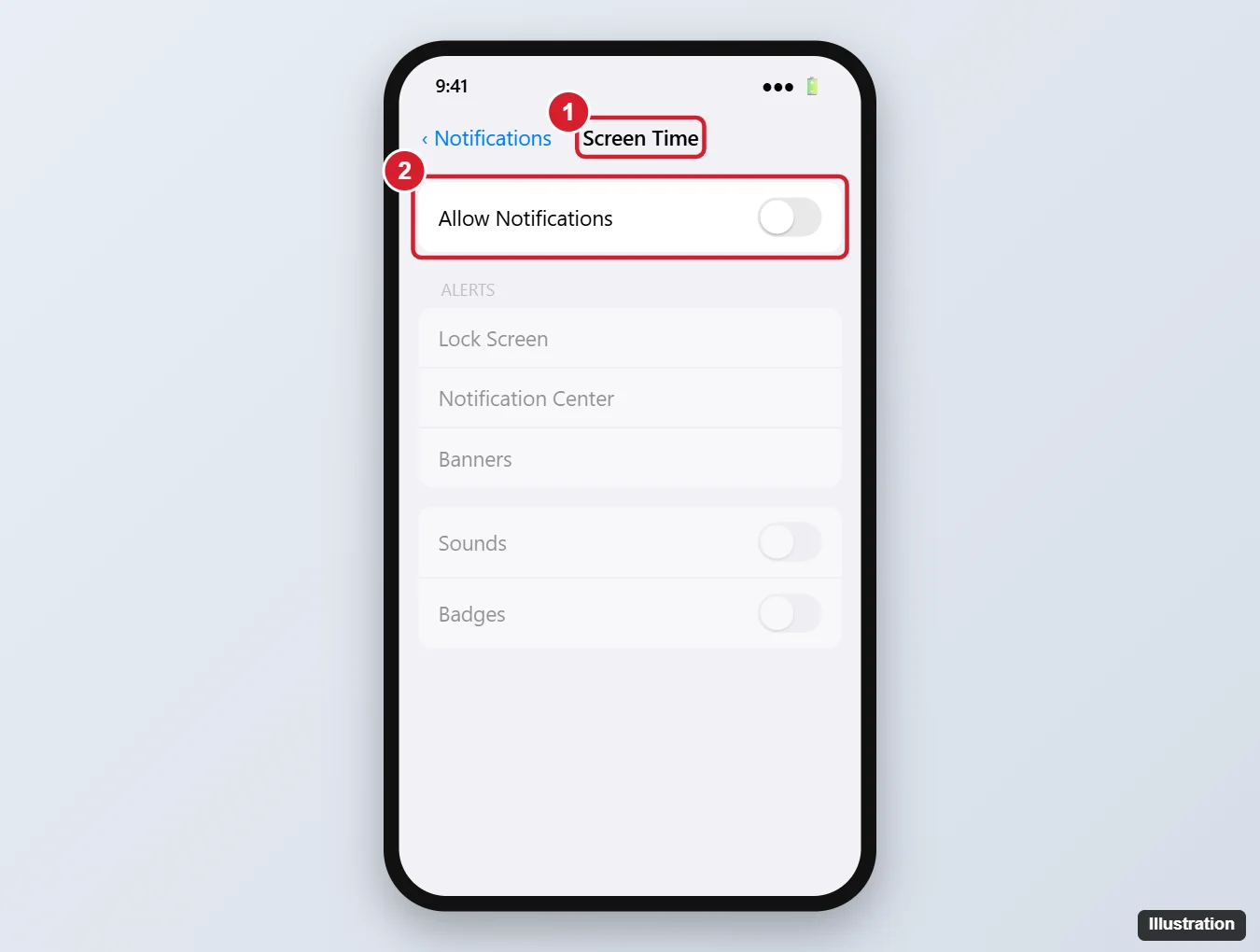
Silencing the notification doesn’t stop Screen Time from tracking. Apple’s Screen Time setup page shows where the summary lives: go to Settings > Screen Time, tap Daily Average, then tap Week. If Screen Time isn’t in your Notifications list at all, this weekly view is still available.
Stop downtime and schedule reminders
A schedule blocks apps during set hours, and the reminder before it starts is part of that feature. Apple’s iOS 18 guide says a reminder is sent five minutes before a scheduled downtime begins. Turning off the schedule stops both.
Current iOS:
- Go to Settings > Screen Time.
- Tap Screen Time Schedule.
- Turn off Schedule, or change the hours instead if you only want it later in the evening.
Earlier versions (Downtime): go to Settings > Screen Time > Downtime. On iOS 18, turn off Scheduled, as Apple’s iOS 18 schedules page describes. If you started downtime on demand, tap Turn Off Downtime.
Stop time-limit screens
A limit screen appears because a limit exists, so the fix is to change or delete that limit.
Current iOS (Time Allowances): Apple’s schedules and allowances page groups limits by category. To remove one, go to Settings > Screen Time, tap Time Allowances, tap Manage Categories, select the category, then select Delete (category name) Category. If you’d rather keep the limit but stop it from clashing with your schedule, look at the Match Screen Time Schedule option on the same screen.
Earlier versions (App Limits): go to Settings > Screen Time > App Limits, tap the limit, then tap Delete Limit. To make it less strict instead, change its time or days.
Turn Screen Time off entirely
If you don’t want any Screen Time tracking, reports, schedules or limits, turn the whole feature off. On current iOS, go to Settings > Screen Time, tap Manage Screen Time, then tap Turn Off App & Website Activity. Enter the Screen Time passcode if one is set. On older iOS versions, look for the turn-off option on the main Screen Time screen.
Before you do this, check whether you also use Screen Time’s content restrictions. Those are explained in turning off restrictions on an iPhone, and if you only want to clear what Screen Time has recorded, see deleting Screen Time history.
When a parent manages the iPhone
A child’s iPhone in Family Sharing uses a Child Account, and Apple’s Screen Time for children page recommends managing the child’s Screen Time from the family organizer’s or parent’s device. The organizer sets the child’s Screen Time passcode on their own device, and the settings sit under Settings > Family > the child’s name > Screen Time.
So if you are the child, ask the parent to change the schedule or limit behind the alert. If you are the parent and the limit screens annoy everyone, change the limit or schedule from your own iPhone rather than turning everything off.
If the Screen Time passcode is forgotten
Apple’s Screen Time passcode page covers three tasks:
- Change it: Settings > Screen Time > Passcode & Management > Change Screen Time Passcode.
- Remove it: tap Change Screen Time Passcode, then Turn Off Screen Time Passcode, and enter the current passcode.
- Forgot it: if you set up Screen Time Passcode Recovery when you created the passcode, Apple says you can use your Apple Account to reset it.
For a child’s device, the parent changes the passcode from their own iPhone. More background is in what a Screen Time passcode is, and setting a Screen Time passcode walks through choosing a new one.
Alerts that keep coming back
- Another device shares your Screen Time. With Share Across Devices on (Settings > Screen Time > Manage Screen Time), Apple says your limits and schedules apply to your iPhone, iPad and Mac. If alerts return after you change something, check the settings on your other devices too.
- It’s a different kind of alert. If the noise is from Messages or a Focus rather than Screen Time, see turning off text message notifications or finding and turning off Do Not Disturb.
Screen Time alert questions
Can I keep the weekly report but lose the banner?
Yes. Leave Allow Notifications on and change only the alert styles, or turn the notification off and check Daily Average > Week when you want the summary.
Why are the steps different from older instructions?
Apple renamed the features. Current iOS uses Screen Time Schedule, Time Allowances and Manage Screen Time; earlier versions used Downtime, App Limits and a turn-off option on the main Screen Time screen.
Can I get the notification back later?
Yes. Return to the same notification setting and turn Allow Notifications on again.
Will turning off one limit remove all of them?
No. Each category or app limit is deleted on its own. To remove every limit and schedule at once, turn off App & Website Activity instead.

Kermit Matthews runs Live2Tech from just outside Philadelphia. He is an IT specialist with over 20 years of experience, from a university help desk to small-business IT, IT management and his own consulting practice, and has written tech guides full time since 2020. Steps are checked against the current software on a real device or the maker’s official documentation. More about Kermit.