If Safari on your iPhone says “You cannot browse this page because it is restricted,” the site is usually blocked by Screen Time content restrictions. It could also be blocked by a school or work profile, a Family Sharing parent, a content blocker, or your network. This guide shows how to unblock a website on your own iPhone, how parents can allow a site on a child’s iPhone, and how to find out what’s doing the blocking.
Quick Answer
Go to Settings > Screen Time > Content & Privacy Restrictions > App Store, Media, Web & Games (or Content Restrictions) > Web Content. Remove the site from Never Allow, add it to Always Allow, or choose Unrestricted. You’ll need the Screen Time passcode if one is set.
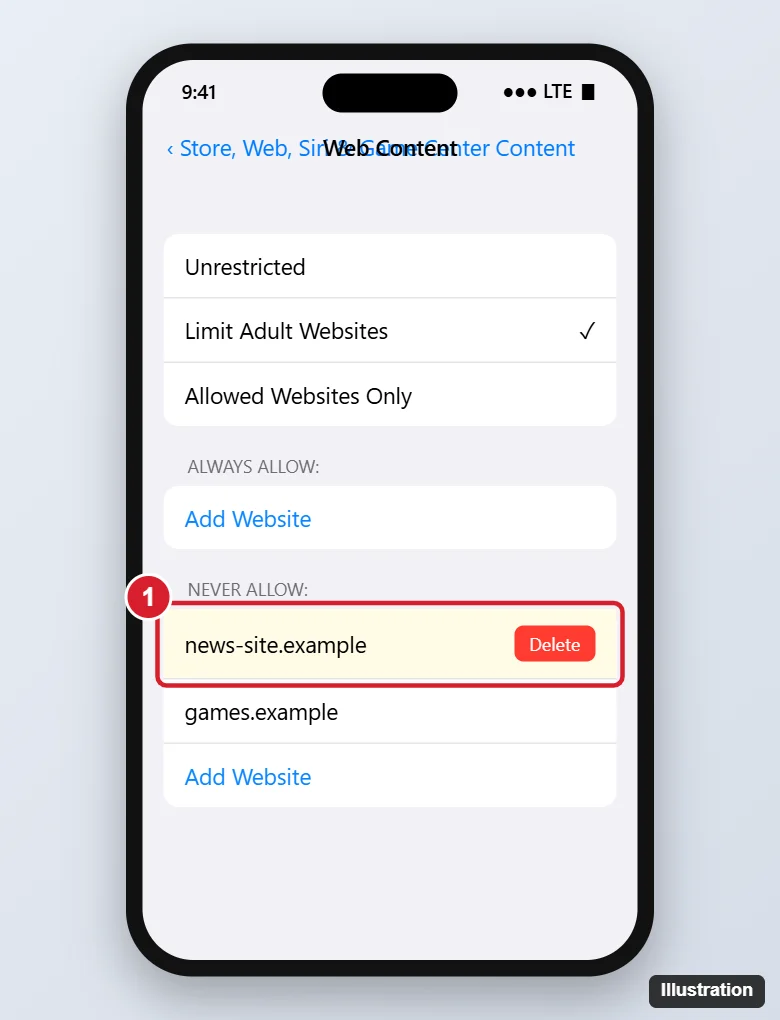
Unblock a Website in Screen Time
- Open Settings > Screen Time.
- Tap Content & Privacy Restrictions and enter the Screen Time passcode if asked.
- Tap App Store, Media, Web & Games (called Content Restrictions in older iOS), then Web Content.
- Choose one of these:
- Under Never Allow, swipe left on the site and tap Delete.
- Under Always Allow, tap Add Website and enter the site’s address.
- Select Unrestricted to remove all web filtering.
With Allowed Websites Only selected, only listed sites work; add the site there or switch to another mode.
Allow a Site When Safari Blocks It
On the “restricted” page in Safari, tap Allow Website and enter the Screen Time passcode. On a child’s iPhone, tapping Ask for Permission sends a request to the parent.
For Parents: Unblock a Site on Your Child’s iPhone
- On your iPhone, go to Settings > Screen Time (or Settings > Family) and tap your child’s name.
- Tap Content & Privacy Restrictions > App Store, Media, Web & Games > Web Content.
- Add the site to Always Allow or remove it from Never Allow.
You can also approve Ask for Permission requests from notifications or the Messages app.
Other Things That Can Block Websites
- Screen Time Downtime or App Limits: Safari may be limited during Downtime. Check Screen Time > Downtime and App Limits.
- Content blockers: go to Settings > Apps > Safari > Extensions (or Content Blockers) and turn them off, or tap aA in Safari and choose to turn off blockers for that site.
- School or work profile: check Settings > General > VPN & Device Management. Managed filters can only be changed by the organization.
- Network filters: school, office or public Wi-Fi may block sites. Try cellular data to compare, and respect the network’s rules.
- Private Relay or VPN issues: turn them off briefly if a site won’t load at all.
Forgot the Screen Time Passcode?
On the passcode screen, tap Forgot Passcode? and enter the Apple Account credentials used to set it up to reset it. If a parent manages Screen Time through Family Sharing, ask them to change it.
Frequently Asked Questions
Why does “Limit Adult Websites” block normal sites?
The filter sometimes blocks sites by mistake. Add the site to Always Allow.
Does unblocking work in other browsers?
Screen Time web filters apply to Safari and many apps that use Apple’s web views, but some third-party browsers handle filtering differently.
How do I block a website instead?
Add it under Never Allow. See our guide to blocking a website on iPhone.
Summary
- Settings > Screen Time > Content & Privacy Restrictions.
- App Store, Media, Web & Games > Web Content.
- Remove the site from Never Allow or add it to Always Allow.
- Check Downtime, content blockers, profiles and network filters if it’s still blocked.

Kermit Matthews is a freelance writer based in Philadelphia, Pennsylvania with more than a decade of experience writing technology guides. He has a Bachelor’s and Master’s degree in Computer Science and has spent much of his professional career in IT management.
He specializes in writing content about iPhones, Android devices, Microsoft Office, and many other popular applications and devices.