To use Live Text on iPhone, open a photo, screenshot, or paused video that contains text, tap the Live Text button in the lower-right corner, then touch and hold the highlighted words and choose Copy, Translate, Look Up, or another action. In the Camera app, point the camera at text, wait for the yellow frame, and tap the same button. If nothing happens, make sure the feature is on in Settings > General > Language & Region > Live Text.
Live Text is Apple’s built-in text recognition. It reads printed and many handwritten words inside images so you can treat them like ordinary text: copy a Wi-Fi password from a router label, call a number on a flyer, translate a menu, or paste a recipe into Notes without retyping it. There is no separate app to install. This guide covers every place you can use it, how it differs from Visual Look Up and Visual Intelligence, and what to check when the button doesn’t appear.
What you need and which versions this covers
- iPhone and iOS: Apple says Live Text needs an iPhone XS, iPhone XR, or later running iOS 15 or later. Every iPhone that can run the current release supports it.
- Video: Live Text in paused videos needs iOS 16 or later.
- Language: The text must be in a supported language, and the feature must be turned on (it is on by default on most iPhones). The list is near the end of this article.
- Versions: The steps below follow the current iPhone User Guide for iOS 27, and they are the same on iOS 26 and iOS 18. Where iOS 17 or earlier differs, it’s noted. Button shapes shifted a little with the newer glass-style design in iOS 26, so this guide describes what each button does as well as where it is.
- No internet needed for recognition: Selecting and copying text works on the device. Look Up, Search Web, and some translations use an internet connection.
How to use Live Text in Photos and screenshots
This is the most reliable way to use Live Text, because the image holds still and you can take your time with the selection. Screenshots are saved to the Photos app, so the same steps work for them.
Step 1: Open a photo or screenshot that contains text
Open the Photos app and tap the picture so it fills the screen. For a screenshot, you can find it in your library or under Collections > Media Types > Screenshots (on iOS 17 and earlier, look under Albums > Media Types). If you just took the screenshot, save it first by swiping the thumbnail away or tapping Done, then open it in Photos. If you need a refresher, here’s how to take a screenshot on any iPhone.
Step 2: Tap the Live Text button
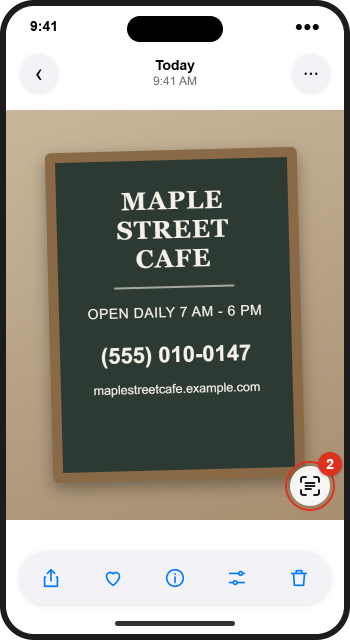
When your iPhone recognizes text, the Live Text button appears in the lower-right corner of the photo. It looks like a few lines of text inside a square frame with open corners. Tap it. The rest of the picture dims and every recognized word is highlighted, so you can see at a glance what the iPhone was able to read. If the button doesn’t appear, the iPhone didn’t find text it can read. Jump to Troubleshooting.
Step 3: Touch and hold the text, then adjust the selection
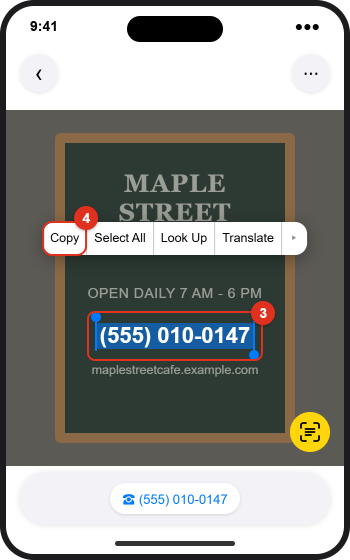
Touch and hold a word until it turns blue, then drag the round grab points (the small handles at each end of the selection) to cover the words you want. You can skip the Live Text button entirely: touching and holding a word in a photo starts a selection on its own. To take everything at once, tap Select All in the menu that appears.
Step 4: Choose what to do with the text
A menu appears above the selection. Tap the arrow at the end of it to see more choices. The options you’ll see are:
- Copy copies the text so you can paste it into Notes, Messages, Mail, a search box, or any other app.
- Select All selects all of the recognized text in the image.
- Look Up shows a dictionary definition if you selected one word, or suggested websites and other information if you selected a phrase.
- Translate shows a translation of the selected text (see Translate text).
- Search Web runs a web search for the selected words.
- Share sends just the text with AirDrop, Messages, Mail, or another app, without sending the whole photo.
Depending on your iPhone and settings, you may also see Speak (if Speak Selection is turned on in Accessibility settings) and Writing Tools (on iPhones with Apple Intelligence). These work on the copied words, not on the picture itself.
Step 5: Paste or use the result
Open the app where you want the text, touch and hold in a text field, and tap Paste. Proofread it once. Live Text is accurate with clear printed text, but it can confuse similar characters such as the letter O and zero, or a lowercase l and the number 1, especially in passwords, serial numbers, and handwriting.
Step 6: Return to the normal photo view
Tap the Live Text button again to turn off the highlighting and go back to the normal photo. Nothing in the photo is changed or saved by using Live Text.
How to use Live Text with the Camera
Use the Camera when you only need the text, not a photo of it. You don’t have to take a picture, so nothing is added to your library.
Step 1: Open Camera and frame the text
Open the Camera app in Photo mode and point it at the sign, page, label, or screen. Hold the iPhone steady and close enough that the words are sharp.
Step 2: Wait for the yellow frame, then tap the Live Text button
When Camera detects text, a yellow frame appears around it and the Live Text button appears near the lower-right corner of the viewfinder. Tap the button. The view freezes on the detected text so you can work with it even if your hand moves.
Step 3: Select the text and choose an action
Touch and hold the text, drag the grab points, and choose Copy, Select All, Look Up, Translate, Search Web, or Share, just like in Photos. If the text contains a phone number, link, or similar detail, a quick action button may also appear at the bottom of the screen.
Step 4: Go back to the live camera
Tap the Live Text button again to return to the normal camera view.
If you never see the yellow frame, check Settings > Camera > Show Detected Text. This switch controls Live Text in the camera viewfinder only.
Quick actions: call, email, map, and convert
Live Text doesn’t just read words. It also recognizes the kind of information they contain and offers a one-tap shortcut called a quick action. After you tap the Live Text button in Photos or Camera, look at the bottom of the screen for buttons such as:
- Phone numbers: call, send a message, start a FaceTime call, or add the number to Contacts.
- Email addresses: start a new email or add the address to a contact.
- Websites: open the link in Safari.
- Street addresses: get directions in Maps.
- Prices in another currency: convert them to your local currency.
- Foreign-language text: translate it.
You can also tap a detected phone number, email address, or link directly in the highlighted text. Touch and hold it instead to see a menu with more options, such as copying the number or adding it to Contacts. Dates, flight numbers, and package tracking numbers may also be recognized; what you see depends on the content and your region.
How to translate text with Live Text
Step 1: Open the text and tap the Live Text button
Open a photo, a paused video, or an image online, or point the Camera at the text, then tap the Live Text button.
Step 2: Tap Translate
If the iPhone detects a different language, a Translate quick action usually appears at the bottom of the screen. You can also select specific words and choose Translate from the menu.
Step 3: Pick the language if asked
The first time, you might need to tap Continue and choose a language to translate into. To switch languages later, tap Change Language in the translation panel. From there you can also copy the translation or play it aloud.
Translation isn’t available for every language or in every country. For longer documents or a live conversation, Apple’s separate Translate app has its own camera mode that translates what you point it at.
Live Text in Safari, Preview, videos, and other apps
Live Text works in most places where Apple shows you an image, not just Photos and Camera.
- Safari and other web pages: Touch and hold a word inside an image on a web page and drag the grab points, just as you would in a photo. Then choose Copy, Translate, or another action. This works well for text that a website shows as a picture, such as a recipe card or an infographic.
- Paused videos: In Photos, pause a video on a frame that shows text, then tap the Live Text button or touch and hold the words. This needs iOS 16 or later. It’s handy for slides from a recorded lecture or a phone number in a video ad.
- Preview app: On iOS 26 and later, the Preview app can open images and PDFs. Select text in an image to copy it, look it up, translate it, call or message a phone number, or open a link.
- Quick Look: When you open an image attachment from Mail, Messages, or Files, the full-screen viewer also supports Live Text.
- Photos search: Because your iPhone reads the text in your pictures, you can often type a word into the Photos search field to find photos that contain it, such as a store name or the word “receipt”.
Scan text straight into Notes or a text field
If you know where the text is going, you can skip the copy-and-paste step and insert it directly with the camera.
Step 1: Open a note and choose Scan Text
Open Notes and open or create a note. Tap the toolbar button for adding attachments, then tap Scan Text. (In the same menu, Scan Documents makes a PDF of the page instead, which is better when you want to keep the original layout.)
Step 2: Frame the text
Point the camera so the text appears in the frame. The detected text is outlined, and a preview of it appears in your note.
Step 3: Select and insert
Drag or use the grab points to choose the text you want, then tap Insert. The words are added to the note as normal, editable text. You can then style them; see how to format and highlight text in iPhone Notes.
Many other apps that have a text field, including Reminders and Messages, offer the same tool. Tap in the field, tap again to bring up the edit menu, and look for Scan Text (an icon of lines of text inside a frame). The option appears only in supported languages and only when the field accepts typing.
Live Text vs. Visual Look Up and Visual Intelligence
These three features often appear side by side, so they’re easy to mix up.
| Feature | What it does | How to start it | Which iPhones |
|---|---|---|---|
| Live Text | Reads text in images so you can copy, translate, look up, or act on it | Live Text button in Photos or Camera, or touch and hold text | iPhone XS, XR, and later (iOS 15+) |
| Visual Look Up | Identifies things in a photo, such as landmarks, plants, pets, art, books, and food | Starred Info button in Photos, then Look Up | Supported iPhones in supported regions |
| Visual Intelligence | Uses the camera or a screenshot to explain or search for what’s in front of you, including text it can summarize or read aloud | Visual Intelligence camera view on supported models | iPhones with Apple Intelligence (iPhone 15 Pro and later) |
To use Visual Look Up, open a photo in full screen. If the Info button (the small “i”) shows little stars, Visual Look Up found something. Tap it, then tap Look Up at the top of the photo information. In short, use Live Text when you care about the words, and Visual Look Up when you want to know what the object is. Google’s similar tool works on iPhone too; see how to use Google Lens. Lens sends images to Google to find results, while Live Text recognizes text on the device.
How to turn Live Text on or off
There are two separate switches. The main one controls Live Text everywhere for all supported languages. The Camera switch only controls the yellow frame and button in the camera viewfinder.
Step 1: Open Language & Region
Open the Settings app, tap General, then tap Language & Region.
Step 2: Find the Live Text switch
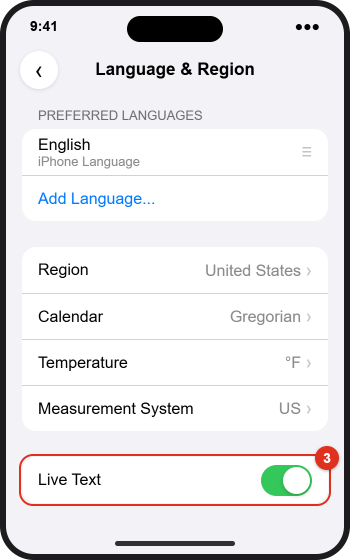
Scroll down past your preferred languages and region settings until you see Live Text.
Step 3: Turn Live Text on or off
Turn the switch on (green) to use Live Text in Photos, Safari, Camera, and other apps. Turn it off to stop text from being selectable in images. You can turn it back on at any time; nothing is deleted either way.
Turn off Live Text in the Camera only
If you like Live Text in Photos but don’t want the yellow frame popping up while you take pictures, go to Settings > Camera and turn off Show Detected Text. Live Text in your saved photos keeps working.
Everyday examples
- Wi-Fi password on a router label: Take a photo, tap the Live Text button, select only the password, tap Copy, and paste it into the Wi-Fi password field. Check characters like O and 0 before you join.
- Business card: Point the Camera at the card, tap the Live Text button, then touch and hold the phone number and choose Add to Contacts. Do the same for the email address.
- Recipe from a cookbook: Use Scan Text in Notes to insert the ingredients list directly into a note, then check off items as you shop.
- Restaurant menu abroad: Point the Camera at the menu, tap the Live Text button, and tap Translate to see the dishes in your language.
- Error message in a screenshot: Open the screenshot, select the error text, and tap Search Web to look it up without retyping it.
- Whiteboard or slide: Take a photo and copy the key points into a note or a message to a classmate.
Troubleshooting Live Text
The Live Text button doesn’t appear
- Check that Live Text is on in Settings > General > Language & Region. If you don’t see the switch at all, your iPhone, language, or region may not support it.
- Make sure the text is in a supported language. Add the language under Preferred Languages in the same screen if you read text in more than one language.
- Open the photo full screen and wait a second or two. Recognition can take a moment on large or new images.
- Try touching and holding a word directly. Sometimes selection works even when the button is slow to show.
No yellow frame in the Camera
- Turn on Show Detected Text in Settings > Camera.
- Use Photo mode, move a little closer, and give the camera time to focus. Tap the text on screen to focus on it.
Text is recognized incorrectly or only partly
- Use good, even lighting and avoid glare on glossy paper or screens.
- Hold the iPhone parallel to the page so the lines of text are straight, not slanted.
- Very small, curved, decorative, or messy handwritten text is harder to read. Get closer or take a sharper photo.
- Always double-check numbers, passwords, and codes after you paste them.
Translate or Look Up doesn’t work
- These features may need an internet connection. Check Wi-Fi or cellular data.
- Translation isn’t offered for every language pair or in every country.
Live Text doesn’t work in a video
- Pause the video first. Live Text only works on a still frame.
- Video support needs iOS 16 or later. Check Settings > General > Software Update.
Still not working
Restart your iPhone and install any available iOS update. If an app other than Photos or Camera doesn’t offer Live Text, that app may not support it; save the image to Photos and try there.
Supported languages
In iOS 27, Apple lists Live Text support for Cantonese, Chinese (Simplified and Traditional), Czech, Danish, Dutch, many varieties of English, French, German, Indonesian, Italian, Japanese, Korean, Malay, Norwegian, Polish, Portuguese, Romanian, Russian, several varieties of Spanish, Swedish, Thai, Turkish, Ukrainian, and Vietnamese. The list changes with updates, so check Apple’s iOS feature availability page for the current details.
Frequently Asked Questions
Is Live Text free, and do I need an app?
Yes, it’s free and built into iOS. There’s no Live Text app; it works inside Photos, Camera, Safari, Notes, Preview, and other Apple apps.
Does Live Text work without internet?
Recognizing, selecting, and copying text happens on your iPhone, so it works offline. Look Up, Search Web, and some translations need a connection.
Can Live Text read handwriting?
Often, yes, if the writing is reasonably neat. Printed text is much more reliable, so proofread anything handwritten after you paste it.
Which iPhones support Live Text?
Apple lists the iPhone XS, iPhone XR, and later with iOS 15 or later. Any iPhone that runs the current version of iOS supports it. Video support needs iOS 16 or later.
Why is there a Live Text button on some photos but not others?
The button only appears when your iPhone finds text it can read in a supported language. Photos without text, or with text that is too small, blurry, or in an unsupported language, won’t show it.
Does using Live Text change or save my photo?
No. Live Text only reads the image. Copying or translating text doesn’t edit the photo, and using it in the Camera doesn’t take a picture.
Can Live Text read text aloud?
Yes. Turn on Speak Selection in the Accessibility section of Settings (look under Spoken Content, or Read & Speak in recent versions). Then select text in an image and tap Speak.
What’s the difference between Live Text and Scan Text?
They use the same recognition. Live Text lets you select text in an image you’re viewing. Scan Text opens the camera from a note or text field and inserts the words directly where you’re typing.
Can I use Live Text on iPad or Mac?
Yes. Supported iPad models with iPadOS 15.1 or later and Macs running recent versions of macOS include Live Text, and it works much the same way in Photos, Safari, and Preview.
Next steps
Try Live Text on a screenshot you already have: open it in Photos, tap the Live Text button, and copy one line into a note. Once that works, try the Camera on a sign or a product label. For Apple’s own instructions, see Interact with content in a photo or video on iPhone and Use Live Text with your iPhone camera in the iPhone User Guide.

Kermit Matthews runs Live2Tech from just outside Philadelphia. He is an IT specialist with over 20 years of experience, from a university help desk to small-business IT, IT management and his own consulting practice, and has written tech guides full time since 2020. Steps are checked against the current software on a real device or the maker’s official documentation. More about Kermit.