You open Camera to photograph a menu and your own face fills the screen, or you want a selfie and the phone shows the ceiling. Either way, the fix is the camera switch button, a camera outline with two curved arrows that sits beside the shutter button. Tap it once and the iPhone flips between the back camera and the front (selfie) camera. These steps cover the Camera app on current versions of iOS, plus Camera Control, FaceTime and other apps.
Flip the camera in the Camera app
Apple’s guide to taking a selfie on iPhone describes the same button. It works on every iPhone that has both a front and a back camera.
- Open the Camera app from the Home Screen, the Lock Screen camera shortcut or Control Center.
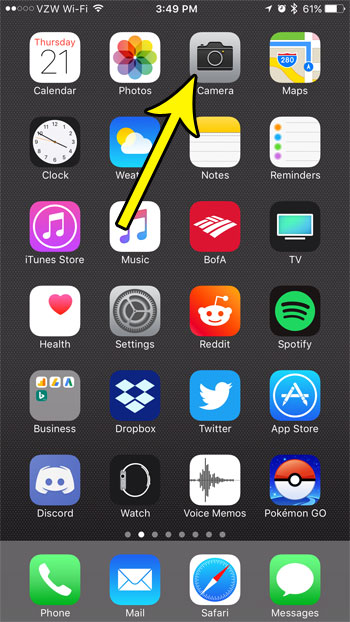
- Make sure you are in a mode that offers both cameras, such as Photo, Video or Portrait. Swipe left or right above the shutter to change modes.
- Tap the camera switch button (the camera outline with two curved arrows). Holding the phone upright, it sits to the right of the shutter button, near the bottom of the screen. Turn the phone sideways and the controls move with it, so look beside the shutter rather than in a fixed corner.
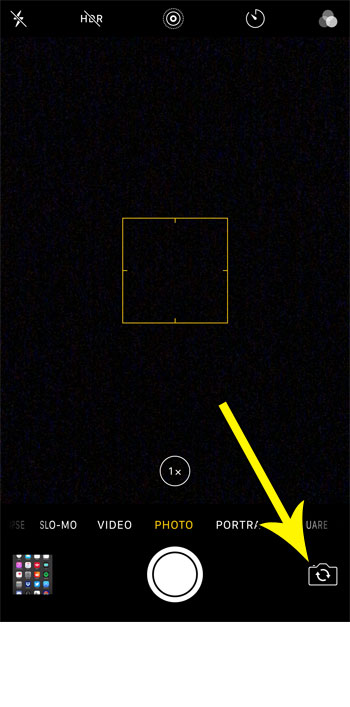
- Check the preview. If you see your own face, you are on the front camera. Tap the same button again to go back to the rear camera.
Switching cameras during a video
The safest plan is to choose the camera before you start recording. Apple’s page on recording video on iPhone lists zoom, taking a still photo and pausing as things you can do while recording, but it does not describe switching between the front and back cameras mid-clip.
So, if you want a clip that starts on the view and ends on your face:
- Record the first part with the rear camera, then tap the shutter to stop.
- Tap the camera switch button.
- Record the second part with the front camera.
- Join the two clips in an editing app if you want one video.
For Slo-mo, Apple’s guide says to choose the front camera before you start recording.
Use Camera Control to reach the selfie camera
Newer iPhones with a Camera Control button on the side can change cameras without touching the screen. Apple’s Camera Control guide lists a Cameras option for switching between cameras, including the front-facing camera.
- With Camera open, lightly press Camera Control twice (a double light press) to show the overlay of settings.
- Slide your finger along Camera Control to reach Cameras, then lightly press to select it.
- Slide to the front-facing camera and lightly press again to choose it.
If Cameras is missing from the overlay, go to Settings > Camera > Camera Control > Customize, where you choose which Camera Control settings appear. Only iPhone models with Camera Control have this option; on other models, use the on-screen button.
FaceTime, Instagram and other apps
Every app that uses the camera has its own switch, because the Camera app setting does not carry over.
- FaceTime: during a video call, tap the screen to show the controls, then tap the camera switch button on your own video tile. The other person sees the change right away.
- Other apps: social, chat and video meeting apps have their own camera switch inside their camera or call screen; check the app’s help pages if you cannot find it.
If an app shows a black preview or no camera at all, it may not have permission to use the camera. Checking camera permissions on iPhone shows where to allow it.
Front and back is not the same as 0.5x, 1x and 2x
The number buttons above the shutter, such as 0.5x, 1x, 2x or higher, change lenses or zoom on the rear camera. They do not switch you to the front camera. Tapping 0.5x on a model with an ultra wide lens gives a wider view of what is in front of you, not a view of you.
The front camera has its own, smaller set of options. On some models, tapping the arrows or zoom control while on the front camera widens the frame so more people fit into a group selfie.
| You want | Use |
|---|---|
| A photo of yourself | Camera switch button, or Camera Control on supported models |
| A wider shot of a room or landscape | 0.5x on the rear camera (models with ultra wide) |
| A closer shot of something far away | 2x or higher on the rear camera |
| Your face during a video call | The switch button inside FaceTime or the meeting app |
Selfies look reversed? Check Mirror Front Camera
The front camera preview acts like a mirror, but the saved photo may be flipped the other way, so text on your shirt can read backward or forward depending on the setting. Apple’s selfie guide covers the switch: go to Settings > Camera, then turn on Mirror Front Camera to save selfies the way the preview showed them. Turn it off to save them unflipped. Turning the iPhone camera mirror effect on or off explains the difference in more detail, and fixing an inverted front camera covers flipping a photo you already took.
- Wrong mode: some modes, such as Pano, only use the rear camera, so the switch button is hidden. Swipe back to Photo.
- App frozen: close Camera from the App Switcher and open it again.
- Still stuck: restart the iPhone, then install any available iOS update from Settings > General > Software Update.
- Only one camera works: if the front camera shows black in every app, including FaceTime, after a restart, the camera itself may need service from Apple.
- Restrictions: if Camera is missing entirely, check Screen Time’s Content & Privacy Restrictions, which can turn the camera off.
Camera switching questions
Which camera takes better photos?
Usually the rear camera, which on many models has extra lenses and more shooting options. For a better self-portrait, you can use the rear camera with the self-timer, or control the shutter from an Apple Watch as described in taking iPhone photos with Camera Remote.
Can Camera always open on the front camera?
Apple does not document a setting that makes the front camera the default. Settings > Camera > Preserve Settings keeps choices such as the last camera mode, but it is not documented as a way to make the selfie camera the default. Keeping your photo settings in the Camera app explains what Preserve Settings saves.
Does the flash work with the front camera?
The front camera uses the screen as a flash: the display brightens for a moment when you take the photo. If that bright flash is a problem, see turning off the camera flash on iPhone.

Kermit Matthews runs Live2Tech from just outside Philadelphia. He is an IT specialist with over 20 years of experience, from a university help desk to small-business IT, IT management and his own consulting practice, and has written tech guides full time since 2020. Steps are checked against the current software on a real device or the maker’s official documentation. More about Kermit.