Windows doesn’t have a built-in scrolling screenshot for every app, but you can capture a full scrolling web page in seconds with Microsoft Edge. Press Ctrl + Shift + S in Edge and choose Capture full page. Edge saves the whole page, top to bottom, as one image. For other apps, a free tool like ShareX has a scrolling capture mode.
Below are step-by-step instructions for Edge, Chrome, and Firefox, plus options for capturing long documents and apps outside the browser.
Method 1: Microsoft Edge Web capture
- Open the page in Microsoft Edge.
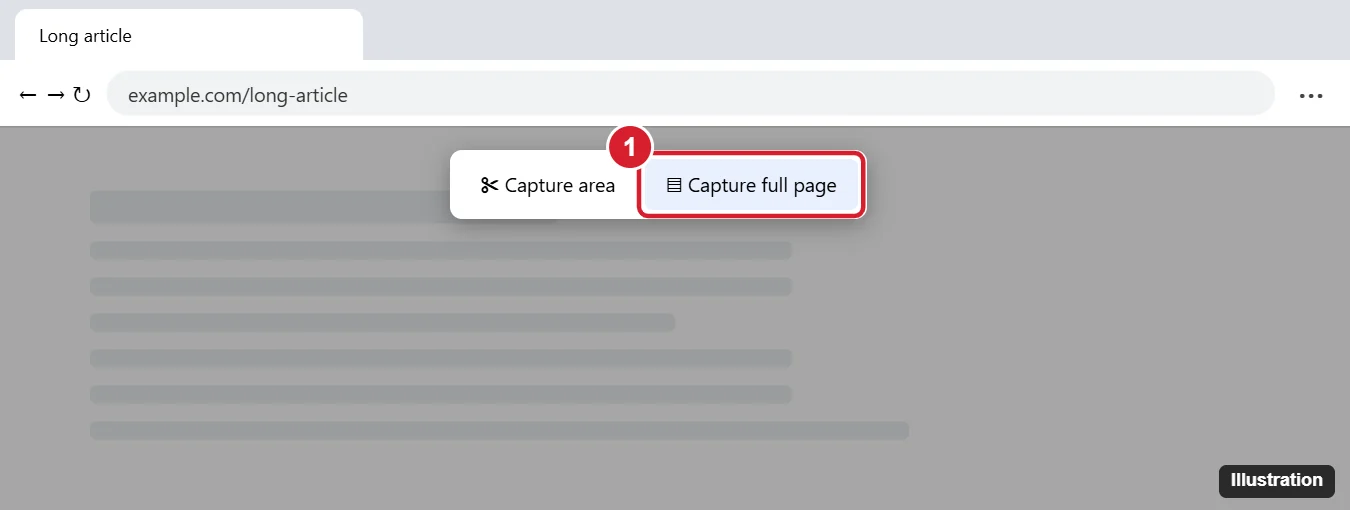
- Press Ctrl + Shift + S, or right-click the page and choose Screenshot (called Web capture in some versions).
- Click Capture full page.
- In the preview, click Save (the disk icon) or Copy. You can also draw on it first.
Method 2: Google Chrome (built-in, no extension)
- Open the page and press F12 (or Ctrl + Shift + I) to open Developer Tools.
- Press Ctrl + Shift + P to open the command menu.
- Type screenshot and choose Capture full size screenshot.
- Chrome saves a PNG to your Downloads folder. Press F12 to close Developer Tools.
Method 3: Firefox
- Right-click the page and choose Take Screenshot, or press Ctrl + Shift + S.
- Click Save full page in the top-right corner.
- Click Download or Copy.
Method 4: Scrolling capture in any app
For long documents, chats, or apps outside the browser, use a screenshot tool with scrolling capture:
- Install ShareX (free and open source) from its official website or the Microsoft Store.
- Open ShareX and choose Capture > Scrolling capture.
- Click the window or area you want, then click Start scrolling capture. ShareX scrolls and stitches the images together.
Results depend on the app. Some apps with fixed headers or smooth scrolling may produce seams. Adjust the scroll delay or amount in ShareX’s settings if the image looks off.
Other options
- Save as PDF: For web pages and documents, pressing Ctrl + P and choosing Save as PDF captures everything, and the text stays searchable.
- Snipping Tool: Great for regular screenshots (Windows + Shift + S), but check whether your version offers a scrolling option before relying on it.
Frequently asked questions
Can Snipping Tool take a scrolling screenshot?
Traditionally, no. Use Edge, Chrome, Firefox, or a tool like ShareX instead.
Where do full-page screenshots save?
Edge and Firefox let you choose. Chrome’s Developer Tools capture saves to your Downloads folder.
Why is my full-page screenshot blurry or cut off?
Very long pages can produce huge images that some viewers shrink. Open the file in a different app, or save as PDF instead.

Kermit Matthews runs Live2Tech from just outside Philadelphia. He is an IT specialist with over 20 years of experience, from a university help desk to small-business IT, IT management and his own consulting practice, and has written tech guides full time since 2020. Steps are checked against the current software on a real device or the maker’s official documentation. More about Kermit.