You pressed Print Screen, nothing seemed to happen, and now the picture is nowhere to be found. On Windows, where a screenshot lands depends on the keys you pressed. Print Screen and Alt + Print Screen copy to the clipboard (on current Windows 11, Print Screen usually opens the Snipping Tool bar first). Windows + Print Screen saves a PNG file to Pictures > Screenshots, and Snipping Tool captures are saved there too. Paste clipboard captures with Ctrl + V.
Which keys did you press? Where each screenshot goes
Use this table to work out where your capture went, or to pick the right shortcut before you take the next one. “Clipboard” means the image is held in memory only until you paste it somewhere or copy something else.
| Keys | What it captures | Where it goes |
|---|---|---|
| Print Screen (current Windows 11 default) | Opens the Snipping Tool capture bar so you pick an area, window or full screen | Clipboard, and the Snipping Tool also saves it to Pictures > Screenshots |
| Print Screen (Windows 10, or with the Windows 11 setting off) | Everything on every connected screen | Clipboard only |
| Alt + Print Screen | The active window | Clipboard only |
| Windows + Print Screen | The full screen | PNG file in Pictures > Screenshots |
| Windows + Shift + S | Rectangle, window, full screen or freeform area | Clipboard, and on Windows 11 the Snipping Tool also saves it to Pictures > Screenshots |
| Windows + Shift + R (Windows 11) | A screen recording (video) | MP4 in Videos > Screen Recordings |
| Windows + Alt + Print Screen | The active window, through Game Bar | Videos > Captures |
Find a screenshot you already took
- If you used a clipboard shortcut, open Paint, Word, an email or a chat box and press Ctrl + V. If the image appears, the capture worked; it just was never saved as a file.
- If pasting gives you something else, press Windows + V. With clipboard history turned on, this panel lists your recent copies, including images. The clipboard history panel only remembers items copied after the feature was switched on.
- For saved files, open File Explorer, select Pictures in the left pane, then open Screenshots. Sort by Date modified so the newest capture is at the top.
- If the folder is empty, check OneDrive > Pictures > Screenshots. When OneDrive backs up your Pictures folder, the Screenshots folder moves inside OneDrive.
- Game Bar captures live in Videos > Captures, and screen recordings in Videos > Screen Recordings.
Print Screen on its own: copy, then paste into Paint or Word
The key is usually in the top row, to the right of the F12 key. It may be labeled Print Screen, PrtScn, PrtSc, PrntScrn or Prt Sc. What it does depends on your Windows version and one setting.
On current Windows 11
Print Screen opens the same capture bar as Windows + Shift + S by default. Choose Full screen on the bar if you want the whole display. If you would rather have the older behavior, where one press copies the entire screen with no bar:
- Select Start > Settings > Accessibility > Keyboard.
- Set Use the Print Screen button to open screen snipping (on some current builds it reads Use the Print screen key to open screen capture) to Off. Microsoft describes this toggle on its Windows keyboard shortcuts page.
- Press Print Screen again. The screen won’t dim or change, which is normal; the image is now on the clipboard.
On Windows 10
Print Screen copies everything on screen to the clipboard without any sign that it worked. Windows 10 reached end of support on October 14, 2025. The keyboard shortcuts above and below work there too, except Windows + Shift + R; on Windows 10, Windows + Shift + S copies the snip to the clipboard only, so paste or save it yourself.
Save a clipboard capture as a file with Paint
- Press Print Screen (or Alt + Print Screen for one window).
- Select Start, type Paint, and open it.
- Press Ctrl + V. The screenshot fills the canvas. Use Crop now if you only need part of it.
- Select File > Save as and pick a format. PNG keeps text sharp; JPEG makes smaller files for photos.
- Choose a folder, type a name, and select Save.
To drop the capture straight into a document instead, click where it should go in Word, Outlook or another app and press Ctrl + V. Nothing is saved as a separate file in that case, which suits a quick report or support email. If the saved image is too large to attach, resize the image in Paint or Photos before sending it.
Capture only one window with Alt + Print Screen
Click inside the window you want first, so it is the active one. Then press Alt + Print Screen. Only that window is copied, without the taskbar or other screens, and you paste it the same way as above. This is the cleanest option when you need to show an error message without revealing the rest of your desktop.
Save a full-screen file with Windows + Print Screen
- Press Windows logo key + Print Screen. On many PCs the screen dims briefly to confirm the capture.
- Open File Explorer > Pictures > Screenshots. The file is a PNG; the newest one is at the end of the list, or at the top if you sort by Date modified.
Microsoft notes this shortcut depends on your hardware. Choose it when you are taking several captures in a row, because each press makes a new file and nothing gets overwritten on the clipboard.
Pick an area with Windows + Shift + S
- Press Windows logo key + Shift + S. The screen dims and a small toolbar appears at the top.
- Choose a mode: Rectangle, Window, Full screen or Freeform.
- Drag around the area, or click the window you want.
- Paste with Ctrl + V, or select the preview that appears in the bottom-right corner to open it in the Snipping Tool for edits.
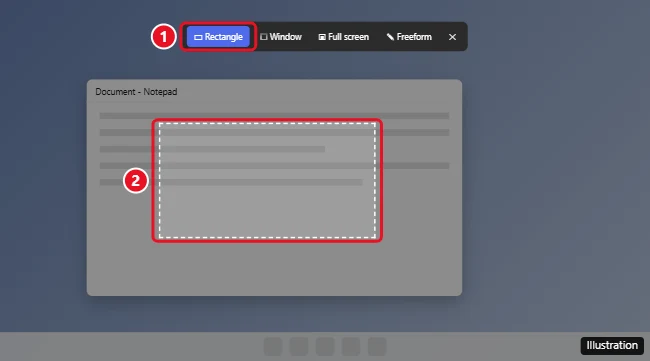
This shortcut works even on keyboards without a Print Screen key. For tips on tight crops and freeform shapes, see capturing part of the screen.
Use the Snipping Tool app for delays, edits and video
- Select Start, type Snipping Tool, and open it.
- Pick a mode from the mode menu (Alt + M).
- If you need to capture a menu or tooltip that closes when you click away, choose a delay from the Delay menu (Alt + D). Microsoft documents delays of 1 to 5 seconds.
- Select New, open the menu you want during the countdown, then select the area.
- Mark it up with the pen or highlighter, crop it, then press Ctrl + S to save or Ctrl + C to copy. Microsoft’s Snipping Tool help page lists the rest of its shortcuts.
Snips are saved automatically to the Screenshots folder; change that under See more > Settings, or use Save as for an extra copy somewhere else. Press Windows + Shift + R to record a video clip instead, and use Text actions to copy text out of a screenshot in Windows 11. On Copilot+ PCs and Windows 11 AI+ PCs, the app also offers Perfect screenshot and Color picker. If you need sound in a recording, the screen recording options with audio cover that separately.
Laptops and keyboards without a Print Screen key
- Shared key: on many laptops, Print Screen is printed on a key with another function. Hold Fn with it: Fn + Print Screen, and add Fn to the other Print Screen shortcuts the same way (for example Fn + Windows + Print Screen to save a file). If a function lock light is on, the behavior can flip.
- No key at all: Microsoft’s Print Screen shortcut note lists Fn + Windows logo key + Space Bar as the alternative, and Windows + Shift + S needs no Print Screen key.
- On-Screen Keyboard: turn it on under Start > Settings > Accessibility > Keyboard (or press Windows + Ctrl + O), then select PrtScn on the virtual keys.
- Tablets and 2-in-1s: press Power + Volume Up together.
Compact boards hide Print Screen on a function layer that varies by model; the 60% keyboard screenshot guide walks through finding it. German layouts label the key Druck, explained in screenshots on a German keyboard.
Game Bar captures in games and full-screen apps
Game Bar is useful when a full-screen game ignores other shortcuts. Press Windows + G to open it and select the screenshot button in the Capture widget, or press Windows + Alt + Print Screen to save the active window without opening the overlay. Captures go to Videos > Captures. If nothing appears when you press Windows + G, turn Game Bar back on and fix it first.
Print a screenshot on paper
Despite the name, the Print Screen key never sends anything to a printer. To get a paper copy:
- Save the screenshot as a file using any method above.
- Open the Screenshots folder, right-click the file, and select Print. On Windows 11 you may need Show more options first.
- Pick the printer, paper size and fit option, then print.
For a clipboard capture, paste it into Paint or Word and press Ctrl + P. Word is handy when you want a caption or several screenshots on one page.
Multiple monitors, scrolling pages and specific PCs
- Two or more screens: plain Print Screen and Windows + Print Screen grab every display as one wide image. To keep one screen, use Rectangle mode and drag over that display, or follow screenshotting one screen with dual monitors.
- Long web pages: Windows has no built-in scrolling shortcut; a browser’s own capture feature handles it, as covered in taking a scrolling screenshot on Windows.
- Maker keyboards: key placement differs by brand. See the walkthroughs for HP laptops and Dell laptops and desktops.
When a screenshot doesn’t work
- Print Screen does nothing visible: that is normal for clipboard captures. Paste before assuming it failed.
- Laptop key types something else: add Fn, or toggle the function lock (on some laptops this is Fn + Esc; check your maker’s key labels).
- Files appear in an unexpected place: OneDrive and Dropbox can offer to save screenshots for you. Check their settings for a screenshot option and turn it off if you don’t want it.
- No preview after Windows + Shift + S: make sure Snipping Tool notifications are allowed in Settings > System > Notifications.
- Black image: streaming services and some protected apps block captures on purpose. There is no legitimate setting to override this.
- Snipping Tool won’t open: go to Settings > Apps > Installed apps, open Snipping Tool’s Advanced options, and try Repair, then Reset. If it is missing, install it free from the Microsoft Store.
- Another app grabs the key: screenshot or keyboard utilities can claim Print Screen. Close them and test again.
Word’s own Insert Screenshot tool can add a link to the source page, so it helps to know how to turn off screenshot hyperlinks in Word.
Screenshot questions
Why did Print Screen open a toolbar instead of copying the screen?
Current Windows 11 sends Print Screen to the Snipping Tool by default. Pick Full screen on the bar, or turn the Keyboard accessibility setting off to restore the one-press copy.
What file format are Windows screenshots saved in?
Windows + Print Screen and the Snipping Tool save PNG files. When you save from Paint you can choose PNG, JPEG or another format.
Does a clipboard screenshot stay there after a restart?
No. A plain clipboard item is lost when you restart or copy something else, so paste and save anything important right away. Pinned items in clipboard history are the exception.
Is there a limit to how many screenshots Windows saves?
There is no set count; the Screenshots folder keeps adding files until your drive fills. Clearing old captures now and then keeps the folder easy to search.
Start with Windows + Print Screen if you just want a file you can find later, and switch to Windows + Shift + S once you need only part of the screen.

Kermit Matthews runs Live2Tech from just outside Philadelphia. He is an IT specialist with over 20 years of experience, from a university help desk to small-business IT, IT management and his own consulting practice, and has written tech guides full time since 2020. Steps are checked against the current software on a real device or the maker’s official documentation. More about Kermit.