Windows 11’s Snipping Tool can recognize text inside a screenshot and copy it as editable text. If you need a refresher on the capture methods first, see our guide to taking screenshots in Windows 11.
Take a screenshot, select Text actions, then highlight the text you need or choose Copy all text.
How to Copy Text from a Screenshot in Windows 11
Step 1: Open Snipping Tool
Press Windows + Shift + S.
Step 2: Capture the Text
Drag around the area containing the text and open the capture in Snipping Tool.
Step 3: Select Text Actions
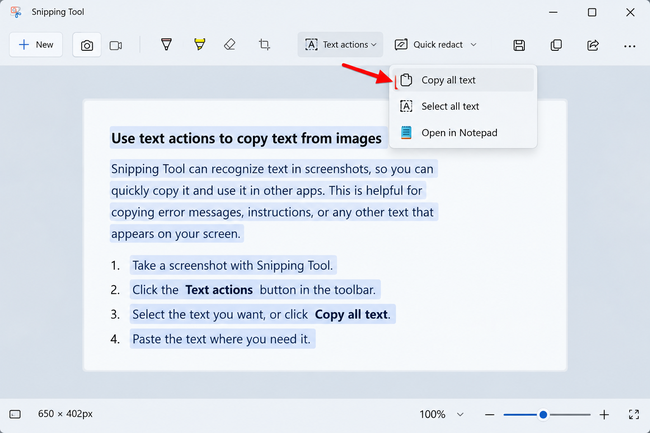
Click Text actions. Snipping Tool analyzes the screenshot and identifies recognizable text.
Step 4: Select the Text You Need
Highlight and copy specific recognized text, or choose Copy all text.
Step 5: Paste the Extracted Text
Open another app and press Ctrl + V.
What Are Text Actions in Snipping Tool?
Text actions use optical character recognition (OCR) to identify letters and numbers in an image. This is useful for error messages, text in images, and applications where normal selection isn’t available.
How to Copy All Text from a Screenshot
Select Text actions and then Copy all text. Proofread the result, particularly when the source is small or blurry.
How to Redact Information in a Screenshot
Quick redact can hide detected email addresses and phone numbers. Always inspect the finished screenshot yourself before sharing it.
Does Windows Send the Screenshot Online?
Microsoft says Snipping Tool performs this text recognition locally on the device.
Why Isn’t Text Actions Working?
Update Snipping Tool in Microsoft Store. Small, blurry, stylized, or low-contrast text can reduce OCR accuracy.
Another Way to Copy Text from the Screen
Microsoft PowerToys includes Text Extractor for copying text directly from an area of the screen, although Snipping Tool is usually simpler for screenshots.
Summary
Press Windows + Shift + S, capture the desired area, open it in Snipping Tool, and select Text actions to copy recognized text.
Frequently Asked Questions
Can Windows 11 copy text from an image?
Yes, Snipping Tool can recognize text in captured images.
What does Copy all text do?
It copies all text Snipping Tool recognizes to the clipboard.
Does Snipping Tool OCR work offline?
Microsoft states that recognition is performed locally.
Can it redact personal information?
Quick redact can identify detected email addresses and phone numbers, but manual review is still important.
Why does OCR make mistakes?
Small text, poor image quality, unusual fonts, and complicated backgrounds can reduce accuracy.

Kermit Matthews is a freelance writer based in Philadelphia, Pennsylvania with more than a decade of experience writing technology guides. He has a Bachelor’s and Master’s degree in Computer Science and has spent much of his professional career in IT management.
He specializes in writing content about iPhones, Android devices, Microsoft Office, and many other popular applications and devices.