To use tab groups in Google Chrome on a computer, right-click a tab, choose Add tab to group > New group, type a name, and pick a color. The group’s colored label appears in the tab strip, and you can click that label to collapse or expand the whole group. When you close a group instead of deleting it, Chrome saves it so you can reopen it later from the tab groups button on the bookmarks bar or from More (three dots) > Tab groups. On Android and iPhone, you build groups from the tab switcher by touching and holding a tab.
This guide walks through every part of the feature: creating, naming, and coloring groups, adding and removing tabs, collapsing and moving groups, saving and syncing them across devices, and the difference between closing, ungrouping, and deleting a group. Each platform has its own section because the menus are not the same on a phone as on a computer.
What you need and which versions this covers
- Google Chrome on Windows, Mac, Linux, or a Chromebook (ChromeOS). The steps use the current desktop menus described in Google Chrome Help as of October 2026. If a label in this guide doesn’t match your screen, update Chrome first: click More (three dots) > Help > About Google Chrome, then click Relaunch if an update is waiting.
- Chrome for Android (phone or tablet) and Chrome for iPhone and iPad, installed from Google Play or the App Store and kept up to date.
- A Google Account (optional). You can create groups without signing in. To keep the same groups on your other devices, sign in to Chrome with the same Google Account everywhere and keep history and tabs syncing.
A few terms used below:
- Tab strip: the row of tabs across the top of the Chrome window.
- Group header: the colored label (or colored circle, if the group has no name) that sits to the left of a group’s tabs. Most group options live on this header.
- Saved tab group: a group Chrome remembers after you close it. You reopen it with one click, and it can follow you to your other devices.
- Tab switcher: on a phone, the screen that shows all your open tabs as cards. You open it with the Switch tabs button (the square with a number in it).
Create a tab group on a computer (Windows, Mac, Linux, ChromeOS)
These steps are the same on every desktop version of Chrome. On a Mac, “right-click” means a two-finger click on the trackpad or a Control-click.
Step 1: Open the tabs you want to group
Open Chrome and load the pages that belong together, such as three tabs for a trip you are planning. To open another tab, click the New tab button (the plus sign) at the end of the tab strip, or press Ctrl + T on Windows, Linux, and ChromeOS or Command + T on a Mac.
Step 2: Right-click one of the tabs
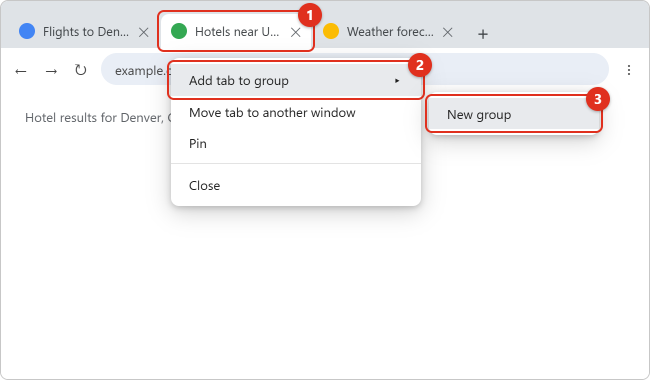
Move your pointer to the tab strip and right-click the first tab you want in the group. A menu opens under the tab with options such as Add tab to group, Move tab to another window, Pin, and Close.
Step 3: Choose Add tab to group, then New group
Point to Add tab to group and choose New group. If you already have groups, they are listed in the same submenu, so you can also drop the tab straight into one of them. When no groups exist yet, Chrome may show a single option named Add tab to new group instead of a submenu; Google’s own help pages use both labels. Either one creates the group.
Step 4: Type a name and pick a color
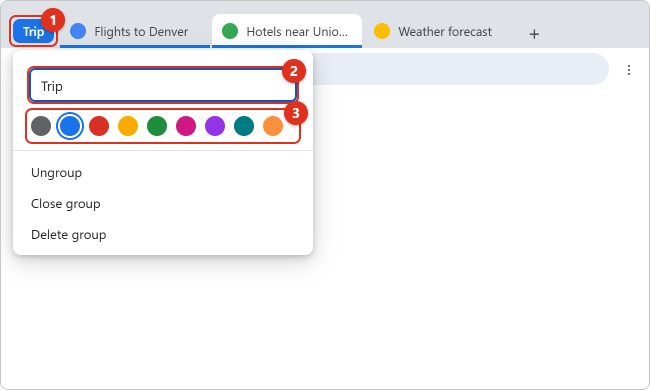
A small editor opens next to the new group header. Type a short name in the text box, such as “Trip” or “Taxes,” and click one of the colored circles below it. You can leave the name blank; the header then shows only a colored dot. Click anywhere outside the editor to close it. The group’s tabs now have a colored line under them that matches the header.
Step 5: Add the rest of the tabs
Drag each remaining tab next to the group until it joins (its underline changes to the group color), or right-click it and choose Add tab to group > the group’s name. To add several at once, hold Ctrl (Windows, Linux, ChromeOS) or Command (Mac) and click each tab, or hold Shift and click the first and last tab of a run. Then right-click any selected tab and choose Add tabs to group.
That’s it: your tabs now sit together under one labeled header. The next sections cover everything you can do with the group once it exists.
Rename a group or change its color
Click or right-click the group header (the colored name or circle). The same editor from Step 4 opens. Click in the name box and type a new name, or click a different color. Changes apply as soon as you make them, and if you sync tab groups, the new name and color show up on your other signed-in devices too.
Tips for names that stay useful:
- Keep them short. Long names take space away from the tabs themselves, especially when many tabs are open.
- Use color consistently, for example blue for work, green for money, and purple for school, so you can spot the right group without reading.
Add tabs to a group or remove them
Add a tab to an existing group
- Drag it: drag the tab into the group’s section of the tab strip. When it lands between or beside grouped tabs, it picks up the group color.
- Use the menu: right-click the tab, choose Add tab to group, and pick the group by name.
- Several tabs at once: select them with Ctrl-click or Command-click (or Shift-click for a range), right-click one of them, and choose Add tabs to group.
Remove a tab from a group
Right-click the tab and choose Remove from group (one Google page calls it Remove tab from group). The tab stays open; it just leaves the group and loses the colored underline. You can also drag the tab out of the group to a spot in the tab strip that isn’t inside any group.
Add new tabs from the group header
Right-click the group header to see its options. Google’s help lists adding more tabs as one of them, next to naming, recoloring, and removing the group. Look for an option such as New tab in group. A tab you add this way opens inside the group, so you don’t have to drag it in afterward.
Collapse and expand a group
Click the group’s name or colored circle once. All of the group’s tabs fold away behind the header, freeing room in the tab strip. Click the header again to expand the group and show its tabs.
While a group is collapsed, you can select the group but not the individual tabs inside it. Collapsing is purely visual. The pages stay open and keep their place, so a collapsed group is a good way to park research you will come back to later in the day without closing anything. If you want the tabs out of the way and closed, use Close group instead, covered below.
Using vertical tabs? Chrome can show the tab strip down the side of the window (right-click the tab strip and choose Show Tabs Vertically). Groups work there too, and Chrome Help lists an option called Expand Collapsed Tabs by Hovering that opens a collapsed list when you hover over it.
Move or reorder a group
- Reorder within the window: drag the group header left or right along the tab strip. The whole group moves together. Dragging a single tab moves just that tab.
- Move with the keyboard: press F6 until the tab strip has focus, use Tab or Shift + Tab to reach the group header, and press Ctrl + Left arrow or Ctrl + Right arrow to slide it.
- Move to another window: dragging the group header out of the tab strip usually takes the whole group with it into a new window, or onto another Chrome window you drop it on. Also check the header menu for an option such as Move group to new window, which moves the group without dragging. To move individual tabs, right-click a tab (or several selected tabs) and choose Move tab to another window. Google notes that both windows need to be using the same Chrome profile.
Save, reopen, and sync tab groups
Chrome saves tab groups automatically. You don’t need a separate “save” step: when you close a group, it is kept, and you can bring back all of its tabs later. If you are signed in and syncing history and tabs, Google says changes to your groups save and sync to your other devices automatically.
Close a group so you can reopen it later
Right-click the group header and choose Close group. The group’s tabs close, but the group itself is kept. This is the option to use for projects you return to, such as a weekly report or a course you study each evening.
Reopen a saved group
- Show the bookmarks bar if it’s hidden by pressing Ctrl + Shift + B (Windows, Linux, ChromeOS) or Command + Shift + B (Mac).
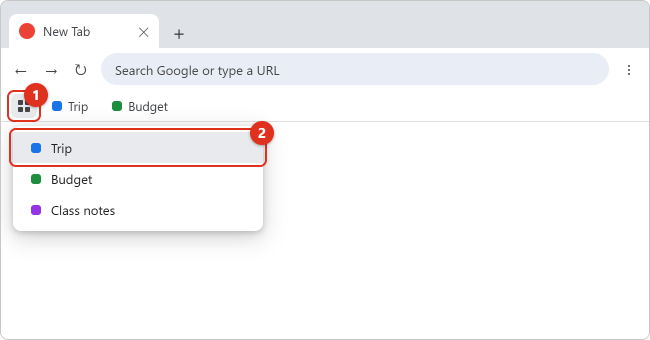
- Click the tab groups button (a small grid icon) at the left end of the bookmarks bar and choose the group by name. Groups that are pinned to the bookmarks bar also appear there as their own colored buttons.
- Or skip the bookmarks bar: click More (three dots) > Tab groups and choose the group.
The group opens with all of its tabs, in its saved name and color.
Control how saved groups appear
Open More > Settings > Appearance. Chrome Help lists these switches there:
- Show tab groups in bookmarks bar: turns on the saved groups button and pinned group buttons in the bookmarks bar.
- Automatically pin new tab groups to the bookmarks bar: every new group gets its own button on the bookmarks bar. This also applies to groups you create on your other devices with the same account.
- If the tab groups button disappeared, turn Show saved tab groups back on to pin it again.
Turn on syncing for tab groups
- Click your profile picture at the top right of Chrome and sign in with your Google Account if you aren’t already.
- Go to More > Settings > You and Google and click your account name.
- Make sure History and tabs is turned on, or open Choose what to save in your Google Account to check it.
Repeat on each device using the same Google Account. On a phone, sync settings are in Chrome’s own Settings screen (see the Android and iPhone sections).
Close vs. Ungroup vs. Delete group
The group header menu has three options that sound alike but do very different things. Read the table before you click, because two of them affect every device signed in to your account.
| Option | What happens to the tabs | What happens to the group | Use it when |
|---|---|---|---|
| Close group | They close on this computer. | Kept as a saved group you can reopen from the bookmarks bar or More > Tab groups. | You are done for now but will come back. |
| Ungroup | They stay open as ordinary tabs. | Removed. Chrome asks you to confirm, and the group is deleted on your other synced devices too. | You want to keep the pages but no longer need the label. |
| Delete group | They close. | Removed permanently, here and on other devices signed in to the same account. Chrome asks you to confirm. | You are finished with the project for good. |
Warning: because Ungroup and Delete group remove the group across synced devices, a group you delete on your work laptop also disappears from your phone. If you might need the pages again, choose Close group, or bookmark the tabs first (press Ctrl + Shift + D / Command + Shift + D to bookmark all open tabs in a new folder).
You can also delete a saved group that’s already closed: open the tab groups button on the bookmarks bar (or More > Tab groups), choose the group, and select Delete group.
Keyboard shortcuts for tab groups
Chrome doesn’t have a single shortcut that creates a group, but you can manage groups without a mouse. To create one from the keyboard, focus a tab, open its menu with the Menu key, choose Add tab to new group, type a name, and press Enter. The shortcuts below come from Google’s Use tab groups with your keyboard help page and its main keyboard shortcuts list.
| Task | Windows and Linux | Chromebook | Mac |
|---|---|---|---|
| Move focus to the tab strip | F6 (press until tabs are in focus) | Ctrl + Tab | Tab (with VoiceOver on) |
| Move between tabs and group headers | Tab / Shift + Tab | Ctrl + Back / Ctrl + Forward | Tab / Shift + Tab |
| Open the tab or group menu | Menu key | Search (or Launcher) + Shift + Increase volume | Not listed |
| Collapse or expand the focused group | Space or Enter | Space or Enter | Space or Enter |
| Show or hide the bookmarks bar (where saved groups live) | Ctrl + Shift + B | Ctrl + Shift + B | Command + Shift + B |
| Move the focused tab or group | Ctrl + Left arrow / Ctrl + Right arrow | Ctrl + Left arrow / Ctrl + Right arrow | Ctrl + Left arrow / Ctrl + Right arrow |
| Reopen the last closed tab | Ctrl + Shift + T | Ctrl + Shift + T | Command + Shift + T |
For general tab navigation, such as jumping to a tab by number, see our guide to switching tabs with keyboard shortcuts on Windows.
Use tab groups in Chrome for Android
On Android, groups live in the tab switcher. Open it by tapping Switch tabs (the square with the tab count) next to the address bar.
Step 1: Create a group
Pick whichever method is easiest:
- From the open tab: tap More (three dots) > Add tab to group. If you don’t have any groups yet, tap Add tab to new group.
- By dragging: in the tab switcher, touch and hold a tab and drag it onto another tab or group.
- Several tabs at once: in the tab switcher, touch and hold a tab, or tap More > Select tabs. Tap each tab you want, then tap More > Group tabs.
- An empty group: in the tab switcher, tap Tab groups > New tab group, or tap More > New tab group.
Step 2: Name it and choose a color
Type a name, choose a color, and tap Done. Later, open the group and tap its title to rename it, or tap the color circle to the left of the name to change the color.
Step 3: Add, remove, and open links in the group
- To add a tab, touch and hold it in the tab switcher and drag it onto the group.
- To remove a tab, open the group, touch and hold the tab, and drag it to Remove from group at the bottom of the screen.
- To open a link straight into the current group, touch and hold the link and tap Open in new tab in group.
- Careful when dragging one group into another: merging groups can delete the dragged group on all your devices.
Step 4: Close, ungroup, or delete
- Close group: touch and hold the group (or tap More) and tap Close group. The group is kept and can be reopened from Tab groups in the tab switcher.
- Ungroup tabs: open the group, select the tabs, and tap More > Ungroup tabs. The tabs stay open, but the group is deleted on all synced devices.
- Delete group: touch and hold the group (or tap More), tap Delete group, and confirm. This removes it on every device using the same account.
Android sync and tab settings
- Groups sync automatically across devices signed in to the same Google Account. To stop syncing them, go to Settings > Sync and uncheck Open Tabs.
- Groups from your other devices open automatically by default. To stop that, go to Settings > Tabs and tab groups and turn off Automatically open tab groups from other devices.
- Groups and tabs you haven’t used for 14 days move to an Inactive section. You can change this under Settings > Tabs and tab groups > Move to inactive section.
- You can’t pin a whole group. Pinning a tab takes it out of its group, and if it was the last tab, the group closes.
- On an Android tablet, you can drag tabs into and out of groups right in the tab strip, much like on a computer.
Use tab groups in Chrome for iPhone and iPad
On iPhone and iPad, groups are managed from the tab grid. Tap the tab count button in the toolbar to open it.
Step 1: Create a group
Touch and hold a tab and tap Add Tab to New Group. Or, in the tab grid, tap More > New Tab Group.
Step 2: Name it and pick a color
Type a name, choose a color if you like, and tap Create Group. To rename it later, touch and hold the group, tap Edit Group, change the name, and tap Done.
Step 3: Add or move tabs
- To add a tab to an existing group, touch and hold the tab, tap Add Tab to Group, and choose the group.
- To add several tabs, tap More, select the tabs, tap Add To…, and choose Add Tabs to New Group or Add Tabs to Group. Tap Done.
- To move a tab from one group to another, open its group, touch and hold the tab, and tap Move to Tab Group.
- To take a tab out of a group, open the group, touch and hold the tab, tap Move to Tab Group, and then tap Remove from Group.
Step 4: Close, reopen, or delete
- To close a group, open it and tap Close at the top right. It can be reopened later.
- To reopen a closed group, open the tab grid and choose it under Tab Groups.
- To delete a group, touch and hold it and tap Delete Group.
- To clear everything, tap More > Close All Tabs and Groups.
Group changes sync across devices signed in to the same Google Account. If you don’t want groups from your computer opening on your iPhone, go to Settings > Tabs and tab groups and turn off Automatically open tab groups from other devices.
Worked examples: ways to organize with groups
Groups are most useful when each one matches a task you can finish or pause. Here are three setups you can copy.
Example 1: Planning a weekend trip
You have six tabs open: two airline searches, two hotel listings, a weather forecast, and a restaurant menu. Group the flights and hotels as a blue group named “Trip,” leave weather and the menu ungrouped, and collapse “Trip” while you check email. When you have booked everything, right-click “Trip” and choose Close group. Next week, if a confirmation email asks you to check the hotel page again, reopen “Trip” from the bookmarks bar and every tab comes back in one click.
Example 2: A workday split by role
| Group name | Color | Tabs inside | What to do at day’s end |
|---|---|---|---|
| Blue | Email, calendar, team chat | Leave open; collapse when focusing | |
| Report | Green | Shared document, spreadsheet, two source pages | Close group (reopen tomorrow) |
| Reading | Grey | Articles saved for later | Close group; delete when finished |
With “Report” closed and saved, tomorrow you open it from More > Tab groups instead of searching your history for each page.
Example 3: Studying on a laptop and a phone
A student signs in to Chrome on a Chromebook and an Android phone with the same account. A purple “Biology” group created on the Chromebook syncs to the phone, so the same lecture slides and notes are ready on the bus. If the phone starts getting crowded with groups from the laptop, the student turns off Automatically open tab groups from other devices on the phone and opens “Biology” from Tab groups only when needed.
Troubleshooting
I don’t see “Add tab to group” when I right-click
- Make sure you are right-clicking a tab in the tab strip, not the page itself or the empty space next to the tabs. The page and empty-space menus are different.
- Update Chrome through More > Help > About Google Chrome and relaunch.
- If the tab is pinned (it shows only the site icon), try unpinning it first with right-click > Unpin, then right-click it again.
- On a work or school computer, Chrome may be managed by your organization, and some features can be limited by policy. Look for “Managed by your organization” in the Chrome menu and ask your IT administrator.
The tab groups button is missing from the bookmarks bar
First, show the bookmarks bar with Ctrl + Shift + B (Command + Shift + B on a Mac). If the bar is visible but the grid button isn’t, go to Settings > Appearance and turn on Show tab groups in bookmarks bar or Show saved tab groups. You can always reach saved groups from More > Tab groups even when the bookmarks bar is hidden. Our guide to showing or hiding the Chrome bookmarks bar covers the bar itself.
My groups don’t appear on my other devices
- Check that each device is signed in to Chrome with the same Google Account. A second Chrome profile counts as a different account.
- On the computer, confirm History and tabs is on under Settings > You and Google > your account name.
- On Android, make sure Open Tabs is checked under Settings > Sync.
- On a phone, check that Automatically open tab groups from other devices is on if you expect them to open by themselves. If it’s off, the groups are still available under Tab groups.
Groups keep reopening on my phone that I closed on my computer
Closing a group keeps it saved, so it can still show up on other devices. If you’re finished with it, use Delete group instead. If you just don’t want groups opening on the phone automatically, turn off Automatically open tab groups from other devices in the phone’s Settings > Tabs and tab groups.
I deleted or ungrouped a group by mistake
Chrome asks you to confirm before it ungroups or deletes a group, so you can still cancel at that prompt. If you’ve already confirmed a delete, the group itself is gone across devices. Try pressing Ctrl + Shift + T (Command + Shift + T on Mac) to reopen recently closed tabs, or open your history with Ctrl + H (Command + Y on Mac) to find the pages, then put them in a new group. After Ungroup, the tabs are still open, so you can simply regroup them.
Too many tabs to manage even with groups
Use Tab Search to find a tab by name: click the Tab Search button in the tab strip, or press Ctrl + Shift + A (Command + Shift + A on Mac). You can also type @tabs in the address bar, press Tab or Space, and enter a keyword. When you are ready for a clean slate, see how to close all tabs at once in Chrome and other browsers.
Frequently Asked Questions
Are Chrome tab groups saved when I close Chrome?
Yes. Chrome saves tab groups automatically, and Google says closed groups are kept rather than deleted. Groups you closed with Close group stay available from the tab groups button on the bookmarks bar and from More > Tab groups.
Do I need a Google Account to use tab groups?
No. You can create, name, color, and collapse groups without signing in. A Google Account with history and tabs syncing is only needed if you want the same groups on your other computers and phones.
How many tabs can a group hold?
Google’s help doesn’t state a limit. In practice, very large groups are harder to use, so splitting a big project into two or three smaller groups usually works better.
What’s the difference between collapsing and closing a group?
Collapsing only hides the tabs behind the header; the pages stay loaded in the window. Closing shuts the tabs and keeps the group saved so you can reopen it later from the bookmarks bar or the Chrome menu.
Can I pin a tab group?
You can’t pin a group the way you pin a single tab. On a computer, you can pin a saved group to the bookmarks bar so it has its own one-click button there. On Android, pinning a tab removes it from its group.
Will deleting a group on my computer delete it on my phone?
Yes, if both devices are signed in and syncing. Google warns that Delete group and Ungroup remove the group on all devices using the same account. Use Close group if you only want it gone from the current window.
Can I share a tab group with someone?
Google’s tab help covers sharing individual tabs, not whole groups. On a computer, open a tab and choose More > Cast, save, and share. On Android, open a group, tap Select tabs, choose the tabs, and tap More > Share tabs to send several at once.
Next step
Start small: group the tabs you have open right now into two or three named, colored groups and collapse the ones you aren’t using. Once that feels natural, close finished groups instead of leaving them open, and reopen them from the bookmarks bar when you need them. For the full list of tab features, Google keeps an up-to-date reference in Manage tabs in Chrome, and its Chrome keyboard shortcuts page lists every tab shortcut for your platform.

Kermit Matthews is a freelance writer based in Philadelphia, Pennsylvania with more than a decade of experience writing technology guides. He has a Bachelor’s and Master’s degree in Computer Science and has spent much of his professional career in IT management.
He specializes in writing content about iPhones, Android devices, Microsoft Office, and many other popular applications and devices.