How you switch depends on how many windows are open and whether your hands are on the keyboard, the touchpad or the screen. For two or three windows, Alt + Tab is quickest; when the screen is crowded, Task View (Windows logo key + Tab) shows everything at once.
The table below matches each situation to a method in current versions of Windows 11, with Windows 10 differences noted where they exist.
Which way to switch fits what you are doing
Each method suits a different moment. Pick the row that matches yours.
| Your situation | Fastest way | Input |
|---|---|---|
| Flipping between two or three windows while you type | Alt + Tab | Keyboard |
| A dozen windows open and you can’t remember what is where | Task View (Windows logo key + Tab or the Task view button) | Keyboard or mouse |
| Jumping to an app you keep pinned to the taskbar | Windows logo key + its number, or click its taskbar button | Keyboard or mouse |
| Several windows of the same app, such as three File Explorer windows | Ctrl + click the app’s taskbar button | Mouse plus Ctrl |
| Working on a laptop without reaching for the keyboard | Three-finger swipe left or right on the touchpad | Touchpad |
| Holding a tablet or touchscreen laptop | Three-finger swipe on the screen | Touchscreen |
| Windows you always use together, such as a browser and a notes app | Snap them side by side and return to the snap group | Mouse or keyboard |
| The window lives on a different virtual desktop | Windows logo key + Ctrl + Left or Right arrow | Keyboard |
Alt + Tab and its keyboard relatives
Microsoft’s keyboard shortcuts in Windows page describes Alt + Tab as the shortcut to “switch between open windows.” Here is how it works:
- Hold down Alt, then press and release Tab once. A row of thumbnails of your open windows appears.
- Keep holding Alt and press Tab again to move the highlight one window to the right.
- Release Alt when the window you want is highlighted. It comes to the front.
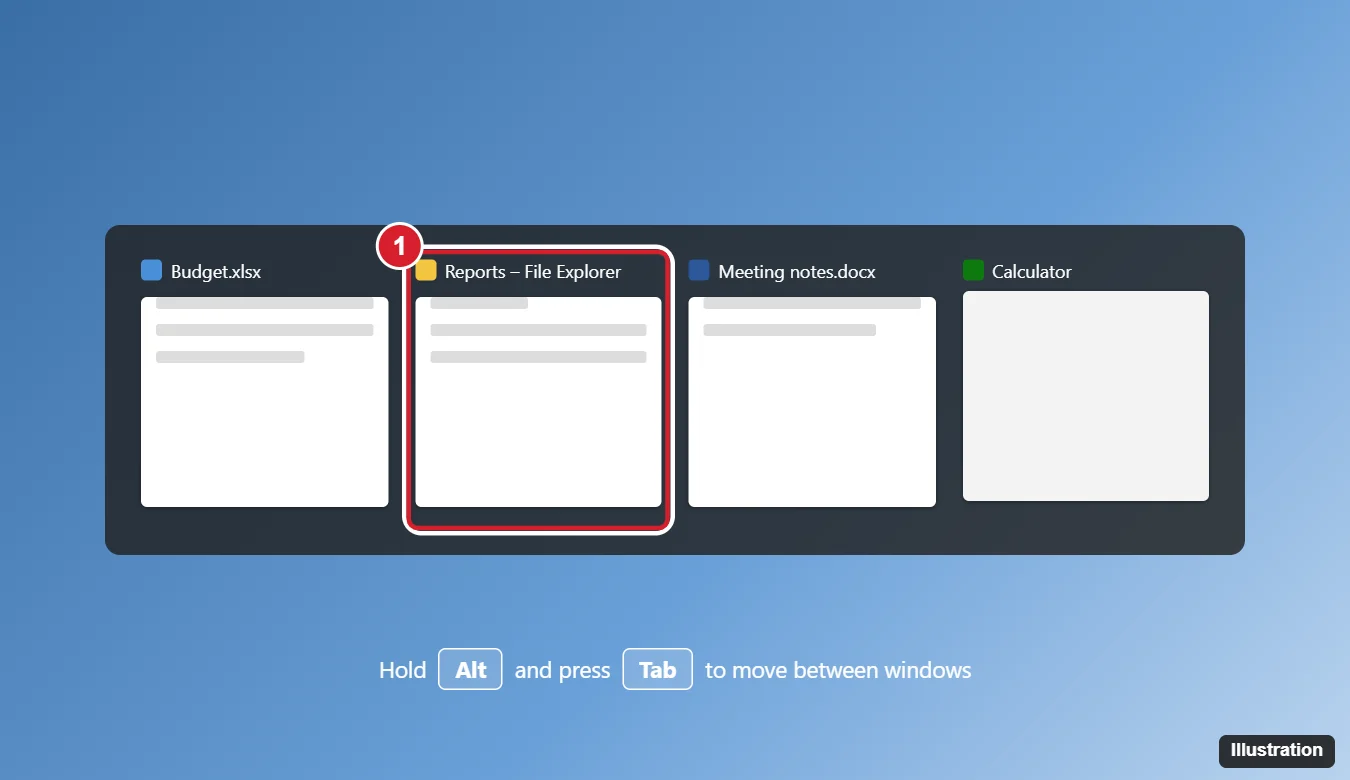
You can also click a thumbnail instead of tabbing to it. Microsoft’s multitasking in Windows page adds that each thumbnail has a close button, so you can shut a window without switching to it.
In everyday use, the window you were in just before the current one tends to sit first in line, so a quick press and release of Alt + Tab usually flips you back to it. That is handy when copying figures from a spreadsheet into an email. For a deeper look at this one shortcut, see how to tab between windows.
Three related shortcuts from the same list:
- Ctrl + Alt + Tab: shows thumbnails of all open apps, and you use the arrow keys to move between them.
- Alt + Esc: cycles through windows in the order in which they were opened, with no thumbnail strip.
- Windows logo key + D: shows the desktop, and pressing it again brings your windows back. If clearing the screen is the real goal, there are more options for minimizing all windows at once.
Keyboard-only routes are collected in switching screens on Windows with the keyboard.
Task View: every window on one screen
Task View lays out all of your open windows as large thumbnails, with your virtual desktops along the top or bottom. It beats Alt + Tab when you have too many windows to tab through.
- Press Windows logo key + Tab, or select the Task view button on the taskbar.
- Click the window you want. It opens and Task View closes.
You can also drag windows between desktops here. If you mostly want to see what is open, seeing all open windows in Windows 11 and 10 goes further into that view.
No Task view button on your taskbar? According to Microsoft’s taskbar customization page, right-click the taskbar, choose Taskbar settings, and under Taskbar items turn the Task view switch on.
Switch from the taskbar
The taskbar pairs well with a few shortcuts:
- Click an app’s taskbar button to bring its window forward.
- Hold Ctrl and click a grouped taskbar button to move through that app’s windows one by one.
- Press Windows logo key + a number to open the app pinned in that position. Microsoft says that if the app is already running, Windows switches to it instead.
- Press Windows logo key + Ctrl + a number to go to the last active window of the app pinned in that position.
- Press Windows logo key + T to cycle through apps on the taskbar.
For example, if File Explorer is pinned first and Microsoft Edge second, Windows logo key + 2 always brings up Edge, however many windows sit on top of it.
In Windows 11, the Combine taskbar buttons setting in Taskbar settings decides whether each window gets its own button. Microsoft lists three choices: Always, hide labels (the default), When taskbar is full, and Never.
Touchpad and touchscreen gestures
Microsoft’s touch gestures for Windows page lists these switching gestures:
| Gesture | Where | What it does |
|---|---|---|
| Three fingers left or right | Touchpad | Switch between open apps or windows |
| Three fingers up | Touchpad | Show all open windows |
| Four fingers left or right | Touchpad | Switch desktops |
| Three fingers left or right | Touchscreen | Switch to the last open app |
| Three fingers up | Touchscreen | Show all open windows |
Microsoft notes that some touchpad gestures only work with precision touchpads. If a swipe does nothing, or does something else, open Settings > Bluetooth & devices > Touchpad in Windows 11 and check the Three-finger gestures and Four-finger gestures settings. In Windows 10 the touchpad page is under Settings > Devices > Touchpad.
Snapped windows and snap groups in Windows 11
Sometimes the best switch is none: snapping keeps two or more windows on screen together.
- Click the first window, then press Windows logo key + Left arrow or Windows logo key + Right arrow to snap it to half the screen.
- Snap Assist then shows thumbnails of your other open windows. Click the one you want in the other half.
- For more than two windows in Windows 11, hover over a window’s maximize button or press Windows logo key + Z to open snap layouts, then pick a zone.
Microsoft’s Snap your windows page explains that windows you snap together become a snap group. Later, hover over the taskbar button of one of those apps and you can restore the entire group or just that app. For halves, thirds and quarters in detail, see how to split screen on Windows 11 and 10.
Snap layouts are a Windows 11 feature. On Windows 10, Microsoft lists Windows logo key + Z for a different job (showing the commands available in a full-screen app), and the Windows 10 Snap settings have no snap layouts option.
Windows on another desktop or monitor
Virtual desktops keep separate sets of windows, for example work apps on one desktop and personal apps on another. Windows logo key + Ctrl + Left arrow or Right arrow moves between them, Windows logo key + Ctrl + D adds a desktop, and Windows logo key + Ctrl + F4 closes the one you are on. The full walkthrough, including Task View and gestures, is in switching between virtual desktops in Windows 11. On Windows 10, see using multiple desktops on Windows 10, and when a desktop has done its job, closing virtual desktops on Windows 11 explains what happens to its windows.
If “switching screens” for you means moving between two monitors rather than between windows, that is a different task, covered in switching between screens on Windows.
Settings that change what Alt + Tab shows
Two settings in Settings > System > Multitasking control what appears when you switch.
- Microsoft Edge tabs: under Show tabs from apps when snapping or pressing Alt+Tab, choose Don’t show tabs to switch only between open windows on the current desktop, or choose one of the most recent tabs options to add that many recent Edge tabs to the list.
- Desktops: expand Desktops. Under Show all open windows when I press Alt+Tab, choose whether Alt + Tab shows windows from all desktops or only from the desktop you are using. A similar setting, On the taskbar, show all the open windows, does the same for the taskbar.
Microsoft’s configure multiple desktops page describes the Desktops options.
If a window never shows up in Alt + Tab, it is probably on another virtual desktop: change the Desktops setting above to show windows from all desktops, or switch desktops first. If Snap Assist or snap layouts never appear, make sure the Snap windows toggle in Settings > System > Multitasking is on, then check the snap layouts boxes beneath it.
Windows 10 notes
Alt + Tab, Ctrl + Alt + Tab, Alt + Esc, Task View, Windows logo key + a number and the touchpad gestures all work on Windows 10 too, and Microsoft’s shortcut list gives them nearly the same descriptions. The differences are snap layouts and snap groups (Windows 11 only), Windows logo key + Z, and the touchpad settings path. Microsoft states that Windows 10 has reached the end of support on October 14, 2025, as its Windows 10 end of support page explains.
Window switching answers
What is the difference between Alt + Esc and Alt + Tab?
Alt + Tab shows thumbnails so you can pick a window. Alt + Esc shows nothing; each press simply brings up the next window in the order the windows were opened. Alt + Esc is quicker when you only have two or three windows and know the order.
Does Windows logo key + a number open a second copy of the app?
Not if the app is already running. Microsoft says the shortcut switches to the running app; it only starts the app if it isn’t open yet.
A good next step is to pin your three most-used apps to the first three taskbar positions, so Windows logo key + 1, 2 and 3 always take you straight to them.
Alt + Tab is one of several everyday skills in this beginner walkthrough of Windows 11, alongside Snap layouts and virtual desktops.

Kermit Matthews runs Live2Tech from just outside Philadelphia. He is an IT specialist with over 20 years of experience, from a university help desk to small-business IT, IT management and his own consulting practice, and has written tech guides full time since 2020. Steps are checked against the current software on a real device or the maker’s official documentation. More about Kermit.