To split your screen on Windows, click the window you want on one side and press Windows key + Left arrow or Windows key + Right arrow. It snaps to that half of the screen, and Windows shows your other open windows so you can click one to fill the other half. You can also drag a window’s title bar to the left or right edge of the screen. In Windows 11, hover over a window’s Maximize button (or press Windows key + Z) to pick from ready-made snap layouts.
These steps work in Windows 11 and Windows 10. Here’s how to split into halves, thirds, or quarters, resize the split, and fix Snap if it isn’t working.
Method 1: Use keyboard shortcuts
- Click the first window.
- Press Windows key + Left arrow to snap it to the left half.
- Choose another window from the thumbnails that appear on the right, or click it and press Windows key + Right arrow.
Snap to corners (quarters)
After snapping a window to one side, press Windows key + Up arrow or Windows key + Down arrow to move it into the top or bottom quarter.
Method 2: Drag windows to the edge
- Drag a window by its title bar to the left or right edge of the screen until an outline appears.
- Let go. The window fills that half.
- Pick another window from Snap Assist to fill the other side.
Drag a window into a corner to make it fill a quarter of the screen.
Method 3: Use Snap layouts (Windows 11)
- Hover over the Maximize button in a window’s top-right corner, or press Windows key + Z.
- Click the zone you want in one of the layouts, like the left half of the two-column layout.
- Choose windows to fill the other zones.
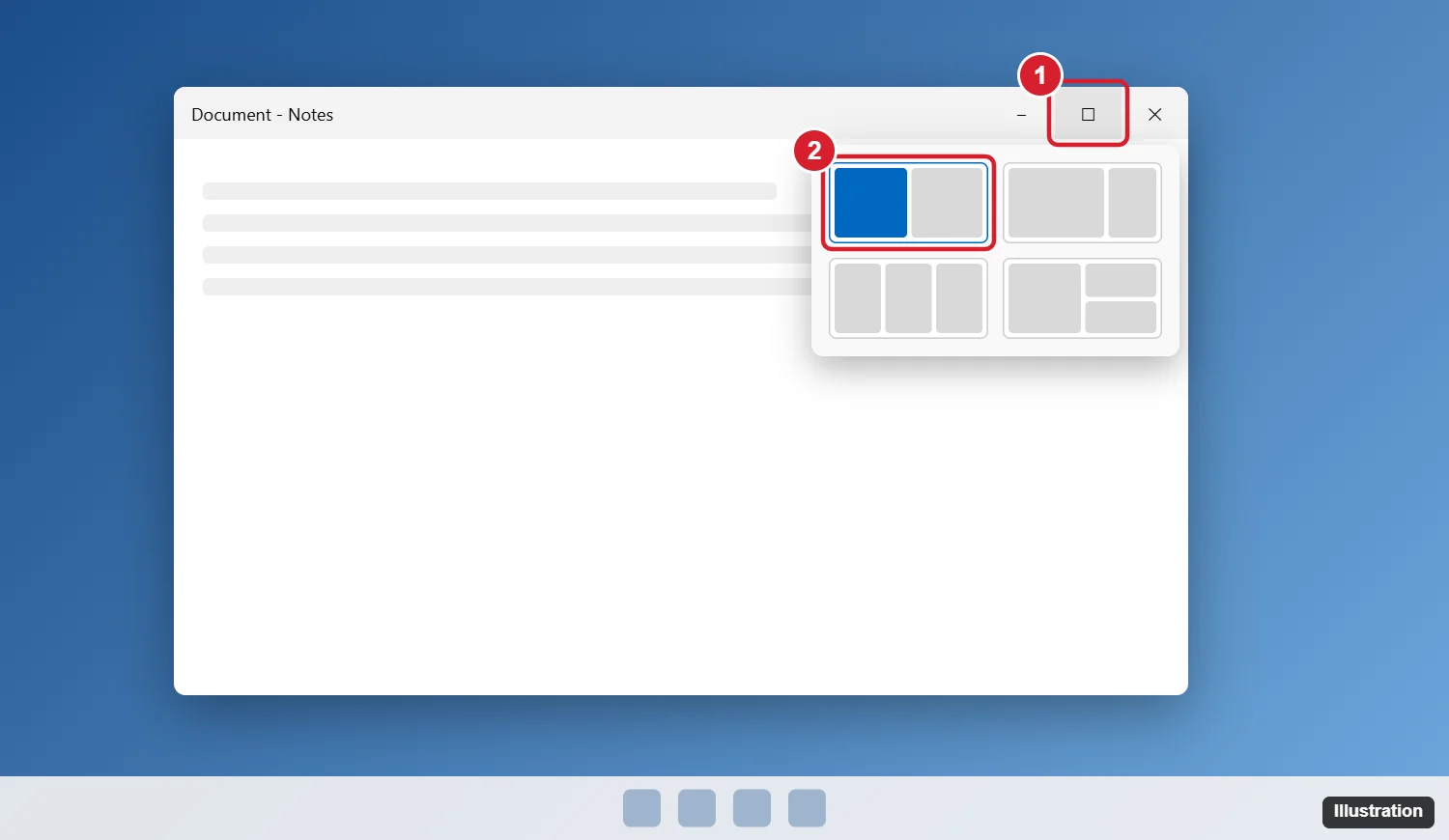
Windows 11 also shows layouts at the top of the screen when you drag a window there. Layouts with three columns appear on wider screens.
Resize the split
Drag the line between two snapped windows left or right. Both windows resize together.
Turn on Snap if it isn’t working
- Open Settings > System > Multitasking.
- Turn on Snap windows.
- Expand it to choose options like showing snap layouts when you hover over the Maximize button, or suggesting what to snap next.
Some apps have a minimum width and can’t snap to smaller zones, especially on small screens or with high display scaling. When an app is too wide to share the screen, you can keep a window on top in Windows 11 instead and let it float over the other one.
Split screen shortcuts at a glance
| Shortcut | What it does |
|---|---|
| Windows key + Left/Right | Snap to left or right half |
| Windows key + Up/Down (after snapping) | Snap to a top or bottom quarter |
| Windows key + Z | Open snap layouts (Windows 11) |
| Windows key + Up | Maximize |
| Windows key + Shift + Left/Right | Move a window to another monitor |
Working across two monitors? Learn how to make apps open on the monitor you choose.
Related: Put two windows side by side on a Mac.
Frequently asked questions
Can I split the screen between two monitors?
Yes. Snap works on each monitor separately. Drag windows to the edges of either screen.
How do I undo split screen?
Drag the window away from the edge, or press Windows key + Up arrow to maximize it.
What are Snap groups?
In Windows 11, windows you snap together are saved as a group. Hover over one of them on the taskbar to bring the whole group back at once.
Can I split the screen into three windows?
Yes. Snap one window to a half and two to the quarters on the other side, or use a three-column snap layout in Windows 11.

Kermit Matthews runs Live2Tech from just outside Philadelphia. He is an IT specialist with over 20 years of experience, from a university help desk to small-business IT, IT management and his own consulting practice, and has written tech guides full time since 2020. Steps are checked against the current software on a real device or the maker’s official documentation. More about Kermit.