To make a program open on a specific monitor in Windows, open the program, drag its window (or press Windows + Shift + Left/Right Arrow) to the monitor you want, and then close it from that monitor. Most apps remember the last position and reopen there. If an app keeps opening on the wrong screen, set that monitor as your main display, since Windows opens many apps on the main display by default.
Windows has no setting to pin a specific app to a specific monitor. The methods below cover what works for most apps on Windows 10 and Windows 11.
Note: Windows 10 reached end of support on October 14, 2025. Consumer Extended Security Updates (ESU) now run until October 12, 2027.
Quick Answer
Move the app to the monitor you want with Windows + Shift + Arrow, then close it there. It usually reopens on that monitor.
Method 1: Move the Window and Close It There
- Open the program.
- If it’s maximized, restore it (double-click the title bar).
- Drag it to the other monitor, or press Windows + Shift + Right Arrow (or Left Arrow) to jump it across.
- Maximize it if you like, then close it with the X or Alt + F4.
- Reopen the program to check it comes back on the same monitor.
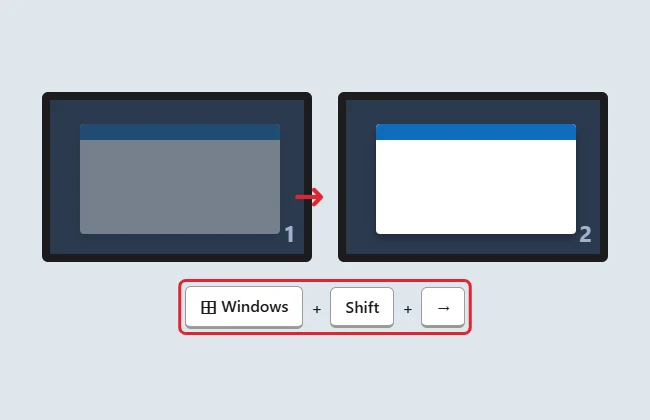
Some people also report success pressing Windows + Shift + Enter before closing an app to save its position; results vary by app.
Method 2: Make That Monitor Your Main Display
- Right-click the desktop and choose Display settings.
- Select the monitor you want apps to open on.
- Check Make this my main display (on Windows 11, it’s under Multiple displays).
New windows, the Start menu, and system pop-ups now appear on that monitor. The taskbar clock moves there too.
Method 3: Set a Shortcut to Open Maximized
Some older programs only remember their state, not their position. If a desktop shortcut opens the app, right-click it, choose Properties, and set Run to Maximized. Combine this with Method 1.
Fix Apps That Won’t Remember
| Problem | Try this |
|---|---|
| App always opens on the main display | Make the other monitor the main display (Method 2) |
| App opens off-screen | Select it on the taskbar and press Windows + Shift + Arrow |
| Windows jump after sleep or undocking | Windows 11: Settings > System > Display > Multiple displays > check Remember window locations based on monitor connection |
| Different apps need different monitors | Use a window manager such as the free PowerToys FancyZones or DisplayFusion |
Keep it visible with always on top in Windows 11.
Troubleshooting
- Several copies of the app are open: Close all of them first. The app saves the position of the last window closed.
- Browser windows ignore it: Browsers restore the last session’s windows. Close the browser from the monitor you want.
- Monitor order is wrong: Rearrange the displays in Display settings so their position matches your desk. Our guide to setting up dual screens shows how.
Related: learn to split your screen with Snap, or turn off a second display without unplugging it.
Frequently Asked Questions
Can I force an app to always open on monitor 2?
Not with a built-in Windows setting. Moving and closing it there, or making monitor 2 the main display, works for most apps.
Does this work with Windows 11 Snap Layouts?
Yes. Snap the app on the monitor you want before closing it.
Summary
- Move the app with Windows + Shift + Arrow and close it there.
- Set the preferred monitor as the main display.
- Use a window manager for per-app rules.

Kermit Matthews is a freelance writer based in Philadelphia, Pennsylvania with more than a decade of experience writing technology guides. He has a Bachelor’s and Master’s degree in Computer Science and has spent much of his professional career in IT management.
He specializes in writing content about iPhones, Android devices, Microsoft Office, and many other popular applications and devices.