You are typing in one window and need another one to stay in front: a chat, a set of notes, a video, a running calculation. Windows 11 has no built-in pin-on-top switch that works for every app. The free Microsoft PowerToys utility adds one, called Always On Top: select the window and press Windows + Ctrl + T. If you would rather not install anything, a few apps can float on their own, so start with the table below.
Pick a method by what you need to keep in view
The right tool depends on what the floating window is. Built-in options cover a few specific cases; PowerToys covers everything else.
| What you want to keep visible | Best option | Install anything? |
|---|---|---|
| A calculator while you work in a spreadsheet or invoice | Calculator’s Keep on top mode | No |
| A tutorial video or a live stream | Your browser’s picture-in-picture player | No |
| CPU or memory graphs while a program runs | Task Manager’s own always-on-top option | No |
| Two windows side by side, both fully visible | Snap layouts (not on top, but nothing overlaps) | No |
| Any other app: notes, chat, a document, a terminal, a meeting window | PowerToys Always On Top | Yes, free from Microsoft |
If more than one row applies, PowerToys is the general answer, because the same shortcut works on almost any desktop window.
Pin any window with PowerToys Always On Top
PowerToys is a set of free utilities made by Microsoft. According to the PowerToys installation page, it runs on Windows 11 and on Windows 10 version 2004 (build 19041) or newer, on x64 or ARM64 PCs. Microsoft recommends installing it from GitHub or the Microsoft Store, and lists WinGet and other package managers as alternatives.
- Install PowerToys from the Microsoft Store or from Microsoft’s GitHub release page, then open it once so it starts running. It keeps running in the background, with an icon in the notification area near the clock.
- In the PowerToys window, select Always On Top in the left-hand list and make sure the utility’s toggle is on.
- Click the window you want to keep visible so it is the active window.
- Press Windows + Ctrl + T. A colored border appears around the window, which means it is pinned and will stay above the other windows you open or click.
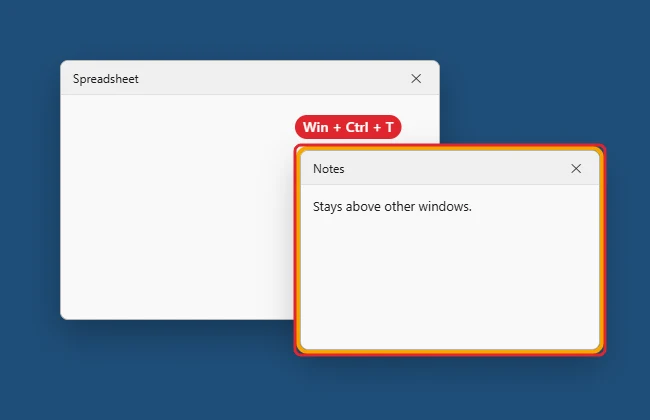
A pinned window stays above other windows. - Work in your other apps as usual. The pinned window keeps floating in front, and you can still move or resize it.
- To unpin it, select the window and press Windows + Ctrl + T again. Closing the window also removes the pin. If the pin is gone after a restart or after you reopen the app, select the window and press the shortcut again to pin it.
A quick way to confirm it worked: click a different, larger window behind the pinned one. If the pinned window stays in front and keeps its border, the shortcut took effect.
Always On Top settings explained
All of these live on the Always On Top page inside PowerToys. The names below match Microsoft’s Always On Top documentation.
- Activation shortcut: the key combination that pins and unpins. Change it if another app already uses Windows + Ctrl + T.
- Do not activate when Game Mode is on: stops the shortcut from working while Windows Game Mode is active, so a stray key press does not pin a game window.
- Show Always on Top in the title bar context menu: adds an Always on Top item when you right-click a window’s title bar, handy if you prefer the mouse to shortcuts.
- Show a border around the pinned window: turns the colored outline on or off.
- Color mode and Color: use the Windows default accent color for the border or pick a custom one.
- Opacity (%) and Thickness (px): make the border fainter or thinner if it is distracting.
- Enable rounded corners: gives the colored border rounded corners.
- Play a sound when pinning a window: gives an audible cue each time a pin is added or removed.
- Excluded apps: apps listed here can never be pinned. Matching is partial, so an entry of Notepad also catches Notepad++.exe. Type the full name, such as Notepad.exe, to exclude only that one program.
A practical setup for someone who uses a pinned notes window all day: keep the border on but lower the opacity, turn on the title bar menu item, and add any full-screen game launchers to Excluded apps so they never get pinned by accident.
Keep a window in front without installing anything
Calculator
Microsoft’s Calculator help page documents a built-in keep-on-top mode:
- Open Calculator and switch to Standard mode.
- Select Keep on top, or press Alt + Up arrow. Calculator stays visible on top of the other apps you use.
- To return to the normal window, select Keep on top again or press Alt + Down arrow.
Task Manager
Task Manager has its own always-on-top option, useful for watching performance graphs while a program runs. Its location has moved between Task Manager designs: older versions kept it in an Options menu, and the redesigned Windows 11 Task Manager keeps its preferences on a Settings page. Open Task Manager with Ctrl + Shift + Esc and look on its settings page for an always-on-top option.
Picture-in-picture for video
Most current browsers can pop a playing video into a small floating player that stays above other windows. Look for a picture-in-picture button on the video, or right-click the video and check the menu. This only floats the video itself, not the rest of the page, which makes it the lightest option for following a tutorial.
Snap layouts
Snap does not put anything on top, but it removes the overlap problem entirely. Hover over a window’s maximize button or press Windows + Z to choose a layout, or press Windows key + Left arrow or Right arrow to fill half the screen. Microsoft’s Snap your windows page covers the rest, and you can also split the screen between two apps with the same feature.
Shortcuts that look right but are not
Several pages repeat shortcuts that Microsoft does not document for this job. If one of these did nothing on your PC, that is expected.
- Ctrl + F11 or Ctrl + F12: not a Windows pin-on-top shortcut. These keys come from third-party pinning utilities and from individual apps that assign their own meaning to them.
- Windows + Shift + T: not the Always On Top shortcut. Microsoft’s documentation lists Windows + Ctrl + T as the default.
- Windows + Ctrl + T with PowerToys closed: the shortcut only works while PowerToys is running. If you quit it from the notification area icon, pins stop working until you start it again.
The only shortcut that pins an arbitrary window is the one set in PowerToys, so if you changed the Activation shortcut, use your custom keys instead.
When a pinned window still slips behind
Work through these in order; the first two cover most cases.
- PowerToys is not running. Check for its icon in the notification area. If it is missing, open PowerToys from Start.
- Always On Top is turned off. Open PowerToys, select Always On Top and confirm the toggle is on.
- Another app grabbed the shortcut. If pressing the keys does something else, set a different Activation shortcut.
- The app is on the Excluded apps list. Remember the partial matching: an entry meant for one program can block similarly named ones.
- Game Mode is active. With Do not activate when Game Mode is on selected, the shortcut is ignored during games.
- The other window is also topmost. Microsoft notes that a pinned window stays above non-topmost windows only. A window that already forces itself on top can still cover yours.
- Remote Desktop, Citrix or VMware is involved. Microsoft lists known issues with these, so a pinned window may not stay above a remote session or a virtual machine window.
Pinning on top versus pinning to the taskbar
Windows uses “pin” for two unrelated things. Pinning a window on top changes how open windows stack: it keeps one floating until you unpin or close it. Pinning an app to the taskbar or Start menu only adds a launch shortcut and has no effect on stacking. You can combine them, for example by pinning a notes app to the taskbar so it opens in one click, then pinning its window on top for a meeting.
Always-on-top questions
Can I pin more than one window at a time?
Yes. Press the shortcut on each window you want to float. Each pinned window gets its own border and stays above the unpinned ones. Keep the number small, though, because pinned windows can cover each other. A pinned window can be moved to another monitor; how it behaves there can depend on the app.
Does Always On Top work on Windows 10?
Yes, on Windows 10 version 2004 or newer, with the same shortcut. Windows 10 reached end of support on October 14, 2025, so PCs still on it should be moved to Windows 11 or enrolled in Extended Security Updates.
How do I stop one app from ever being pinned?
Add it under Excluded apps on the Always On Top settings page. Use the full executable name if you only want to block that one program.
Can I get rid of the colored border?
Yes. Turn off Show a border around the pinned window. The window stays pinned; you just lose the visual reminder, so the sound option can be a useful replacement.
Build out your window setup
Once one window floats where you want it, the next step is organizing everything else around it. Virtual desktops are a good fit: put reference material on one desktop and your main work on another, then learn how to switch between desktops in Windows 11 with a keyboard shortcut.

Kermit Matthews runs Live2Tech from just outside Philadelphia. He is an IT specialist with over 20 years of experience, from a university help desk to small-business IT, IT management and his own consulting practice, and has written tech guides full time since 2020. Steps are checked against the current software on a real device or the maker’s official documentation. More about Kermit.