Putting two windows side by side is one of the most useful things you can do on a Windows PC: compare two documents, copy from a web page into an email, or watch a video while you take notes. Windows calls it Snap, and it takes one drag or one keyboard shortcut. Windows 11 adds Snap Layouts for three- and four-window arrangements. This guide covers every method on Windows 11 and Windows 10, how to resize the split, and what to do if Snap isn’t working.
Quick Answer
Click a window and press Windows key + Left arrow. It fills the left half of the screen, and Windows shows your other open windows on the right; click one to fill the right half. Or drag a window by its title bar to the left or right edge of the screen until you see an outline, then let go.
Method 1: Keyboard Shortcuts
- Click the first window to select it.
- Press Windows key + Left arrow to snap it to the left half (or Windows key + Right arrow for the right half).
- Snap Assist shows thumbnails of your other windows on the empty side. Click the one you want, or use the arrow keys and press Enter.
Other shortcuts: Windows key + Up arrow after snapping moves a window to a quarter of the screen (top corner), and Windows key + Down arrow to the bottom corner or restores it. Windows key + Up on an unsnapped window maximizes it.
Method 2: Drag to the Edge
- Click and hold the title bar of a window.
- Drag it to the left or right edge of the screen until a transparent outline appears.
- Release the mouse. The window fills that half.
- Choose the second window from the thumbnails that appear on the other side.
Drag to a corner to snap a window into a quarter of the screen. In Windows 11, you can also drag a window to the top center of the screen to reveal the Snap Layouts bar and drop it into a zone.
Method 3: Snap Layouts (Windows 11)
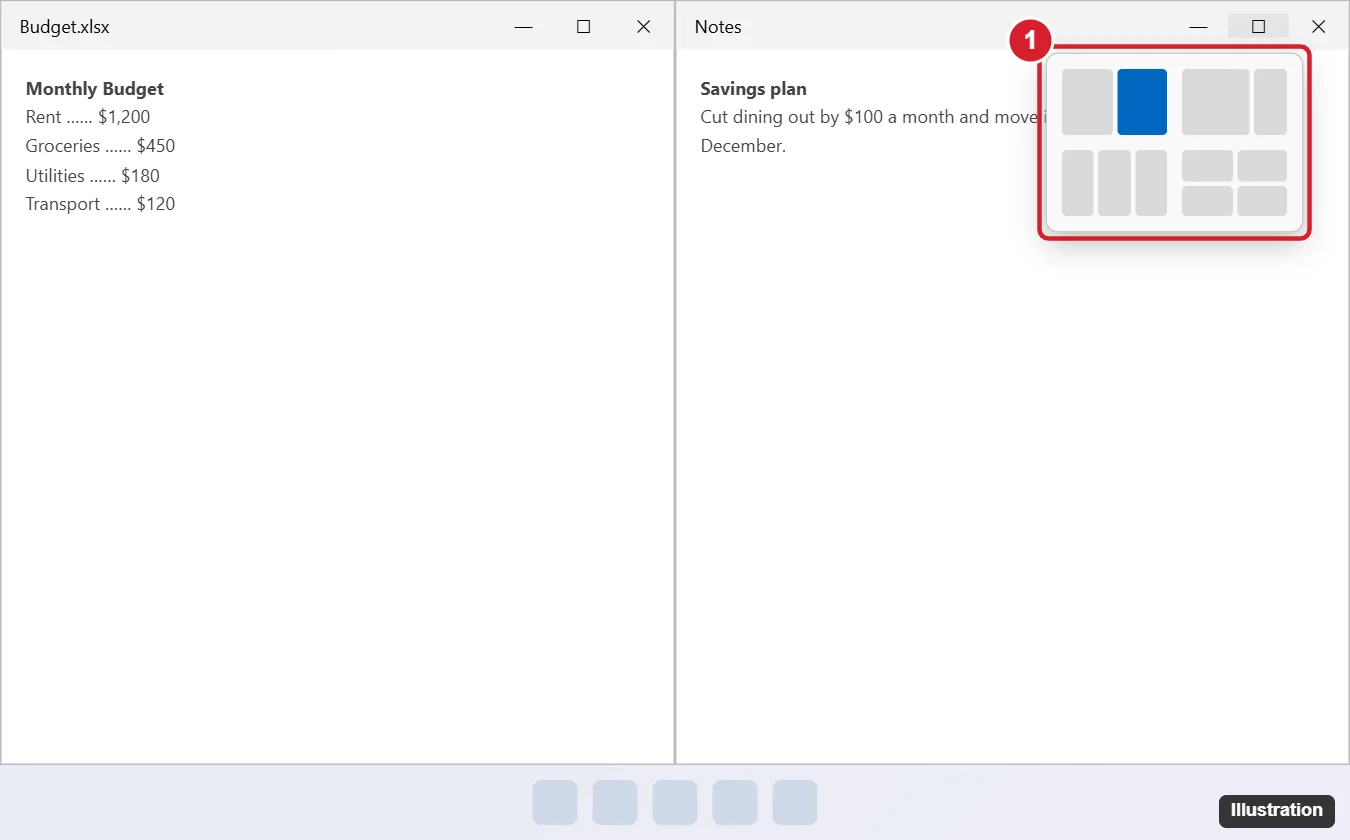
- Hover over the maximize button (the square) in a window’s top-right corner, or press Windows key + Z.
- Choose a layout, such as two equal columns, a large and small column, three columns, or four quadrants, and click the zone where this window should go.
- Fill the other zones with the windows shown in Snap Assist.
Windows remembers the arrangement as a Snap Group. Hover over one of the apps in the taskbar to bring the whole group back at once.
Resize the Split
Drag the line between the two snapped windows left or right. Both windows resize together, so you can give one app two-thirds of the screen and the other a third.
Turn On Snap if It Isn’t Working
- Open Settings > System > Multitasking.
- Turn on Snap windows.
- Expand it and check the options, such as When I snap a window, suggest what I can snap next to it and Show snap layouts when I hover over a window’s maximize button.
Some apps have a minimum width and can’t be snapped into small zones. Full-screen games and some video players also can’t be snapped.
Side by Side on Multiple Monitors
With two monitors, press Windows key + Shift + Left/Right arrow to move a window to the other screen, or drag it across. Each monitor has its own Snap zones, so you can have two windows side by side on each screen.
Windows 10 Differences
- Dragging to the edges and Windows key + arrow keys work the same way.
- Snap Layouts and Snap Groups aren’t available; you can snap up to four windows into quarters by dragging to corners.
- Snap settings are in Settings > System > Multitasking.
- Right-clicking the taskbar and choosing Show windows side by side arranges all open windows automatically.
Related: Put two windows side by side on a Mac.
Frequently Asked Questions
How do I put two browser tabs side by side?
Drag a tab out of the browser window to make it a separate window, then snap each window to one side. Some browsers also offer a built-in split screen view.
Can I snap windows with a touchscreen?
Yes. Drag a window’s title bar to the edge with your finger.
How do I undo a snap?
Drag the window away from the edge, or press Windows key + Down arrow.
Summary
- Press Windows key + Left or Right arrow.
- Pick the second window from Snap Assist.
- Drag the divider to resize.
- Use Windows key + Z for more layouts in Windows 11.

Kermit Matthews runs Live2Tech from just outside Philadelphia. He is an IT specialist with over 20 years of experience, from a university help desk to small-business IT, IT management and his own consulting practice, and has written tech guides full time since 2020. Steps are checked against the current software on a real device or the maker’s official documentation. More about Kermit.