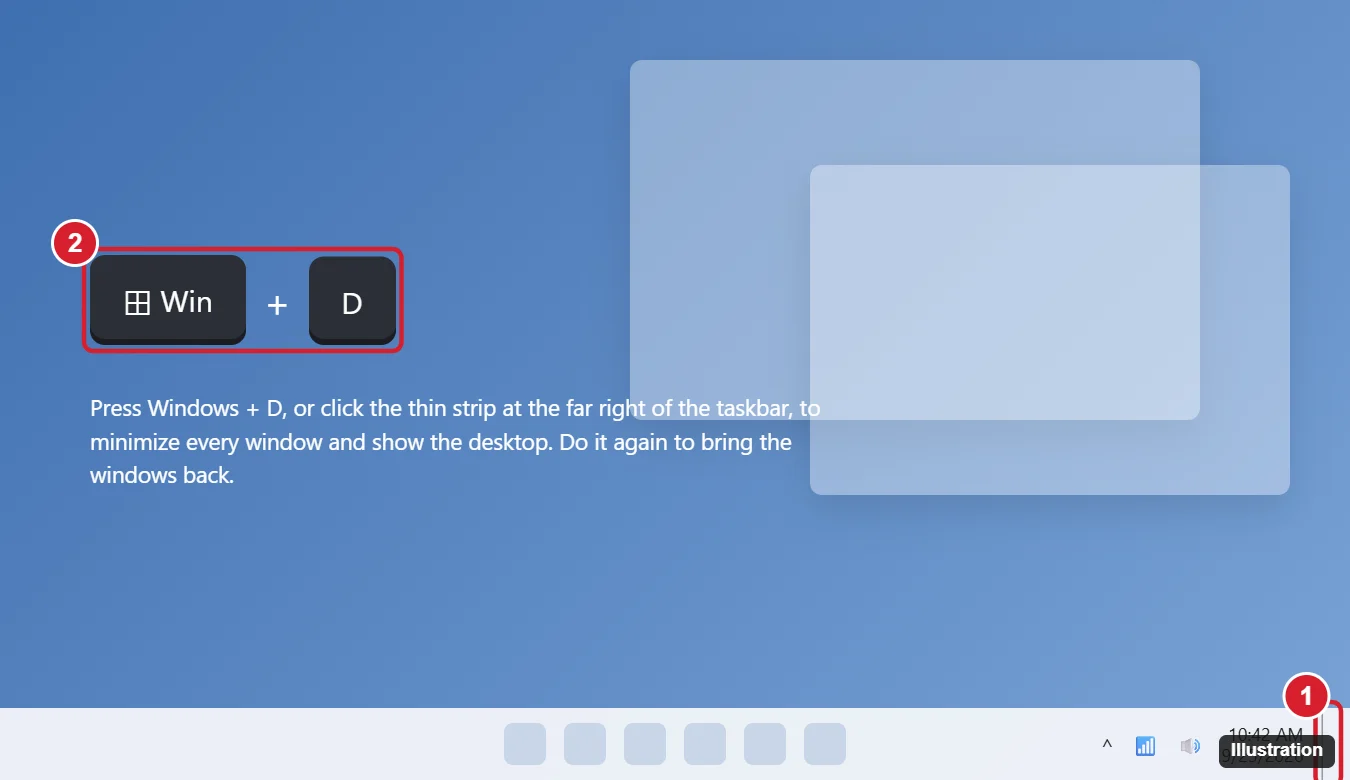
When your screen is buried under a dozen open windows, press Windows key + D to minimize them all and show the desktop, then press it again to restore them. Windows key + M also minimizes all windows, and Windows key + Shift + M restores them. Or click the thin Show desktop strip at the far right end of the taskbar. These work in Windows 11 and Windows 10, with Mac equivalents at the end.
All the Ways to Minimize Every Window
| Method | What it does | Restore |
|---|---|---|
| Windows + D | Shows the desktop instantly (toggle) | Windows + D again |
| Windows + M | Minimizes all windows | Windows + Shift + M |
| Show desktop button (far right of taskbar) | Same as Windows + D | Click it again |
| Windows + Home | Minimizes all windows except the active one | Windows + Home again |
| Title bar shake (if enabled) | Minimizes all windows except the one you shake | Shake again |
| Windows + Down arrow | Minimizes only the current window (press twice if maximized) | Click it on the taskbar |
Windows + D is the most reliable, because it minimizes every window, including dialogs that Windows + M sometimes skips. If the goal is to keep one window visible rather than clear the screen, see how to pin a window on top in Windows 11 with the free PowerToys utility.
Method 1: Windows + D (Show Desktop)
- Press and hold the Windows key, then press D.
- All windows disappear and the desktop shows.
- Press Windows + D again to bring every window back as it was.
If you open a desktop icon while the desktop is showing, the toggle resets, so restore the other windows from the taskbar.
Method 2: Windows + M and Windows + Shift + M
Press Windows + M to minimize all windows. Press Windows + Shift + M to restore everything you minimized that way.
When you restore them, windows return at their current size; to change the size an app opens at, try these default window size methods.
Method 3: The Show Desktop Button
At the far right of the taskbar, just past the clock, there’s a thin strip. Click it to show the desktop, and click again to restore.
In Windows 11, this may be turned off. To turn it on, right-click the taskbar, choose Taskbar settings, expand Taskbar behaviors, and check Select the far corner of the taskbar to show the desktop.
In Windows 10, you can also right-click the taskbar and choose Show the desktop.
Can I peek at the desktop without minimizing?
Press Windows + comma (,) to peek at the desktop while you hold the keys. In Windows 11, peek may need to be turned on in Taskbar behaviors.
Method 4: Shake to Minimize the Others
Grab a window’s title bar with the mouse and shake it quickly left and right. All other windows minimize, and shaking again restores them.
In Windows 11, this is off by default. Turn it on in Settings > System > Multitasking > Title bar window shake. Windows + Home does the same thing from the keyboard.
Minimize All Windows of One App
- Hover over the app’s taskbar icon, then right-click a preview and choose Minimize.
- Or Shift + right-click a grouped taskbar icon and choose Minimize all windows. This is available in Windows 10 and some Windows 11 versions.
On a Mac
| Shortcut | What it does |
|---|---|
| Cmd + F3 (or F11 on some keyboards) | Show Desktop (moves all windows aside) |
| Cmd + Option + M | Minimize all windows of the front app |
| Cmd + Option + H | Hide all other apps |
Windows + D doesn’t work
Check that the Windows key isn’t locked. Some gaming keyboards have a Win Lock key or mode. A full-screen game or remote desktop session may also capture the shortcut.
When a single app is stuck in full screen rather than buried under other windows, the per-app exits are in getting out of full screen on Windows.
The Show desktop button is missing
Turn on Select the far corner of the taskbar to show the desktop in Taskbar behaviors (Windows 11).
Some windows don’t minimize with Windows + M
Dialogs and some apps ignore Windows + M. Use Windows + D instead.

Kermit Matthews runs Live2Tech from just outside Philadelphia. He is an IT specialist with over 20 years of experience, from a university help desk to small-business IT, IT management and his own consulting practice, and has written tech guides full time since 2020. Steps are checked against the current software on a real device or the maker’s official documentation. More about Kermit.