Going full screen on Windows depends on the app in front of you: browsers usually use F11, Store apps, games, video players and Microsoft 365 apps use their own controls, and anything else can at least be maximized.
Find your app in the table, then use the section below it. Everything here applies to current versions of Windows 11, with a short note for Windows 10 at the end.
Pick your app: what works where
| App | What to try first | What you get |
|---|---|---|
| Edge, Chrome, Firefox | F11 (or Fn + F11 on many laptops) | Full screen in most browsers |
| File Explorer | F11 | Window maximizes or minimizes, as Microsoft describes it |
| Most other desktop programs | Windows key + Up arrow or the Maximize button | Window fills the screen; taskbar stays |
| Microsoft Store (UWP) apps | Windows key + Shift + Enter | Full screen, where the app supports it |
| PC games | The game’s display or video settings | Fullscreen or borderless mode |
| Videos in a browser or player | The player’s full-screen button | Video fills the screen |
| Word, Excel, PowerPoint, Outlook | The app’s own view options | Focus, slide show or a hidden ribbon |
If the app isn’t listed and none of these work, hiding the taskbar (covered further down) gives any maximized window the whole screen.
Browsers and File Explorer: F11
- Click inside the browser or File Explorer window so it’s the active window.
- Press F11. In most browsers the page switches to full screen; in File Explorer, Microsoft describes F11 as maximizing or minimizing the window.
- Press F11 again to switch back.
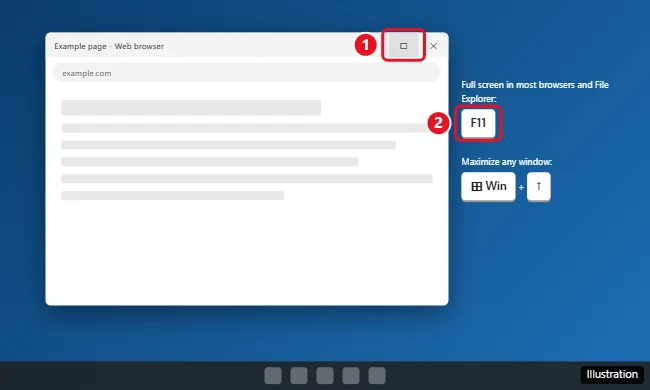
The illustration shows an older window style; current versions of Windows 11 can look different, but the buttons sit in the same corner.
On many laptops the top row of keys controls volume, brightness or media first, so F11 on its own may do something else. Hold Fn and press F11. If your laptop has an Fn Lock key, turning it on makes the F keys act as F keys without holding Fn; the key and its icon vary by maker, so check your laptop’s manual.
Many browsers also offer a full-screen option in their main menu, which helps on keyboards without an easy F11; check the browser’s own help if you can’t find it. Want Chrome to open full screen every time? That takes a shortcut change, explained in making Chrome always open in full screen.
Maximize is not full screen
The two words get mixed up, but they do different things. A maximized window fills the area above the taskbar and keeps its own title bar, menus and the Windows taskbar visible. Full screen removes all of that and shows only the content. Maximize works in almost every program; full screen only works where the app offers it.
If you keep a full-screen app on its own workspace, moving between virtual desktops in Windows 11 lets you hop out to other windows and back.
Microsoft’s keyboard shortcuts in Windows page lists the keys for maximizing:
- Windows key + Up arrow maximizes the active window.
- Windows key + Shift + Up arrow stretches the window to the top and bottom of the screen without changing its width.
- Windows key + Down arrow is listed as minimize.
With a mouse, select the Maximize button (the square in the top-right corner), double-click the window’s title bar, or drag the window by its title bar to the top edge of the screen. The button and the double-click toggle between maximized and the earlier size. Microsoft’s same shortcut list includes F11 in its File Explorer section, described as maximizing or minimizing the active window. In practice, most browsers treat F11 as a full-screen toggle, and other programs may only maximize or ignore it.
Sometimes maximize is the better choice. If you switch between apps a lot or need the clock and notifications in view, a maximized window is easier to work with than full screen.
Microsoft Store apps and other built-in apps
For Universal Windows Platform (UWP) apps, which include many Microsoft Store apps, Microsoft documents Windows key + Shift + Enter to make the active app full screen. Press it again to return. If nothing happens, the app is a regular desktop program or doesn’t support full screen; maximize it instead.
Some apps put a full-screen button in their own toolbar or menu (often two diagonal arrows or a square with corners). Media apps commonly offer it in the playback controls. The detailed list for individual Windows 11 apps is in making apps full screen on Windows 11.
Games and video
Games manage their own screen mode, so the setting lives inside the game rather than in Windows.
- Open the game’s settings or options menu.
- Look under a display, graphics or video section for a display mode or window mode setting.
- Choose Fullscreen for a dedicated full-screen mode, or a Borderless (windowed fullscreen) option if the game offers one.
- Set the resolution to your monitor’s native resolution, then apply.
Many games also accept Alt + Enter to switch between windowed and full screen, but that depends on the game. Some games use other keys entirely: Minecraft uses F11, and Undertale uses F4.
For video, use the full-screen button in the player’s controls, usually at the bottom right. Double-clicking the video works in many players, and Esc usually exits.
Xbox mode on gaming PCs and handhelds
Microsoft’s Windows gaming full screen experience page describes Xbox mode, a full-screen layout for playing games on Windows 11. It is a separate mode, not the same thing as pressing F11 in one app:
- You turn it on in Settings > Gaming > Xbox mode, and Microsoft lists Windows key + F11, Game Bar and Task View as ways to enter it.
- Apps are displayed full screen when possible.
- While it’s on, Microsoft says window controls such as minimize and maximize don’t change window state, and some desktop keyboard shortcuts are disabled.
- It is only available in supported markets, so it may not appear on every PC.
Game Bar opens with Windows key + G; opening Xbox Game Bar on Windows 11 helps if it doesn’t appear.
Microsoft 365 apps: Word, Excel, PowerPoint and Outlook
Office apps don’t use F11 for full screen. Each has its own way to clear the screen:
- Word: Focus on the View tab hides the ribbon and other distractions so the page fills the screen. Press Esc to leave. The steps are in using Focus mode in Microsoft Word.
- PowerPoint: start the slide show to present in full screen, from the beginning or from the current slide. Press Esc to end it.
- Excel and Outlook: there’s no slide-show style view, so maximize the window and collapse or hide the ribbon from the ribbon display options to give the content more room.
Menu names in Microsoft 365 apps change from time to time; if a button has moved, search for “focus” or “ribbon” in the app’s search box at the top of the window.
Hide the taskbar for every app
When an app has no full-screen mode at all, hiding the taskbar gives a maximized window the last strip of space. Microsoft’s customize the taskbar page covers this setting:
- Right-click an empty part of the taskbar and open the taskbar settings, or go to Settings > Personalization > Taskbar.
- Expand Taskbar behaviors.
- Select Automatically hide the taskbar.
The taskbar slides away and returns when you move the pointer to the bottom edge of the screen. Clear the same box to bring it back permanently. If you’d rather keep it visible but out of the way, moving the taskbar to another edge is another option.
Fix it by symptom
| What you see | Likely cause | What to do |
|---|---|---|
| F11 changes volume or brightness | Laptop media keys | Press Fn + F11, or turn on Fn Lock if your laptop has it |
| F11 does nothing | App has no full-screen mode, or the window isn’t active | Click inside the window first; otherwise maximize or use the app’s own button |
| Taskbar stays on top of a full-screen app | Taskbar or Explorer glitch | Restart the taskbar as shown in restarting the taskbar in Windows 11, then try again |
| Game doesn’t fill the screen | Resolution or display mode in the game | Set the native resolution and choose Fullscreen or Borderless in the game |
| Black bars at the sides or top | Content has a different shape than your monitor | Usually normal; the picture keeps its proportions |
| Window controls don’t respond in a game layout | Xbox mode is on | Leave Xbox mode; Microsoft notes window controls don’t change state there |
| Stuck in full screen | App ignores the usual key | Try F11, Esc, then Alt + Tab to switch away |
For every way to leave full screen, including apps that seem stuck, see getting out of full screen on Windows.
Windows 10 note
The keyboard shortcuts above work the same way on Windows 10, and the taskbar auto-hide setting is in the taskbar settings there too, under slightly different wording. Microsoft says Windows 10 reached the end of support on October 14, 2025, so it no longer gets security updates without Extended Security Updates; Xbox mode and the Windows 11 Settings layout described here are not part of it. For a single-app screen on a shared or public PC, which is a different job from full screen, see setting up kiosk mode in Windows 10.
Full screen questions
Is there one key that makes every app full screen?
No. F11 works in most browsers, Windows key + Shift + Enter covers UWP apps, and games and Office apps use their own settings. Maximize plus a hidden taskbar is the closest thing to a universal option.
Why does my game minimize when I get a notification?
Some games leave full screen when another window takes focus; a borderless mode, if the game offers one, may help.

Kermit Matthews runs Live2Tech from just outside Philadelphia. He is an IT specialist with over 20 years of experience, from a university help desk to small-business IT, IT management and his own consulting practice, and has written tech guides full time since 2020. Steps are checked against the current software on a real device or the maker’s official documentation. More about Kermit.