Opening a PDF in Word makes an editable copy, though Microsoft says the result might not look exactly like the PDF. When Word’s copy shifts too much, Adobe Acrobat’s own Convert to Word export is the next route to try (Adobe says it generally carries over paragraphs, tables and columns), and Google Docs is the browser route if you have neither.
Which one to use depends on the tools you have and whether the PDF holds real text or a scan.
Pick the route by the tool you already have
- You have Word on your computer: open the PDF in Word. The file stays on your computer.
- You use Adobe Acrobat, or Word’s copy lost the layout: use Acrobat’s Convert option, on the desktop app or Acrobat on the web.
- You only have a Google account: open the PDF from Google Drive with Google Docs, then download the result as a Word file.
- The PDF came from a scanner or a phone camera: read the scan section first, because a scan holds a picture of the text rather than the text itself.
A brochure with layered images and columns is where the routes start to differ.
Word: open the PDF and save an editable copy
In desktop Word, the conversion happens as part of opening the file. Microsoft’s scan and edit a document article gives the short version:
- In Word, select File > Open.
- Browse to the PDF on your computer and select Open.
- Word shows a notice that it will convert the PDF into an editable Word document. Select OK.
- Check the result, then save it as a Word document with File > Save As so you have a .docx copy next to the PDF.
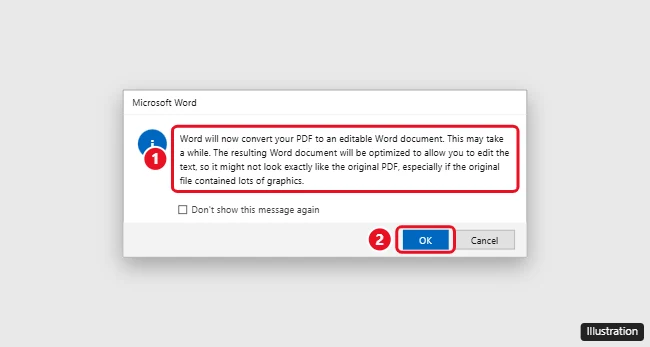
According to Microsoft’s opening PDFs in Word page, Word makes a copy of the PDF, converts it and tries to match the original layout, and you always keep the original PDF file. That makes Word a low-risk first try: if the copy is a mess, nothing is lost.
The full Word walkthrough, including the elements Microsoft says don’t convert well, is in how to open a PDF in Word. If you’re new to finding files from inside Word, opening a file in Word covers the Open screen.
Adobe Acrobat’s Convert to Word
Adobe created the PDF format, and its own export is the route to try when Word’s copy shifts too much. Adobe documents these steps for Acrobat on the web:
- On the Acrobat on the web homepage, select Convert > Export a PDF.
- Choose the PDF you want to convert.
- Select Microsoft Word, then select a filename extension.
- Optionally, pick the Document language.
- Select Convert to DOCX, then select Download file.
The Acrobat desktop app has its own export steps in Adobe’s help; pick Microsoft Word as the format there.
Adobe also runs a PDF to Word tool in the browser: you select a file, and Acrobat converts it to a Word document you can download. Adobe says the file is handled by Adobe servers and deleted unless you sign in to save it, and that if you use the tool again you may be asked to sign in to download. For plans and limits, check that page at the time you use it.
A plain point about any browser tool, Adobe’s or Google’s: uploading a file sends a copy of it to that company’s servers. For a contract, medical letter or tax form, read the service’s own privacy terms first, or use desktop Word so the file never leaves your computer.
Google Drive and Google Docs, from a browser
Google Docs can turn a PDF into an editable document for free with a Google account. Google’s conversion help page describes it this way for a computer:
- Upload the PDF to Google Drive at drive.google.com.
- Right-click the file and select Open with > Google Docs.
- In the new document, use File > Download and choose the Word format from the file-type list.
Google is specific about what to expect. The file should be 2 MB or smaller. Bold, italics, font size, font type and line breaks are likely to be retained, while lists, tables, columns, footnotes and endnotes are not likely to be detected. That makes Docs fine for a letter or a plain report and a poor fit for a table-heavy form.
For the details of opening the file and working with it in Docs, see opening a PDF in Google Docs.
When the PDF is a scan
Adobe explains the problem plainly: a scanned PDF contains only image data, not searchable text. Before any tool can hand you editable words, something has to recognize the letters in the picture, a step usually called OCR (optical character recognition). Each vendor handles it differently:
- Word: Microsoft’s scan route is to save the scan as a PDF and open it in Word, as above. Microsoft notes the converted document might not have a perfect page-to-page match with the original, and that the conversion works best with documents that are mostly text.
- Adobe Acrobat: Adobe’s Recognize Text steps are: open the scanned PDF, select All tools > Scan & OCR, select In this file, choose the page range and language, then select Recognize Text. Acrobat then creates a searchable text layer, and you can export the PDF to Word afterward.
- Google Docs: Google’s conversion works on PDFs and on photos (.jpeg, .png and .gif), with conditions: text should be at least 10 pixels high, documents must be right-side up, and sharp images with even lighting work best.
If what you have is a photo or screenshot rather than a PDF, converting a picture to text in Word covers that case.
Cleaning up the converted file
Every route produces a draft, not a finished copy. Go through it in this order:
- Pages that won’t edit. Microsoft says that if a PDF page is mostly charts or graphics, the whole page might come in as an image whose text can’t be edited. Try Acrobat’s export for that page, or retype the few lines you need.
- Tables. Microsoft lists tables with cell spacing among the elements that may not convert well, and Google says tables are not likely to be detected. Rebuilding a table is often faster than fixing a broken one; copying a table from a PDF to Word has routes that keep the columns.
- Footnotes and endnotes. Microsoft names footnotes that span more than one page and endnotes as problem items. Check that each note is still attached to the right text.
- Page breaks and spacing. Lines and pages may break in different places. Fix headings and page breaks last, once the text is right.
If the PDF started life as an Apple Pages file, it can be simpler to get a Word copy of the Pages document and skip the PDF step entirely.
PDF to Word questions
Does converting change my original PDF?
Not in Word. Microsoft says Word makes a copy and that you always have the original PDF file.
Why can’t I edit the text on some pages after converting?
Those pages probably came in as images. Microsoft says this happens when a page is mostly charts or other graphics. For a scanned page, run text recognition first.
Is there a size limit for converting in Google Docs?
Google says the file should be 2 MB or smaller for the PDF-to-Docs conversion. For a bigger file, desktop Word or Acrobat is the practical route.
How do I turn the edited Word file back into a PDF?
In Word for Windows, select File > Save a Copy (or Save As for a file you haven’t saved yet), select Browse, choose PDF in the drop-down list, then select Save, as Microsoft’s save as PDF article describes. Other ways, including Microsoft Print to PDF, are in printing to PDF on Windows. To put a PDF and a Word file into one document instead, see combining a PDF and a Word document.
Related guides
For most text-based PDFs, start with Word, since the original stays safe; move to Acrobat’s export only when the layout really has to hold.

Kermit Matthews runs Live2Tech from just outside Philadelphia. He is an IT specialist with over 20 years of experience, from a university help desk to small-business IT, IT management and his own consulting practice, and has written tech guides full time since 2020. Steps are checked against the current software on a real device or the maker’s official documentation. More about Kermit.