Windows and Word can’t open the .pages format, so what you do next depends on the job: read it, print it, edit it in Word, or send it back to a Mac user. Each route goes through Apple’s own Pages, either Pages for iCloud in a browser or the sender’s Pages app.
Routes compared by job
Pick the row that matches your job:
| You need to | Best route | What you end up with |
|---|---|---|
| Read it once | Upload it to Pages for iCloud and read it in the browser | The document on screen; nothing installed |
| Print it or keep a fixed copy | Pages for iCloud, then Download a Copy as PDF | A PDF that opens in any PDF reader or browser |
| Edit it in Word | Pages for iCloud, then Download a Copy as Microsoft Word | A .docx file you can open and edit in Word |
| Edit it and send it back to a Mac user | Edit in Pages for iCloud, then download it in Pages format | A .pages file the sender can open in Pages |
| Avoid creating an Apple Account | Ask the sender to export it from Pages | A Word or PDF file sent straight to you |
For example, a student who receives a group-project draft as a .pages file and needs to add a section in Word would use the third row. A job applicant who only needs to print a signed offer letter would use the second.
What you need on a Windows PC
Three things, and you may already have all of them.
- An Apple Account. Pages for iCloud runs on iCloud.com, so you sign in with an Apple Account. You don’t need an iPhone, iPad or Mac. Apple’s page on web-only access to iCloud describes an iCloud account for people without Apple devices, and lists Pages among the apps it includes. If you already have an Apple Account from an iPhone or iPad, use that one; the steps to sign in and set up iCloud on iPhone or iPad explain how the account and iCloud fit together.
- A supported browser. Apple’s iCloud system requirements list, for PC: “Firefox 128 or later, Google Chrome 130 or later (desktop mode only), or Microsoft Edge 130 or later.” Microsoft Edge comes with Windows, so it is usually the simplest choice.
- A desktop or laptop. Apple’s article on iCloud.com features says: “Pages, Numbers, and Keynote features are only available on desktop.” A phone browser won’t do the job.
Storage is the other thing to know. Apple says “Web-only iCloud accounts have a 1 GB storage limit.” That is plenty for text documents, but a long Pages file full of photos takes more room, and files you upload stay in iCloud until you delete them. Delete documents you no longer need from the document manager to keep space free.
Upload the .pages file to Pages for iCloud
First, save the file somewhere easy to find, such as your Desktop or Downloads folder. If you can’t tell whether a file is really a Pages document, show file extensions in Windows 11 and look for .pages at the end of the name.
- Open your browser and go to iCloud.com/pages.
- Sign in with your Apple Account if asked, and complete any verification step Apple shows.
- Wait for the document manager to load. This is the screen that lists your Pages documents.
- Drag the .pages file from File Explorer onto the document manager in the browser window. Apple’s guide to uploading a document to Pages for iCloud describes this drag-and-drop route. If you see an upload option in the toolbar, you can use it instead to pick the file.
- Wait for the file to appear in the list, then double-click it to open it.
The same upload works for other files Apple lists for Pages for iCloud: documents created in Pages for Mac, Microsoft Word files, and .txt, .rtf and .rtfd files. That makes Pages for iCloud useful the other way around too, when you need to send a Word file to someone who works in Pages.
If you already use iCloud for photos on the same PC, the process will feel familiar; downloading iCloud photos to a Windows PC uses the same iCloud.com sign-in.
Read or edit the document in your browser
Once the document is open, you can read it as is, scroll through every page, and edit text, tables and images in the browser.
Apple notes that you may see some differences between working in a document in Pages for Mac, iPhone or iPad and in Pages for iCloud. In practice, that means a document made with a feature the web version lacks can look slightly different, or a tool you expect may be missing.
Two habits help here:
- Read before you edit. If you only need the content, read the document first and download a PDF. You avoid accidentally changing a file that someone else will open later.
- Edit the copy you will send back. Your edits are saved to the document in your iCloud account, not to the original file on your PC. Download the edited version when you are done (next section).
Save a copy that Windows apps can open
Apple’s guide to downloading documents from Pages for iCloud gives the steps:
- With the document open, click the More button in the toolbar.
- Choose Download a Copy.
- Pick a format. Apple lists Pages, PDF, Microsoft Word, or EPUB.
- Follow any prompts for that format, then save the file.
The file goes wherever your browser saves downloads, which is usually the Downloads folder.
Which format to choose:
- Microsoft Word if you need to edit. Then open the .docx like any other Word file; this walkthrough on how to open a file in Word covers File > Open and double-clicking.
- PDF if you only need to read, print or sign it. If you later need to edit that PDF, you can still convert a PDF to Word, but downloading a Word copy from Pages for iCloud saves you that second conversion.
- Pages if you edited the document and are sending it back to a Mac, iPhone or iPad user.
- EPUB if the document is meant to be read as an e-book. Pages for iCloud asks a few extra questions for this format, such as title and layout.
The download doesn’t change the document in iCloud. You can come back and download it again in a different format.
Before you forward a Word copy to anyone, give it a two-minute check against the version you saw in the browser: the page count, the headings, any images, and any tables. If something shifted, fix it in Word, or send a PDF alongside the Word file so the recipient can see the intended layout.
When the sender has Pages on a Mac, iPhone or iPad
If the person who sent the file uses Pages on a Mac, iPhone or iPad, a quick request avoids iCloud entirely. Send them these steps.
Pages on a Mac
Apple’s guide to exporting from Pages on Mac says to choose File > Export To > [file format]. They pick Word for an editable file, or PDF for a fixed copy, then save it and send it to you.
Pages on an iPhone or iPad
Apple’s guide to exporting from Pages on iPhone says to tap the More button in the toolbar, tap Export, then tap a format such as Word. They can then share or save the exported copy and send it to you.
Exporting makes a separate file. The sender’s original .pages document stays as it is, so they lose nothing by doing it.
Limits worth knowing before you rely on it
- Word can’t open .pages files. Apple’s route for a Windows PC is Pages for iCloud in a browser.
- Converter websites are not covered here. They require uploading your document to a service you don’t know, which is a poor trade for contracts, financial records or anything personal. Pages for iCloud keeps the file in your own Apple Account.
- Peeking inside the file is not covered. Earlier versions of this page described renaming a copy of the file to see a preview image inside, shown in the older illustration below. Apple doesn’t document that method, so this guide sticks to Apple’s routes.
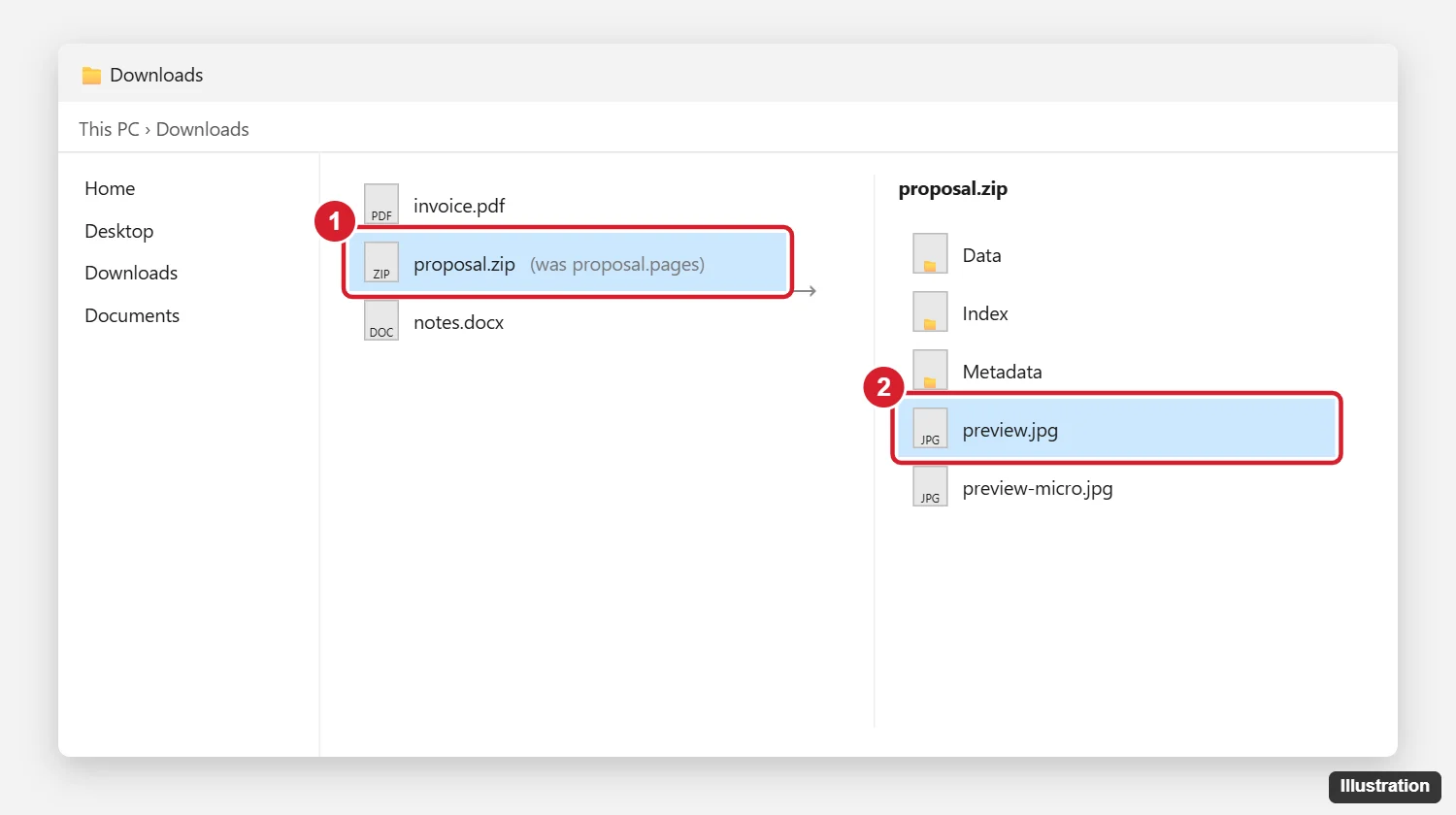
Numbers and Keynote files are similar. Web-only iCloud access includes Numbers and Keynote alongside Pages, and Apple’s article on converting Pages, Numbers and Keynote files covers Excel and PowerPoint formats. Other file types from Apple devices need different tools; iPhone photos, for example, need the steps for opening HEIC files on Windows 10.
Pages on Windows answers
Where does the downloaded copy go?
To your browser’s download location, usually the Downloads folder. Most browsers also show recent downloads from a button in the toolbar.
Can I remove the document from iCloud after I download it?
Yes. Your downloaded copy stays on your PC, so you can delete the uploaded document from the Pages for iCloud document manager to free up space on a web-only account.
Do changes in the Word copy update the iCloud document?
No. The downloaded file is a separate copy. Edits you make in Word stay in that .docx, and the document in Pages for iCloud stays as you left it.
What if the file came from Google Docs, not Pages?
Then it isn’t a Pages file at all. If someone shared a Google Doc, you can convert a Google Doc to Word directly from Docs.
Next step: open iCloud.com/pages in Edge, drag the file in, and download a Word copy. If anything looks off, ask the sender for a PDF export as a backup.

Kermit Matthews runs Live2Tech from just outside Philadelphia. He is an IT specialist with over 20 years of experience, from a university help desk to small-business IT, IT management and his own consulting practice, and has written tech guides full time since 2020. Steps are checked against the current software on a real device or the maker’s official documentation. More about Kermit.