On a current iPhone, open Settings, tap your name, then tap iCloud. The bar graph at the top shows how much of your iCloud storage is used out of your plan’s total, and whatever is not used is what you have left. If that number is low, tap Storage (or Manage Account Storage) to free space, or upgrade your plan. This is the space on Apple’s servers, not the space on the iPhone itself.
Check how much iCloud storage you have left
These steps are for current versions of iOS (iOS 27 at the time of writing) and match what Apple describes for recent releases. You need to be signed in to iCloud with your Apple Account. If you are not, start with signing in and setting up iCloud on your iPhone.
- Open the Settings app.
- Tap your name at the top of the Settings list.
- Tap iCloud.
- Read the bar graph at the top of the screen. It shows your overall usage against the size of your plan, for example 4.2 GB of 5 GB used. Subtract the first figure from the second to get what is left (0.8 GB in that example).
- For a breakdown, tap Storage or Manage Account Storage (Apple uses both labels, depending on the iOS version). You will see a list of apps and features, sorted with the biggest user of space at the top. Tap any item to see more about it.
Every Apple Account gets 5 GB of iCloud storage free. If you pay for iCloud+, the bar reflects your larger plan. The storage belongs to your Apple Account, and the Backups list shows a separate backup for each device, so an old iPad backup still counts against your total.
What the colors in the bar mean
The bar is split into colored sections. Apple’s iCloud guide lists these categories:
- Backups: iCloud backups of your iPhone, iPad and other devices.
- Photos and Videos (sometimes just Photos): your library in iCloud Photos.
- Mail: messages in your iCloud Mail account.
- Messages: texts and attachments stored with Messages in iCloud.
- Documents (or Docs): iCloud Drive files and app data.
- Family: space used by family members if you share an iCloud+ plan through Family Sharing.
- Others: on smaller screens, the bar names only the largest few categories and groups the rest here.
On a free account, device backups and iCloud Photos are often the largest items, which is why a 5 GB account can be “full” when you feel you have stored very little.
Check that your next backup will fit
The number that matters most for backups is not what is left today, but how big the next backup will be. iCloud shows an estimate:
- Go to Settings > your name > iCloud.
- Tap Storage or Manage Account Storage, then tap Backups.
- Tap the device you are using. Apple says Next Backup Size should show the size of the next backup. It might take a few minutes to calculate.
Compare that figure with the space you have left. If the next backup is 1.5 GB and you have 0.8 GB free, the backup will fail until you make room or add storage. On the same screen, the Photo Library line tells you whether photos are being stored inside the backup. That happens when iCloud Photos is off, and it often makes the backup much larger.
Check iCloud storage on a Mac, a Windows PC or iCloud.com
You don’t need the iPhone to see the same totals, because they belong to your account, not the phone.
- Mac: Choose Apple menu > System Settings, click your name at the top of the sidebar, click iCloud, then click Manage for details.
- Windows PC: Open iCloud for Windows and scroll down to the bar graph. Click Manage for details.
- Web: Apple says you can also check your iCloud storage on iCloud.com after signing in with your Apple Account. The page layout there changes from time to time, so look for the storage summary once you are signed in.
What stops working when iCloud is full
Apple lists what happens once you run out of iCloud storage:
- Your iPhone stops backing up to iCloud.
- New photos and videos don’t upload to iCloud Photos.
- iCloud Drive and other iCloud apps stop updating across your devices.
- You can’t send or receive email with your iCloud email address.
Before you get there, your iPhone may show an “iCloud Storage Almost Full” notification. Tapping it takes you to options for more storage. If an alert says there is not enough iCloud storage to back up, follow the Next Backup Size steps above to see how far short you are.
Make room or add room
Free up space
The quickest place to start is Settings > your name > iCloud > Recommended for You (iOS 17 and later), which suggests items to review. Two other changes usually free the most space:
- Delete a backup you no longer need, such as one from a phone you sold. Go to Storage or Manage Account Storage > Backups, tap the device name, tap Turn Off and Delete from iCloud, then tap Turn Off and Delete to confirm. This also turns off iCloud Backup for that device, so don’t do it for the iPhone you are using unless you back it up another way. Apple notes that backups are kept for 180 days after you turn off or stop using iCloud Backup.
- Leave an app out of your backup. On the same device screen, turn off apps whose data you don’t need backed up. Turning one off removes that app’s backed-up data from iCloud. Some apps are always backed up and can’t be turned off.
If iCloud Photos is on, deleting a photo also deletes it on every device signed in with the same Apple Account. If iCloud Photos is off, your photo library is part of your iCloud backup, so deleting photos makes the next backup smaller. Apple says items in Recently Deleted don’t count toward your iCloud storage, and you can still recover them for 30 days. Photos in a Shared Library count toward the storage of the person who created it. Photos are usually the largest item, and optimizing photo storage on your iPhone explains how iCloud Photos and the space on the phone interact. For a category-by-category cleanup, see this walkthrough of what is using your iCloud storage.
Upgrade to iCloud+
iCloud+ plans come in 50 GB, 200 GB, 2 TB, 6 TB and 12 TB, and you can share a plan with up to five other family members. Prices vary by country, so check Apple’s iCloud+ page for what you would pay. The upgrade path depends on your iOS version:
- iOS 27 and later: Settings > your name > iCloud, then under iCloud+ Features tap Manage Plan. If you are not subscribed yet, tap Storage (or Almost Full), then Get More Storage.
- iOS 18.4 through iOS 26: Settings > your name > Subscriptions > iCloud+ > See All Plans. For a first plan, tap iCloud > Upgrade to iCloud+.
- iOS 18 to 18.3: Settings > your name > iCloud > Manage Plan.
- iOS 17 and earlier: Settings > your name > iCloud > Manage Account Storage > Change Storage Plan.
Apple keeps the version-by-version steps on its page about buying or upgrading iCloud+. After you upgrade, the bar on the iCloud screen shows the new total.
iCloud storage is not iPhone storage
Your iPhone has its own built-in storage, measured separately at Settings > General > iPhone Storage. If you can’t install an app or download a song, the phone itself is full, and buying iCloud space won’t fix it. The difference between iPhone storage and iCloud storage is worth a quick read if the two meters confuse you, and you can check your iPhone storage in a similar way. For a phone that is full of songs, deleting music from your iPhone is one of the faster ways to get space back on the device.
On an older iPhone
Very old versions of iOS (such as iOS 10) put iCloud storage under Settings > General > Storage & iCloud Usage, with Total Storage and Available figures in the iCloud section. That route no longer exists on current iPhones. If your phone still shows it, these screens show where to look.
- Tap Settings.

Older iOS version shown; current screens look different. - Tap General.
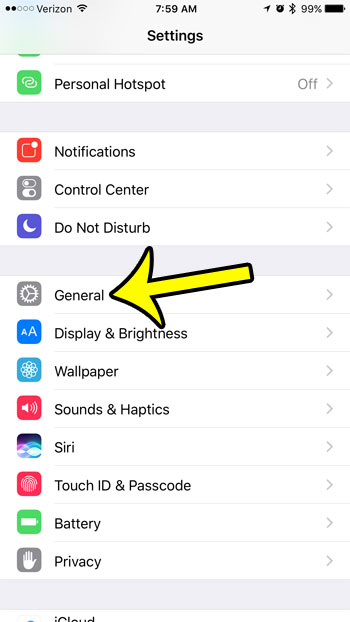
The General row in an older version of Settings. - Tap Storage & iCloud Usage.

This menu exists only in older iOS versions. - In the iCloud section, Total Storage is your plan size and Available is what is left. Manage Storage opens the breakdown.

Older iOS version shown; current iOS uses a storage bar instead. - The breakdown lists what uses the space. In this example, device backups take most of it.
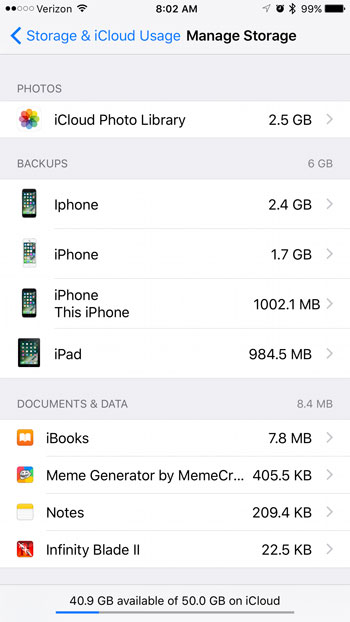
Older iOS version shown; current screens look different.
Questions about iCloud space
Do I lose my backups if iCloud runs out of space?
New backups stop until there is room, so your most recent backup gets older each day. If you turn off iCloud Backup, Apple keeps the last backup for 180 days.
Where does family storage show up?
If you share an iCloud+ plan through Family Sharing, the space family members use shows as the Family category in your bar.
Once you know how much is left, open Next Backup Size before your next overnight charge so you can tell whether the backup will fit or whether you need to clear space first.

Kermit Matthews runs Live2Tech from just outside Philadelphia. He is an IT specialist with over 20 years of experience, from a university help desk to small-business IT, IT management and his own consulting practice, and has written tech guides full time since 2020. Steps are checked against the current software on a real device or the maker’s official documentation. More about Kermit.