A “Storage Almost Full” message just appeared, or you want to know how much room is left before a photo trip or a big update. Open Settings > General > iPhone Storage. The top of the screen shows how much storage is available, a bar breaks down what is using it, and the list below ranks your apps by size. These steps apply to current versions of iOS; you can also check from a Mac or PC.
If music is a big part of that total, you can also see how many songs are on the iPhone.
To see the other meter, here is how to check how much iCloud storage you have left on the same iPhone.
To get a single number instead of a list of apps, see how to see how many apps are on your iPhone.
When Music is near the top of that list, here is how to delete music from your iPhone without losing your library.
If the biggest entries are Apple apps such as Photos, Messages or Podcasts, see what built-in apps store and which ones you can delete.
Check storage on your iPhone
Apple’s guide to managing storage on iPhone uses this path.
- Open the Settings app.
- Tap General.
- Tap iPhone Storage. On an iPad the row is called iPad Storage.
- Read the top of the screen: it shows how much storage is used out of the total, with a colored bar split by category.
- Scroll down. Below any recommendations you will see every app, with the largest first. Tap an app for details.
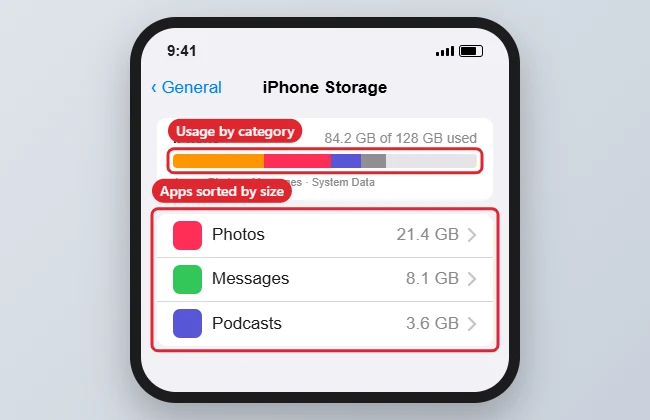
The screen may need a moment to work out the numbers, especially on a phone with a large photo library. If the list is empty or the bar is still filling in, wait and leave the screen open.
The app list is the most useful part. It tells you where the space actually goes, so you can decide whether to clear out photos, a podcast app full of downloads, or a game you no longer play.
When Podcasts or the Media category looks large on that screen, it helps to keep fewer downloaded podcast episodes so new ones don’t pile up.
What each category in the bar means
Apple’s support article on checking iPhone and iPad storage lists these categories.
| Category | What it usually includes |
|---|---|
| Apps | Installed apps and their data |
| Photos | Photos and videos in the Photos app |
| Media | Music, videos, podcasts and other media you downloaded |
| Email messages and attachments stored on the phone | |
| Apple Books | Downloaded books and PDFs in Books |
| Messages | Texts, iMessages and their attachments |
| iCloud Drive | iCloud Drive files kept on the phone |
| Other | Items that cannot be removed, such as Siri voices, fonts, dictionaries, some logs and caches, the Spotlight index and system data like Keychain |
| System | Space taken by the operating system; it varies by model |
Apple’s article splits this space into System and Other, and the label on your screen may read differently, such as System Data. The name matters less than this: you cannot delete that portion directly, and the iPhone manages much of it on its own.
Look inside one app: Offload or Delete
Tap any app in the list to see two numbers: the size of the app itself and the documents and data it stores. That split tells you which action will actually help.
| Action | What happens | Best for |
|---|---|---|
| Offload App | Frees the space used by the app but keeps its documents and data. The icon stays on the Home Screen, and tapping it reinstalls the app. | A large app you use rarely, when the data part is small |
| Delete App | Removes the app and its related data from the iPhone | Apps you no longer need, or apps whose data is the big number |
For other ways to remove apps, including from the Home Screen and App Library, see deleting apps on iPhone.
The iPhone can also offload apps you have not used for a while on its own. Turn it on in Settings > Apps > App Store > Offload Unused Apps. On older versions of iOS, App Store is listed directly in Settings. More detail is in automatically offloading unused apps.
Use the recommendations
Above the app list, iPhone Storage may show suggestions based on what is on your phone, such as offloading unused apps or reviewing large attachments in Messages. Tap Show All to see every suggestion. Then either tap Enable to turn one on, or tap the suggestion to review the items it found before you delete anything.
Review is the safer choice for anything involving photos, videos or message attachments. It shows you exactly what will go.
Check iPhone storage from a Mac or PC
A computer view is handy when the phone is slow to calculate, or when you are about to sync or back up.
- Connect the iPhone to the computer with a cable.
- On a Mac with macOS Catalina or later, open a Finder window and select the iPhone in the sidebar. On a Windows PC, open the Apple Devices app. On a PC without that app, or a Mac with macOS Mojave or earlier, use iTunes.
- If the iPhone asks whether to trust the computer, tap Trust and enter your passcode.
- Look for the bar at the bottom of the device window. It shows storage by content type. Hold the pointer over a section to see how much space it uses.
The computer groups content differently from the iPhone, and cached files appear under Other. So the two screens rarely match exactly. Use the phone’s own screen when deciding what to delete there.
A quick example before a trip
Say the top of iPhone Storage shows only 3 GB available, and you expect to shoot a lot of video on a weekend away. Here is a sensible order of work:
- Check the app list. If Photos is the largest item, copy the videos you want to keep to a computer first, then delete them from the phone.
- Open the Photos app’s Recently Deleted album and empty it, because deleted items stay there for a while before the space comes back.
- Offload one or two large games you will not play on the trip.
- Return to iPhone Storage and confirm that the available number went up.
Free up space where it counts
Start with whatever sits at the top of the app list. These walkthroughs cover the usual suspects:
If Photos tops the list, the Optimize iPhone Storage setting for photos can shrink it without deleting a single picture.
- Photos: deleting photos on iPhone covers selecting many at once and emptying Recently Deleted.
- Videos: see how to delete a video on the iPhone, or keep copies by transferring videos from iPhone to a PC first.
- Burst photos: a burst saves many frames per shot; managing burst photos explains how to keep only the best ones.
- Messages: attachments add up over the years. Viewing Messages storage shows where to find and remove the big ones. To remove old conversations automatically, go to Settings > Apps > Messages, tap Keep Messages and choose 30 Days or 1 Year. Anything older is deleted, attachments included. On older versions of iOS, Messages is listed directly in Settings.
- Live Photos: each one stores a short clip as well as a still, so turning Live Photos off can slow how fast Photos grows.
Free space matters for updates too. An iOS update needs room to download and install, so clear space before you turn on automatic updates or check for app updates by hand.
iPhone storage is not iCloud storage
iPhone Storage measures the space on the phone itself. iCloud storage is your online space for backups, iCloud Photos and iCloud Drive, and it has its own limit. A full iCloud account does not use up the phone, and a full phone does not mean iCloud is full. To check iCloud, open Settings, tap your name at the top, then tap iCloud. The difference between iPhone storage and iCloud storage explains how the two work together, and checking what uses your iCloud storage covers the online side.
Older iOS versions
On very old versions such as iOS 7, the same information lived under Settings > General > Usage, with the remaining space shown at the top under Storage and the app list below it. Current versions use iPhone Storage instead, with the bar, recommendations and Offload options described above.
When the numbers look wrong
- Storage still calculating: leave the screen open for a minute, or go back and open it again.
- Available space did not go up after deleting: deleted photos and videos stay in Recently Deleted until you empty it or they expire.
- System or Other looks huge: part of it is cached data that iOS removes when it needs room. Restarting the phone and installing the latest iOS update are reasonable next steps if it stays large.
- The iPhone says there is not enough room for an app or download: free some space, then try the download again.
iPhone storage questions
Can I add more storage to an iPhone?
No. iPhones have no memory card slot, so the capacity you bought is fixed. Upgrading your iCloud plan adds online space only, though storing photos in iCloud with Optimize iPhone Storage turned on can keep smaller versions on the phone.
How much free space should I keep?
Apple does not publish a set number. Leave enough room for the next iOS update and for the photos and videos you expect to take, and check again before a trip.
Does offloading an app lose my progress or files?
No. Offloading keeps the app’s documents and data, so when you reinstall it you pick up where you left off, as long as the app is still available in the App Store.
Why does a messaging app show such a large size?
Its documents and data include saved photos, videos and voice messages. Tap the app in iPhone Storage to see how much is data, then clear old media inside that app.
Check iPhone Storage once now to see where you stand, then again after you clean up. If you share clips from your camera roll, posting a Live Photo on Facebook shows how to share one, including as a video.

Kermit Matthews runs Live2Tech from just outside Philadelphia. He is an IT specialist with over 20 years of experience, from a university help desk to small-business IT, IT management and his own consulting practice, and has written tech guides full time since 2020. Steps are checked against the current software on a real device or the maker’s official documentation. More about Kermit.