Your iPhone says storage is almost full, and the Photos app is the reason. To delete one picture, open it in Photos, tap the trash icon and tap Delete Photo. To delete several, tap Select, tap or swipe across the photos, then tap the trash icon. Deleted items sit in Recently Deleted for 30 days, and the space only comes back when you delete them there too. These steps apply to current versions of iOS.
For stacks of near-identical shots, see how to manage burst photos so you can keep a favorite frame and remove the rest.
Before you start: back up and pick the right method
Deleting is quick, but with iCloud Photos turned on it also removes the picture from every device signed in to the same Apple Account. Apple recommends making sure you have a copy of anything you want to keep before you delete. If a picture is only sideways or badly framed, you may not need to delete it at all: rotating a picture on iPhone fixes that in the editor.
| What you want to remove | Best method |
|---|---|
| A single bad shot | Delete one photo |
| A burst of screenshots or a day of near-identical shots | Select and swipe across them |
| Exact copies saved twice | The Duplicates collection and Merge |
| A photo in an album you made, but not from the library | Remove from Album |
| Space, but you want to keep the photos | Optimize Storage with iCloud Photos |
Delete one photo
- Open the Photos app.
- Tap the photo or video to open it full screen.
- Tap the trash icon.
- Tap Delete Photo (or Delete Video) to confirm. The item moves to Recently Deleted.
A shortcut that works on many versions: touch and hold a thumbnail in the grid and choose Delete from the menu, without opening the photo first.
Delete many photos at once
- In Photos, scroll to the part of your library (or the album) that holds the pictures.
- Tap Select near the top of the screen.
- Tap each photo you want to remove. A check mark appears on every selected thumbnail.
- To select a run of photos, place a finger on the first one and slide across the row, then keep sliding down. The selection grows to include every photo you pass over. Sliding sideways first, then down, keeps the grid from scrolling instead of selecting.
- Tap the trash icon, then confirm with Delete Photos (the button shows how many items you picked).
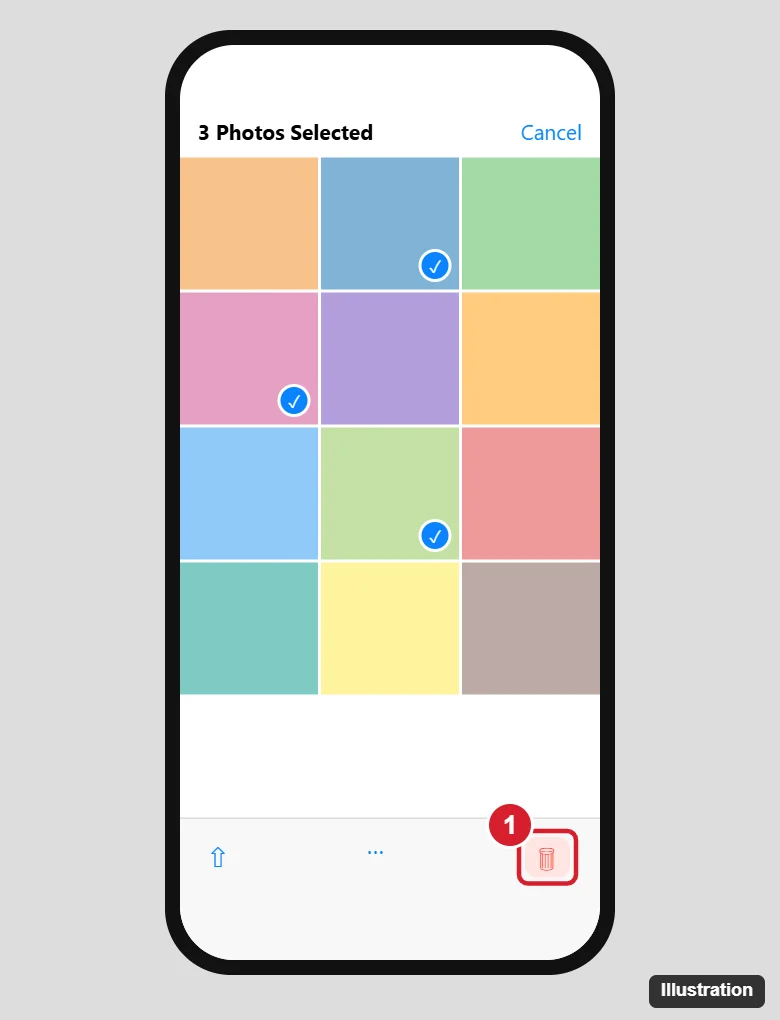
A worked example: a parent comes back from a school play with 300 photos, most of them blurry repeats. Opening that day in the library, tapping Select, and sliding from the first to the last shot of the bad sequence selects 120 photos in one motion. Tapping the five keepers again clears their check marks before the trash icon is tapped.
Is there a Select All button?
In the main library view there is usually no Select All, so large clean-ups rely on the slide-to-select gesture. Inside albums and some collections a Select All option does appear after you tap Select. Apple’s pages do not describe either behavior in detail, so look for the button at the top after tapping Select.
Delete from an album or from the library?
Deleting a photo from the library, or from a built-in collection, removes it everywhere in Photos. In an album you created, the trash icon may offer two choices: Remove from Album, which keeps the photo in your library, and Delete, which removes it entirely. Pick Remove from Album when you are only tidying an album. Deleting a whole album also leaves its photos in the library; deleting a photo album on iPhone covers that.
Target screenshots and big videos first
When the goal is space, a few kinds of items free far more room than random photos. Videos are the largest by a wide margin, and old screenshots pile up quietly.
- Screenshots. Photos groups items by type in Collections. Look for a Media Types section (the name can differ by version) and open Screenshots, then use Select and the slide gesture to clear them out in bulk. Typing “screenshot” in the Search tab is another way to gather them.
- Videos. Open the Videos group in the same section, or check the review list on the iPhone Storage screen, which can sort large items for you. A handful of long clips can equal thousands of photos.
- Bursts and similar shots. Burst photos appear as one stack; open it and keep only the frames you like.
Work in this order (videos, then screenshots, then duplicates) and empty Recently Deleted at the end, and most storage warnings clear in one session.
Find and merge duplicates
On iOS 16 and later, Photos gathers exact copies into a Duplicates collection. Merging keeps one copy with the highest quality and the combined details, and moves the rest to Recently Deleted.
- Open Photos and tap Collections at the bottom (on older layouts, tap Albums).
- Swipe up to Utilities and tap Duplicates.
- Tap Merge next to a set to combine it.
- To handle every set, tap Select, then Select All, tap Merge, and confirm with Merge [number] Items.
If you do not see Duplicates, Photos has not found any, or it has not finished scanning. Apple notes that identifying duplicates may take some time, so check again after the iPhone has been charging and idle. Duplicates only catches copies, not similar shots such as five frames of the same sunset, so those still need a manual pass with Select.
Apple’s merge help is short and to the point: see Merge duplicate photos and videos on iPhone.
Recently Deleted: recover or remove for good
Everything you delete waits in Recently Deleted for 30 days, then disappears for good, as Apple’s photo deletion help explains. Until that happens, it still uses storage. The album is protected by Face ID, Touch ID or your passcode.
Recover a photo
- Tap Collections, swipe up to Utilities and tap Recently Deleted.
- Tap View Album and confirm with Face ID, Touch ID or your passcode.
- Tap Select, choose the photos, then tap the More button (three dots) and choose Recover. To restore everything, choose Recover All.
Delete permanently
Warning: this cannot be undone. Use the same path, tap Select, choose photos (or skip choosing to act on all of them), tap More, then choose Delete or Delete All. With iCloud Photos on, the confirmation says Delete from All Devices; in a Shared Library it may say Delete Photos I Added. For the full walkthrough, see emptying the Recently Deleted folder.
If the Face ID prompt gets in your way, Apple lets you turn it off in Settings > Apps > Photos by switching off Use Face ID (or Use Touch ID or Use Passcode). Leaving it on keeps someone holding your phone from browsing what you deleted.
If you use iCloud Photos
- Deletes sync everywhere. Delete a photo on your iPhone and it is also removed from iCloud and your iPad and Mac. Recently Deleted on each device holds it for 30 days.
- You can save space without deleting. In Settings > [your name] > iCloud, tap Photos under Saved to iCloud and choose Optimize Storage (on some newer versions, tap iPhone Storage first). Full-resolution originals stay in iCloud and the iPhone keeps smaller versions, downloading the original when you open one.
- Shared Library. In an iCloud Shared Photo Library (iOS 16.1 and later, up to five other people), anyone in the library can delete a shared photo, but only the person who added it can delete it permanently or recover it from Recently Deleted.
Not ready to delete a personal photo, just to stop seeing it? Hide it instead. Open the photo, tap More and choose Hide. It moves to the Hidden collection under Utilities, which also asks for Face ID.
When a photo won’t delete
- The trash icon is gray. Apple says this happens with photos synced from a computer through Finder or iTunes. Remove them from the synced folder on the computer, or stop syncing photos, and sync again.
- The iPhone is completely full. When storage has no room left, deletions can stall. Delete a few large videos first, empty Recently Deleted, then continue.
- Photos come back after you delete them. Check that every device uses the same Apple Account and that iCloud Photos is on everywhere you expect, then give syncing time on Wi-Fi.
- It still fails. Restart the iPhone and install any update in Settings > General > Software Update.
To see how much space Photos uses, and what else is eating storage, open Settings > General > iPhone Storage or follow checking your iPhone storage. The same screen often recommends reviewing large videos, which are usually the fastest win.
Deleting iPhone photos
How long until the space comes back?
Immediately after you empty Recently Deleted, or after the 30 days pass. Until then, deleted items still count against iPhone storage, which is why the number in Settings may not move at first.
Can I get a photo back after 30 days?
Not from the iPhone. Once an item leaves Recently Deleted, the only copies left are in backups you made yourself, such as an older iPhone backup or a computer copy. A Recovered collection can appear under Utilities, but it holds items Photos found missing from the library, not photos you deleted, so do not count on it for these.
Does deleting on my iPhone delete it from my Mac?
Yes, if both use iCloud Photos with the same Apple Account. If your Mac library is not using iCloud Photos, its copies stay put.
Does Merge throw away the better copy?
No. Apple says Merge keeps the highest-quality version and combines the relevant details into it. The other copies go to Recently Deleted, so you have 30 days to change your mind.
Next step: delete what you no longer need, then open Recently Deleted and empty it so the storage warning goes away.

Kermit Matthews runs Live2Tech from just outside Philadelphia. He is an IT specialist with over 20 years of experience, from a university help desk to small-business IT, IT management and his own consulting practice, and has written tech guides full time since 2020. Steps are checked against the current software on a real device or the maker’s official documentation. More about Kermit.