You scroll back to find an old address or a photo in a conversation, and everything older than a few weeks is gone. The usual cause is the Keep Messages setting. To stop it, open Settings, tap Apps, tap Messages, tap Keep Messages and choose Forever. From then on, your iPhone keeps texts and iMessages until you delete them. This page also covers audio messages, Messages in iCloud, recovering deleted conversations and saving space without losing texts.
Stop Messages from deleting old conversations
These steps are for current versions of iOS, where app settings are grouped under Settings > Apps. The setting covers the Messages app as a whole: iMessages, SMS and MMS texts, and the photos, videos and other attachments inside those conversations.
- Open the Settings app.
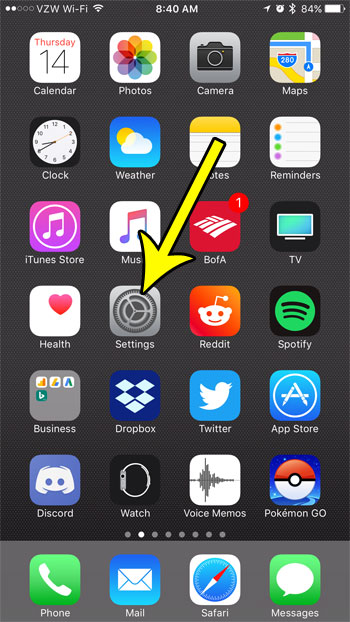
Older iOS version shown; current screens look different. - Tap Apps, then tap Messages. On older versions of iOS, Messages is listed directly in the main Settings list, so tap it there.
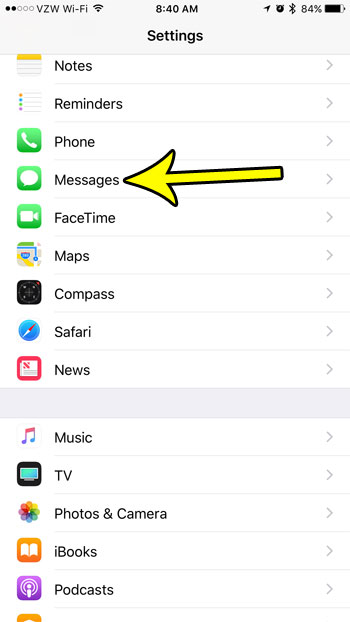
Older iOS version shown, with Messages in the main Settings list. Current versions place it under Apps. - Scroll down to the Message History section and tap Keep Messages.
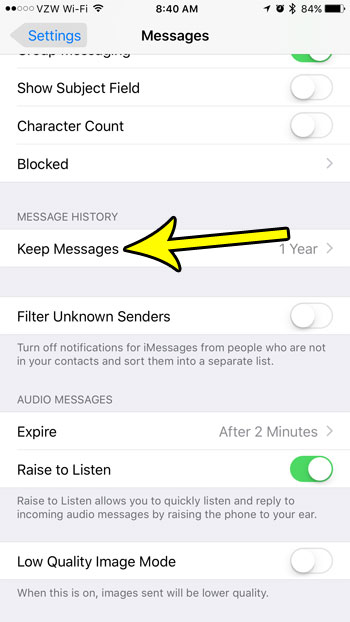
Older iOS version shown; the Messages settings screen has more options now. - Tap Forever. A check mark shows the option you picked.
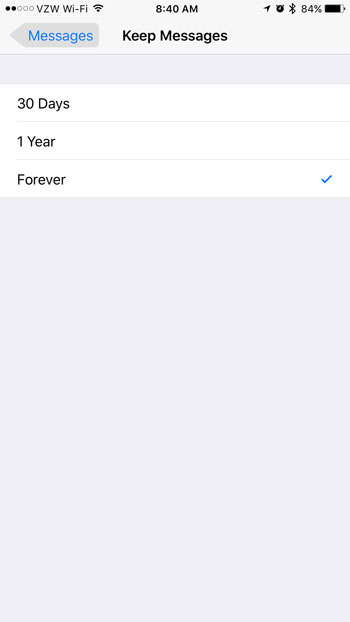
Older iOS version shown; current screens look different.
The change takes effect right away. Choosing Forever stops future automatic removal, but it does not bring back anything that was already removed. If conversations are missing now, go to the Recently Deleted section below before you do anything else.
What each Keep Messages option does
Keep Messages lets you keep messages for 30 days, for a year, or Forever (the iOS 10 screenshots above show the options as 30 Days, 1 Year and Forever). Apple explains that with any option other than Forever, your conversations, including all attachments, are removed automatically once the period passes. Apple ties the removal to the time period you choose; it does not describe removal based on free storage.
| Choice | What happens | Good fit for |
|---|---|---|
| 30 days | Conversations, including attachments, are removed automatically after 30 days | A phone with very little storage, or a work phone where old texts should not pile up |
| 1 year | Conversations, including attachments, are removed automatically after a year | People who want recent history but not a decade of photos |
| Forever | Nothing is removed until you delete it yourself | Anyone who looks back for addresses, receipts, codes or family photos |
Apple documents Keep Messages as a single setting and does not describe a separate period for one contact or group chat.
Warning before you shorten the period: Apple says conversations are removed automatically once the chosen period has passed, so messages already older than a shorter period you pick are at risk of removal. Apple does not say exactly when that happens. If a conversation matters to you, back up your iPhone or save the parts you need first. Two simple ways are to email text messages from your iPhone or to print a text conversation.
Messages already gone: check Recently Deleted
On iOS 16 and later, messages you delete go to a Recently Deleted list first. Apple’s support article says you can recover messages and conversations deleted within the last 30 to 40 days, while its iPhone User Guide says they stay in Recently Deleted for up to 30 days. Either way, act quickly.
- Open Messages and go to the conversations list.
- Tap the Filters button. On iOS 18, tap Edit instead. The button can look different on newer versions of iOS.
- Tap Recently Deleted.
- Select the conversations you want back, then tap Recover.
- Confirm by tapping Recover Message or Recover [Number] Messages.
If you do not see Recently Deleted, there may be nothing in it. Apple also notes that messages deleted before you updated to iOS 16 cannot be recovered this way. Apple’s page does not say whether messages removed by Keep Messages pass through Recently Deleted, so do not count on finding them there.
For older losses, the remaining option is restoring an iCloud or computer backup made before the messages disappeared. Restoring a backup can replace what is on your iPhone now, so newer messages and photos that are not in that backup can be lost. Only take that route if the missing conversation is worth more than what changed since the backup.
Audio messages that expire
Voice notes you record in Messages follow their own rule. By default, an audio message is deleted 2 minutes after you send it or listen to it, unless you tap Keep below it. That catches people out, because the text around it stays while the recording vanishes.
- Go to Settings > Apps > Messages.
- Under Audio Messages, tap Expire.
- Tap Never.
With Expire set to Never and Keep Messages set to Forever, audio messages stay in the conversation like everything else.
How Messages in iCloud fits in
Messages in iCloud keeps your conversations in step across your iPhone, iPad and Mac. Apple warns that when it is on, deleting a message or conversation on your iPhone deletes it from all your devices where Messages in iCloud is turned on. The reverse is also true, so a conversation deleted on a shared iPad or an old Mac signed in to your Apple Account can disappear from your iPhone.
If texts vanish and you did not delete them, check which devices are signed in with your Apple Account. Apple does not document how Keep Messages works across synced devices, so set Keep Messages to Forever on each iPhone, iPad and Mac that uses Messages in iCloud.
Messages in iCloud also counts against your iCloud storage. If that space is tight, see what is using your iCloud storage before you change anything.
Keep Forever without filling your iPhone
Forever means Messages keeps growing, and photos and videos take up far more room than text. You do not have to give up your history to save space. Instead, trim the heavy parts:
- Go to Settings > General > iPhone Storage and tap Messages. From there you can delete conversations and attachments you no longer need. Large videos and photos free the most space.
- Save photos you care about to the Photos app before deleting them from a conversation, so the picture survives even when the attachment goes.
- Delete whole conversations you will never need, such as delivery updates and verification codes, rather than shortening Keep Messages for everything.
To see how much room Messages uses right now, here is how to check iMessage and text message storage. If the whole phone is running low, these five ways to free up iPhone storage cover apps, photos, downloads and caches as well.
Message history questions
Does Forever also keep photos and videos?
Yes. Keep Messages applies to conversations including their attachments, so photos, videos and files stay until you delete them. Audio messages are the exception, since the Expire setting controls them separately.
Does my setting affect what the other person keeps?
No. Keep Messages only removes messages from your devices. The people you text keep their copies according to their own settings.
Why did my messages disappear after I set up a new iPhone?
A new or restored iPhone only has what was in the backup or in Messages in iCloud at the time. After setup, open Keep Messages and confirm that Forever is selected.
Can I get back messages deleted more than 40 days ago?
Not from Recently Deleted. The only route is a backup made before they were deleted, and restoring it can replace the current contents of your iPhone.
Apple’s page on deleting messages and attachments on iPhone lists the current Keep Messages options, and its article on recovering deleted text messages has the latest recovery steps. Once Forever is set, it is worth a quick look at Keep Messages after you set up a new or restored iPhone.

Kermit Matthews runs Live2Tech from just outside Philadelphia. He is an IT specialist with over 20 years of experience, from a university help desk to small-business IT, IT management and his own consulting practice, and has written tech guides full time since 2020. Steps are checked against the current software on a real device or the maker’s official documentation. More about Kermit.