An offline music library can easily fill several gigabytes of iPhone storage. The fastest full clean-up is Settings > Apps > Music > Downloaded Music, then Edit and remove All Songs. To remove a single song or album, touch and hold it in the Music app and tap Remove. One warning before you start: removing a download is not the same as deleting a song from your library. With Sync Library on, a library deletion reaches your other devices too.
Remove Download or Delete from Library?
The Music app offers two different kinds of delete, and they do different things.
| Remove Download | Delete from Library | |
|---|---|---|
| Frees space on this iPhone | Yes | Yes |
| Song stays in your library | Yes, and Apple Music songs can still be streamed while you’re online | No |
| Removed from playlists | No | Yes |
| Affects your other devices | No, only the iPhone you’re using | Yes, if Sync Library is turned on |
| Use it when | You only want the storage back | You never want to see the song again |
If your goal is storage, choose Remove Download. Delete from Library is for clearing out music you no longer want anywhere. Apple explains both options on its page about deleting music in the Apple Music app.
Delete all downloaded music at once
This route clears every downloaded song in one go, or lets you pick whole artists. Songs in your library stay listed for streaming if you use Apple Music with Sync Library.
- Open the Settings app.

Older iOS version shown; current screens look different. - Tap Apps, then Music. On older versions of iOS, Music is listed directly in Settings.
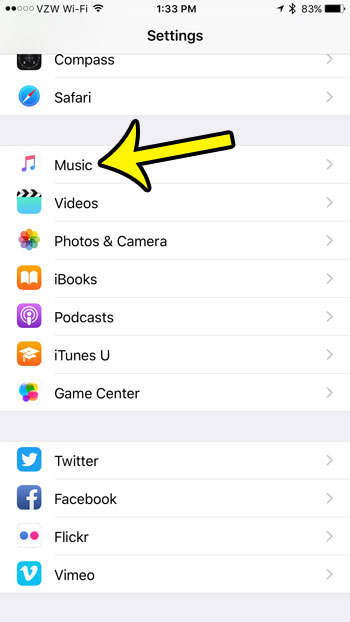
Older iOS version, where Music sat in the main Settings list. - Tap Downloaded Music. This screen lists the artists whose music is stored on the iPhone. On some iOS versions it also shows how much space your downloads use.

Older iOS version shown; the Downloaded Music row looks different now. - Tap Edit, then tap the red minus button next to All Songs, or next to just the artists you want to remove.

Older iOS version, where you swiped left on All Songs. - If a Delete button appears, tap it to confirm.
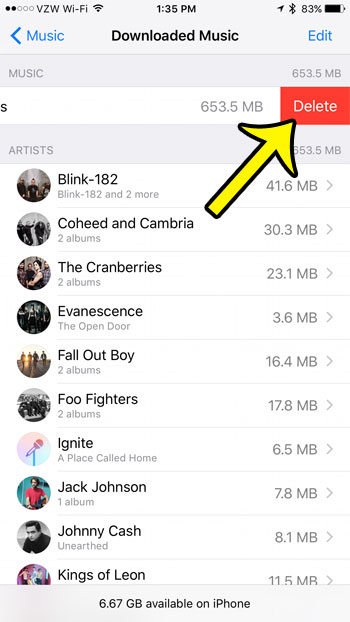
Older iOS version shown; current screens look different.
This only touches music downloaded through Apple’s Music app. Offline playlists in Spotify, Pandora or other music apps are managed inside those apps, the same way you’d delete stations in Pandora.
Delete one song, album or playlist download in the Music app
When you only want to trim a few items, work from the Music app itself.
- Open the Music app and go to the Library tab.
- Tap Downloaded to show only the music that’s actually stored on your iPhone. This saves you from hunting through songs that take no space.
- Find the song or album, then touch and hold it.
- Tap Remove.
- Tap Remove Download to free the space and keep it in your library, or tap Delete from Library to get rid of it completely.
Deleting a whole playlist is a separate job: here’s how to delete a playlist from the Music app.
Songs that stay in your library after you delete them
After Remove Download, a song can still appear in your library. That’s expected. With an Apple Music subscription and Sync Library on, Apple keeps catalog songs in your library so you can stream them while you’re connected to the internet. They no longer take up space on the iPhone, and you can download them again whenever you like.
In older versions of iOS, these streaming-only songs were marked with a small cloud icon. Instead of relying on icons, use the Downloaded view in your Library: if a song isn’t listed there, it isn’t using storage.
If you’d rather not see streaming songs at all, you can turn off Sync Library at Settings > Apps > Music. Apple says this removes Apple Music songs from that iPhone while they stay in your library on your other devices; music you bought or synced stays. Before you change it, read what happens when you turn off Sync Library (iCloud Music Library) on iPhone.
Music synced from a computer keeps coming back
Songs copied from a Mac or PC with a cable (or Wi-Fi sync) are controlled by that computer. Apple warns that music you delete on the iPhone might reappear the next time you sync. To remove it for good, change what the computer sends:
If you plan to redownload songs in better quality, first change the Apple Music audio quality on your iPhone so the new copies arrive in lossless.
- Connect the iPhone to the computer.
- On a Mac with macOS Catalina or later, open Finder and select your iPhone in the sidebar. On a Windows PC, open the Apple Devices app (or iTunes on older setups). On macOS Mojave or earlier, use iTunes.
- Go to the Music section.
- Either turn off Sync music onto your iPhone to stop syncing music entirely, or choose Selected artists, albums, genres, and playlists and clear the items you want gone.
- Click Apply (or Sync). The deselected music is removed from the iPhone during the sync.
Avoid any option that erases and syncs the whole device unless you mean to replace everything on it. If you use Apple Music or Sync Library, Finder may not show music syncing options at all, because your library comes from iCloud instead.
Let the iPhone remove music for you
If you’d rather not keep pruning by hand, turn on Settings > Apps > Music > Optimize Storage. When storage runs low, the iPhone automatically removes downloaded music you haven’t played in a while.
Downloaded podcasts count toward the same Media storage as music, so you can also choose how many podcast episodes your iPhone downloads.
On the same Music settings screen, check Automatic Downloads. If it’s on, songs you add to your library download automatically, which can quietly fill the space you just freed.
Getting deleted music back
- Apple Music songs: with an active subscription, find the song or album and tap the download button again.
- Songs you bought from the iTunes Store: you can download purchases again from your purchase history, as Apple describes in its redownload instructions linked from the delete-music page above.
- Music from a CD or a computer library: it only returns if it’s still on the computer and you sync it again.
Availability of Apple Music and iTunes Store content varies by country and region.
When deleting music doesn’t free space
- Check the number again. Close Settings, then reopen your iPhone storage to see the updated figure.
- The songs weren’t downloaded to begin with. Streaming-only songs use no storage, so deleting them changes nothing. Use the Downloaded view to find what’s really taking space.
- Remove isn’t offered. Music synced from a computer is handled through the sync steps above, not the Music app.
- Music isn’t the main problem. Other apps and files may be using more room; these ways to free up iPhone storage cover the other big items.
Before a big clean-up, it can help to take a screenshot of the screen listing your downloaded artists, so you have a record of what to download again later.
Deleting iPhone music: common questions
Will deleting music on my iPhone delete it from my Mac or iPad?
Remove Download only affects the iPhone you’re holding. Delete from Library also removes the music from your other devices when Sync Library is on, so use it with care if you share a library across devices.
Can I delete just one artist without touching the rest?
Yes. In Downloaded Music, tap Edit and use the minus button next to that artist only. Everything else stays downloaded.
How do I see how many songs I have before deleting?
The Library tab in the Music app lists your songs. There’s also a walkthrough on how to see how many songs are on your iPhone.
Why do deleted songs download again on their own?
Most often a computer sync is putting them back, as Apple warns. If Automatic Downloads is on, songs you add to your library again also download. Change your sync settings, or use Delete from Library for songs you don’t want at all.

Kermit Matthews runs Live2Tech from just outside Philadelphia. He is an IT specialist with over 20 years of experience, from a university help desk to small-business IT, IT management and his own consulting practice, and has written tech guides full time since 2020. Steps are checked against the current software on a real device or the maker’s official documentation. More about Kermit.