Most playlists end up with one track you skip every single time it comes on. To take it out in the Spotify app on your iPhone, open the playlist, tap Edit, then tap the remove icon next to the song. This works only on playlists you created or collaborate on; on a playlist you only follow, or one made by Spotify, you can hide the song instead.
Before you start: whose playlist is it?
The playlist’s owner decides what you can do with it, so check that first. The owner’s name sits under the playlist title near the top of the playlist screen.
| Playlist type | Can you remove songs? | What to do |
|---|---|---|
| A playlist you created | Yes | Use Edit (steps below) |
| A collaborative playlist you were invited to | Yes | Use Edit; the change applies for everyone |
| Someone else’s playlist you follow | No | Hide the song for yourself |
| A playlist made by Spotify | No | Hide the song for yourself |
| Liked Songs | Yes, in a different way | Remove the song from your saved songs |
You also need to be signed in to the account that owns or shares the playlist. If the playlist is missing from Your Library, you may be in the wrong account; signing out of Spotify on iPhone and back in with the right login usually sorts that out.
Remove a song from your own playlist on iPhone
Spotify’s help page for creating and editing playlists describes the mobile method as: on the playlist, tap Edit, then tap the remove icon to take tracks out. The screenshots below come from an older version of the app, so the buttons have moved, but the order of the steps is the same idea.
- Open the Spotify app on your iPhone.

Older version shown; current screens look different. - Tap Your Library in the menu bar. In older versions it was a tab at the bottom-right corner of the screen.

Older version shown; current screens look different. - If your library is long, use the filters at the top of Your Library to show only playlists.

Older version shown; current screens look different. - Tap the playlist that contains the song you want to remove.

Older version shown; current screens look different. - Tap Edit on the playlist screen. In older versions of the app, Edit sat inside the three-dot menu at the top-right corner, so tap the three dots first if you don’t see Edit.

Older version shown; current screens look different. 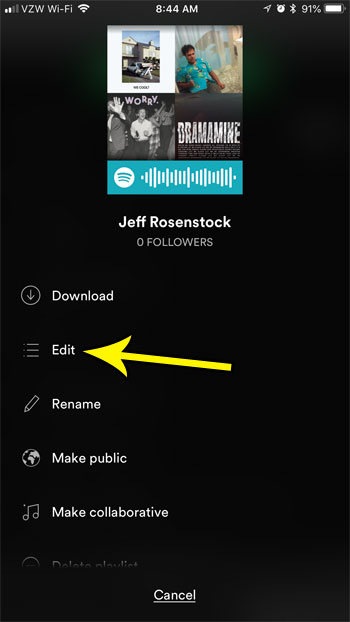
Older version shown; current screens look different. - Tap the remove icon next to the song. Older versions showed a red circle to the left of each track.

Older version shown; current screens look different. - If the app asks you to confirm, tap the confirmation button. Older versions showed a Delete button at this point; Spotify’s current help doesn’t mention a confirmation, so you may not see one.
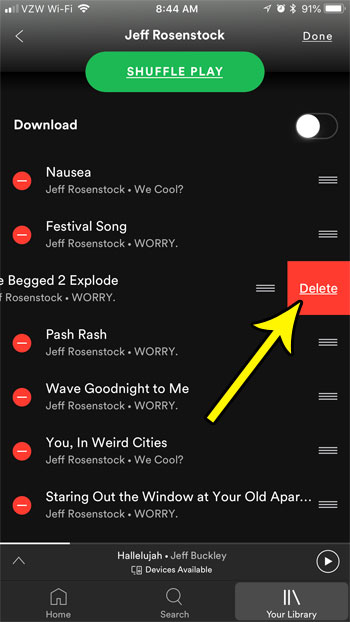
Older version shown; current screens look different. - When you’ve finished, leave the edit view. Older versions used a Done button at the top-right corner.
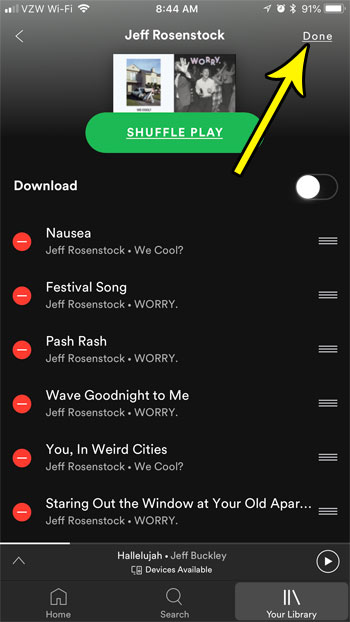
Older version shown; current screens look different.
Removing a song takes it out of that playlist only; the song itself stays on Spotify.
The three-dot menu next to a song
Each track also has a three-dot button beside it. On desktop, Spotify documents a Remove from this Playlist option in that menu. On iPhone, Spotify’s help only describes the Edit method, so if the per-song menu in your version offers a remove option, it’s a quick way to take out a single track; if it doesn’t, use Edit.
Take out several songs in one pass
Edit mode is the efficient way to clean up a bigger playlist: once you’re in it, you can tap the remove icon on as many tracks as you like.
Edit mode is also where you reorder tracks by touching, holding and dragging them. Spotify marks reordering on mobile as Premium only, but its help page doesn’t mark removing songs that way. While you’re tidying up, you may also want to rename the Spotify playlist so it matches what’s left in it.
Playlists you don’t own: hide the song instead
You can’t remove tracks from a playlist made by Spotify or by another user. What you can do is hide a song so it’s skipped for you. According to Spotify’s page on hiding and unhiding songs:
- Open the playlist.
- Tap the three-dot icon next to the song you want to skip.
- Tap Hide this song.
The song stays in the playlist but appears grayed out and doesn’t play. Nobody else’s copy of the playlist changes. To bring it back, open the same menu and tap Show in this playlist. Spotify notes that if it’s your own playlist, you can remove the song instead.
When a playlist is made Collaborative, Spotify lets every collaborator add, remove and reorder tracks. Spotify doesn’t describe a separate removal screen for collaborators, so use the same Edit steps as above. Keep in mind that a removal changes the playlist for the whole group, so for a shared party or road-trip playlist it’s polite to mention it first.
Two related situations work differently:
- A public playlist is visible to others, but only you (and any collaborators) can change it. More on that setting is in how to make a Spotify playlist public on iPhone.
- A collaborator you want out: the playlist owner can select Remove as collaborator, which is a different action from removing a song.
Liked Songs works differently
Liked Songs is the automatic playlist of everything you’ve saved. Spotify’s Your Library help page says you find it under Playlists in Your Library, and that you save a song to it with the save icon. Spotify’s help doesn’t describe a separate way to remove a song from Liked Songs; tapping the same save icon on a saved song (it shows as filled in) is the place to look.
Remove a song on the Spotify desktop app
On a computer, the Spotify desktop app uses a menu instead of an edit mode. Spotify documents it like this:
- Open the playlist.
- Right-click the song, or click the three dots next to it.
- Select Remove from this Playlist.
The playlist is the same one you see on your iPhone.
If the remove option is missing or the song comes back
- No Edit button or remove option: the playlist probably isn’t yours. Check the owner name under the title, and use Hide this song if you only follow it.
- The song keeps playing after the playlist ends: that’s usually Autoplay adding similar tracks, not your playlist. You can turn off Autoplay in the Spotify app.
- The song is still listed on another device: close the Spotify app fully and reopen it, check for an app update in the App Store, and confirm both devices use the same account.
- You see suggested songs under the playlist: Spotify shows Recommended Songs at the bottom of each playlist you create. These aren’t part of it unless you add them.
Spotify playlist questions
Can I undo removing a song?
Spotify’s help doesn’t describe an undo for removed tracks on iPhone. The reliable fix is to add the song back: find it, tap the three dots next to it, tap Add to Playlist, pick the playlist and tap Done. If you deleted the whole playlist by mistake, that’s different: Spotify’s page on recovering playlists says deleted playlists can be restored within 90 days.
What happens to a downloaded playlist?
On iPhone you download whole playlists rather than single songs, as Spotify’s offline listening page explains. Spotify doesn’t say what happens to the stored copy of a song you remove from a downloaded playlist. If downloads over mobile data are a concern, see how to disable cellular downloads in Spotify.
Does removing a song tell the artist or the playlist’s followers?
Spotify doesn’t document any notification for a removed track. Followers of a public playlist, and collaborators on a shared one, will simply see the updated list.
I meant to delete a playlist in Apple Music, not Spotify
The Music app has its own steps. See how to delete a playlist from the iPhone Music app.
Once the playlist sounds the way you want, play it through once on shuffle. If a song you skip still turns up, check whether it’s coming from Autoplay or Recommended Songs rather than the playlist itself.

Kermit Matthews runs Live2Tech from just outside Philadelphia. He is an IT specialist with over 20 years of experience, from a university help desk to small-business IT, IT management and his own consulting practice, and has written tech guides full time since 2020. Steps are checked against the current software on a real device or the maker’s official documentation. More about Kermit.