In Spotify on iPhone, tap your profile picture, then Settings and privacy > Data-saving and offline, and turn off Downloads over cellular (older versions of the app called it Download Using Cellular). That switch only covers downloads: Spotify still streams over cellular unless you also turn Spotify off in the iPhone’s own Settings > Cellular list.
What the Downloads over cellular switch controls
Spotify can save albums, playlists and podcasts to your iPhone so they play without a connection. The Downloads over cellular switch decides whether those downloads may run when you’re on cellular data instead of Wi-Fi.
- Switch off: downloads wait for Wi-Fi. Spotify says this is the default, to save mobile data.
- Switch on: downloads continue on cellular, which can use a lot of your plan if you download long playlists away from home.
- Not affected: streaming. Songs and podcasts you play without downloading still use cellular data when there’s no Wi-Fi. Spotify’s own help notes that if you don’t have Wi-Fi, the app uses your mobile data.
So if you never turned cellular downloads on, the switch is probably already off, and Spotify’s cellular use most likely comes from streaming. The sections below cover both cases.
Turn off Downloads over cellular in Spotify
These steps follow Spotify’s current help for the iPhone app. The screenshots in this section come from an older version of Spotify, so the current screens look different.
- Open the Spotify app.

- Tap your profile picture at the top of the screen.
- Tap Settings and privacy.
- Tap Data-saving and offline.
- Under Downloads and streaming, turn off Downloads over cellular. The older screen below shows the same switch under its former name.
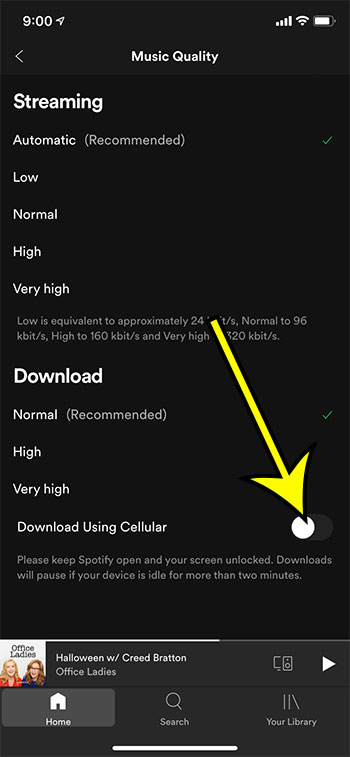
With the switch off, new downloads wait until the iPhone is on Wi-Fi. Spotify’s Listen offline help page describes the same path from the turning-on side.
Block all Spotify cellular data in iPhone Settings
If the goal is for Spotify to use no cellular data at all, the iPhone’s per-app switch is the reliable tool, because it applies to streaming, downloads and everything else the app does.
- Open the Settings app.
- Tap Cellular.
- Scroll down to the list of apps and services.
- Turn off the switch next to Spotify.
Apple’s cellular data settings guide explains that when cellular data is off for an app, the iPhone uses only Wi-Fi for it. The same screen has Show All, which shows how much data each app has used, a handy way to see whether Spotify is actually the app eating your plan. This switch lives in the same place for every app, which is also how you stop Netflix from using cellular data.
The trade-off: with Spotify blocked on cellular, away from Wi-Fi Spotify can only play what you’ve already downloaded. That makes the next section important.
Download on Wi-Fi, then listen with Offline mode
The usual plan for saving data is to download at home, then listen anywhere.
- While on Wi-Fi, open the album, playlist or podcast you want.
- Tap the download icon. Spotify can’t download single songs, so add loose tracks to a playlist and download the playlist.
- Wait for the download to finish. Downloads appear in Your Library under Downloaded.
- When you leave Wi-Fi, go to profile picture > Settings and privacy > Data-saving and offline and turn on Offline mode if you want Spotify to stay off the network.
In Offline mode, Spotify greys out anything you haven’t downloaded, so you can see at a glance what will play. Downloads also play automatically when you lose your internet connection, even without Offline mode.
Download limits worth knowing
- Premium accounts can download albums, playlists and podcasts. Free accounts can download podcasts only.
- Spotify allows up to 10,000 tracks on each of up to 5 devices.
- You need to go online at least once every 30 days to keep your downloads.
- To clear space, Data-saving and offline has a Storage section with Remove all downloads.
Other settings that cut Spotify’s data use
Two more Spotify settings affect data, and they are different from the download switch:
- Data saver, also under Data-saving and offline, reduces data use by showing fewer images and lowering audio quality. The steps are in turning on Data Saver in Spotify.
- Media Quality, under Settings and privacy, sets streaming quality separately for Wi-Fi and cellular, plus a separate download quality and an Auto-adjust switch. Spotify’s audio quality page notes that higher quality uses more data, and higher download quality takes more storage.
Spotify’s data tips also suggest turning Autoplay off, since Autoplay keeps music playing after what you selected has finished. Here is how to turn off autoplay in Spotify.
Earlier versions of the Spotify app used a gear icon on the Home tab instead of the profile picture, and put the switch in a Music Quality menu labeled Download Using Cellular.


These two screenshots show that older layout. If your app still looks like this, update Spotify from the App Store; current versions use the Settings and privacy path above. The iPhone part (Settings > Cellular > Spotify) works the same way it did then.
Turn cellular downloads back on
Repeat the steps and turn Downloads over cellular on. If you blocked Spotify in iPhone Settings, turn its switch back on under Settings > Cellular as well, or the app still can’t use cellular data at all. A useful middle ground is to leave downloads on Wi-Fi only and lower cellular streaming quality in Media Quality.
Spotify downloads and cellular data
Do I need Premium for this?
On a free account Spotify only lets you download podcasts, so the switch matters most on Premium, where albums and playlists can be downloaded too.
Will turning off the iPhone switch delete my downloads?
Neither Apple’s nor Spotify’s help says it does. Spotify does say you need to go online at least once every 30 days to keep your downloads.
Once downloads are set to Wi-Fi only, keep your saved playlists lean by learning how to take a song off a Spotify playlist, and if alerts from the app get in the way while you listen, you can turn off or customize Spotify notifications.

Kermit Matthews runs Live2Tech from just outside Philadelphia. He is an IT specialist with over 20 years of experience, from a university help desk to small-business IT, IT management and his own consulting practice, and has written tech guides full time since 2020. Steps are checked against the current software on a real device or the maker’s official documentation. More about Kermit.